Update KB5022845 brought new features to Windows 11 version 22H2 in early 2023, such as a customizable Start menu layout and folders for pinned apps. Those features are still in Windows 11. Version 22H2 itself, however, is out of support and no longer gets security updates, so update to a recent version of Windows 11. Here is how to use the features and check your version.
Which version do you have?
- Press Windows + R, type winver and press Enter.
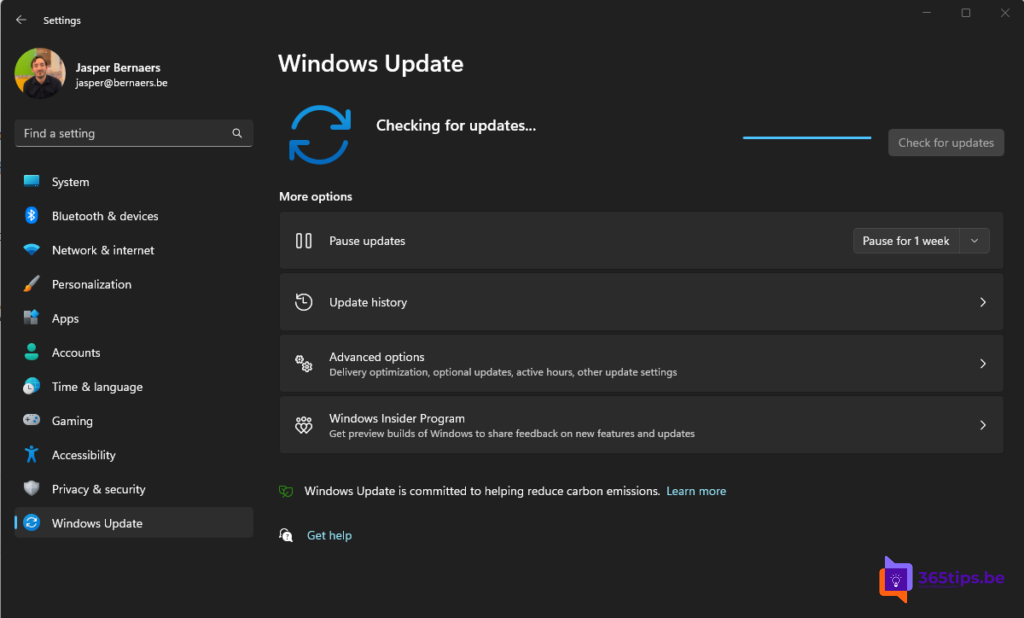
- Still on 22H2? Go to Settings > Windows Update and install the latest version.
On a work PC your IT department usually manages upgrades centrally.
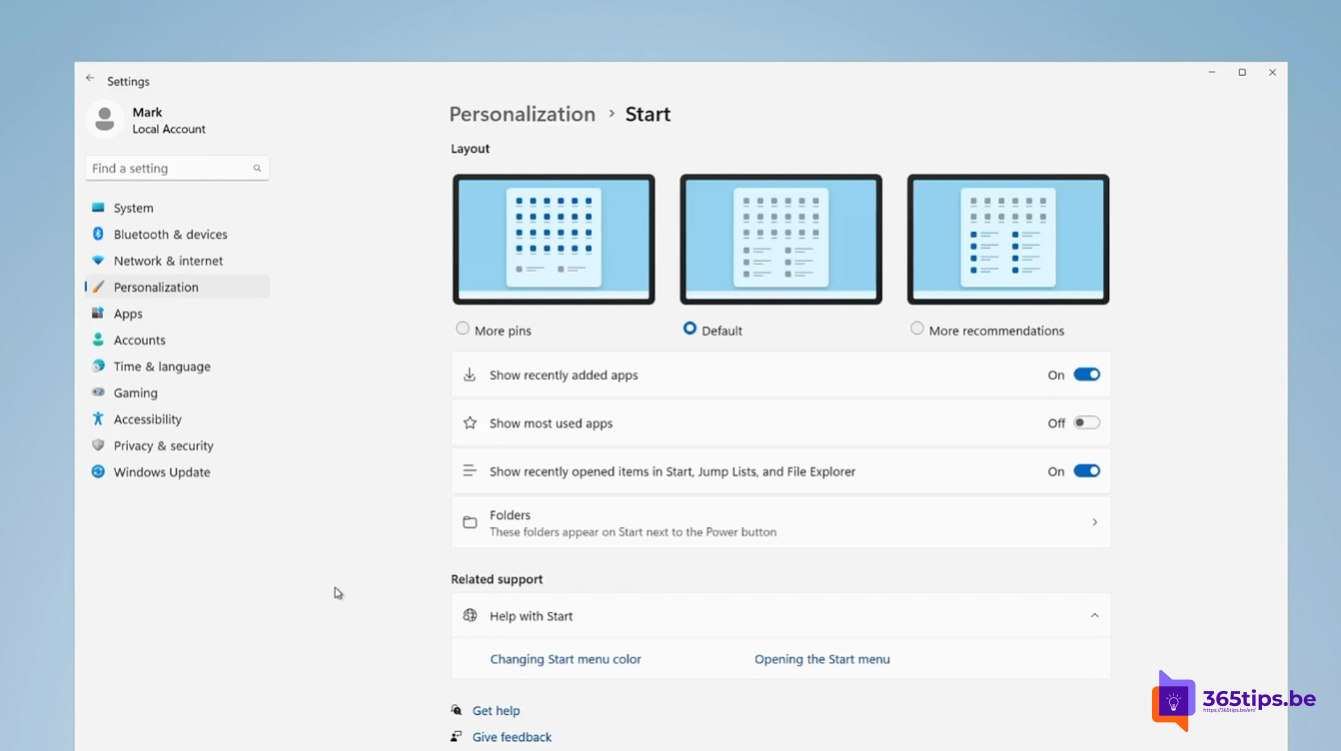
Choose the Start menu layout
- Go to Settings > Personalization > Start.
- Choose a layout, such as More pins, Default or More recommendations.
- Open the Start menu to see the result.
Microsoft regularly changes the Start menu. In recent versions these options may be named or work differently.

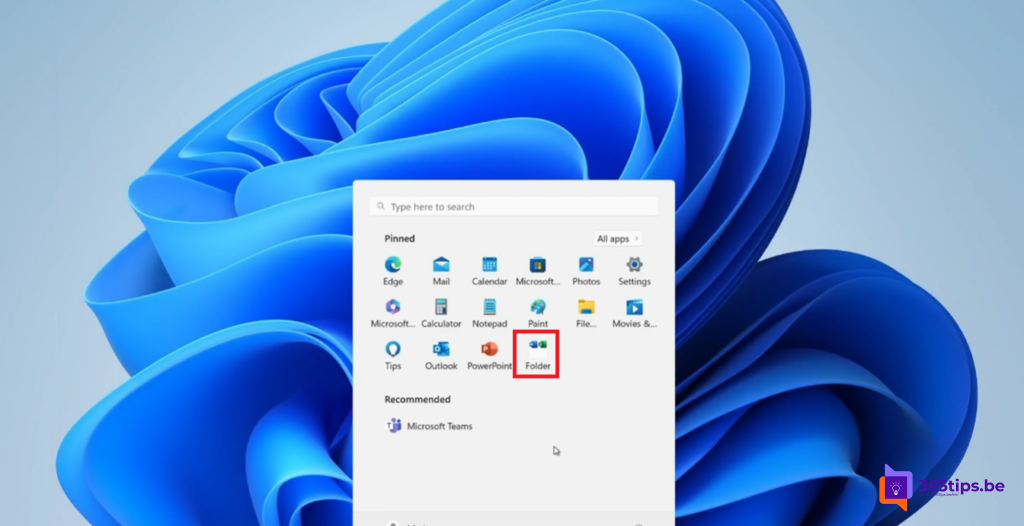
Create folders in the Start menu
- Open the Start menu.
- Drag a pinned app, such as Excel, onto another app, such as Word.
- A folder with both apps appears. Click it and give the folder a name, for example Office apps.
- Want an app out of the folder? Just drag it back out.
Also see customize the Windows 11 Start menu and the Windows 11 Installation Assistant.
Read also
How to customize the Windows 11 Start menu: left, without Recommended or like Windows 10
Upgrade from Windows 10 to Windows 11 with the Installation Assistant
How to pause or delay Windows 11 updates and prevent restarts
Nederlandstalige versie: Windows 11 22H2 buiten ondersteuning: bijwerken en de Startmenu-functies gebruiken