New laptop, and all your favorites, saved passwords and extensions are gone? Not if you turn on sync in Microsoft Edge. Your browser data is then stored safely in your account and appears on every PC, Mac or phone where you sign in. This article shows how to turn on sync, what gets synced, how safe your passwords are and how to move your data over from Chrome.
Turn on sync
- Select your profile picture at the top right in Edge.
- Sign in with your Microsoft account (personal) or your work or school account.
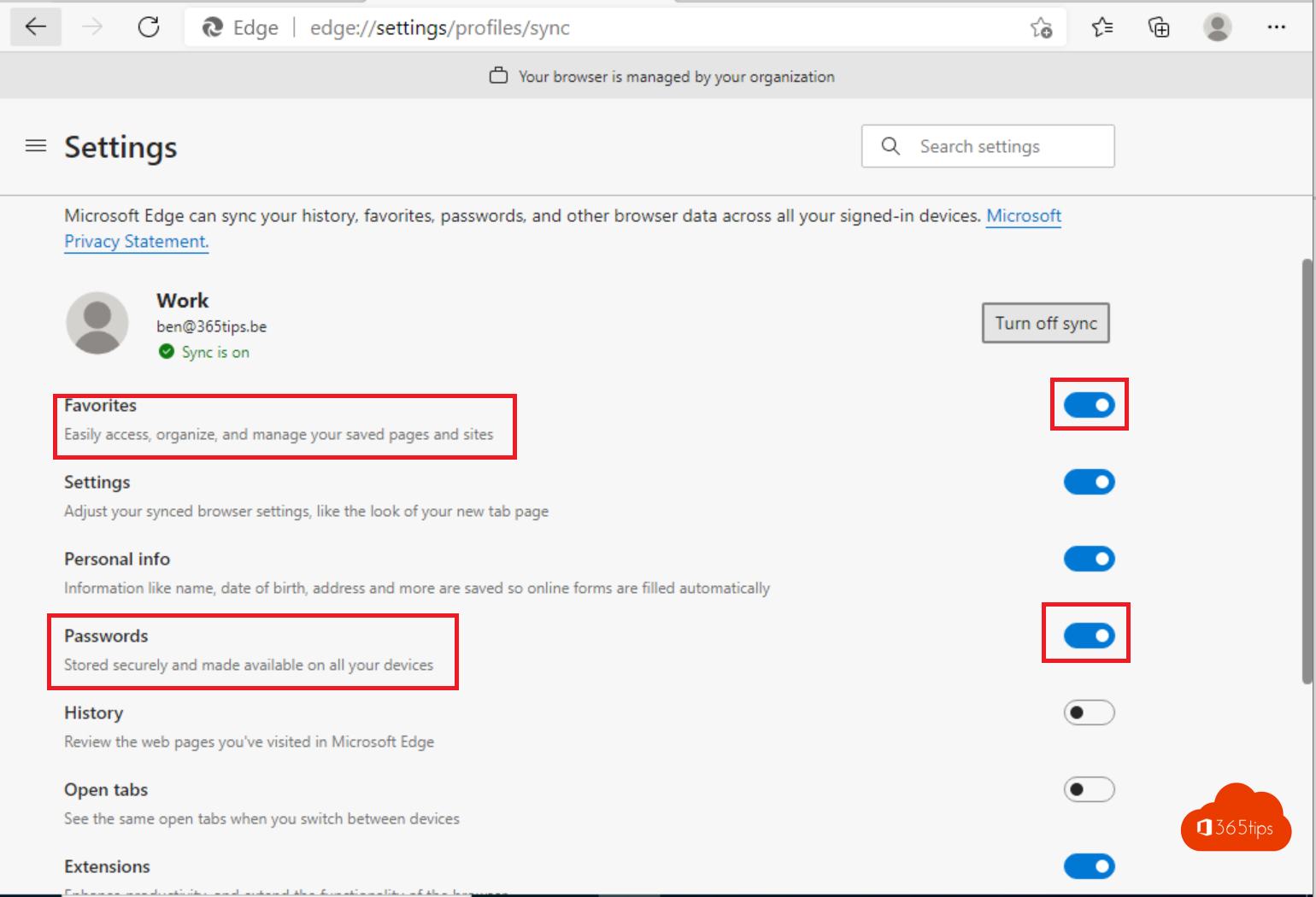
- Go to Settings > Profiles > Sync and select Turn on sync.
- Choose per item what to sync.

What gets synced?
| Item | What |
|---|---|
| Favorites | Your bookmarks and folders |
| Passwords | Saved sign-in details, encrypted |
| Settings | Start page, search engine, privacy settings |
| Addresses and more | Data for filling in forms automatically |
| History and open tabs | What you visited, and tabs on your other devices |
| Extensions and collections | Your extensions and saved collections |
| Payment info | Card details; only if you explicitly allow it |
How safe are your passwords?
Edge encrypts saved passwords before syncing them. To view them you must enter your Windows PIN, fingerprint or password. The password manager (Settings > Profiles > Passwords) also shows password health: reused and weak passwords, and passwords found in a data breach. Change those straight away. Where possible, use a passkey instead of a password.
Switching from Chrome
- In Edge, go to Settings > Profiles > Import browser data.
- Choose Google Chrome and check favorites, passwords, history and extensions.
- Select Import. The data is then synced along with the rest.
Keep personal and work separate
Create a separate profile in Edge for work and for personal use (select your profile picture > Add profile). Each profile has its own favorites, passwords and history. With a work profile you're signed in to Microsoft 365 sites automatically. Your organization can manage or limit sync for the work profile; on a managed PC some items may be locked.
Sync doesn't work
- Check Profiles > Sync for an error message, and select Reset sync if prompted.
- Sign in with the same account on both devices.
- With a work account, your admin may have turned sync off.
Read also
Enable passwordless sign-in in Microsoft 365 in 3 steps
How to remove a device from your Microsoft account or Microsoft 365 account
Disable the "Stay signed in?" prompt in Microsoft 365
Nederlandstalige versie: Wachtwoorden, favorieten en instellingen synchroniseren in Microsoft Edge