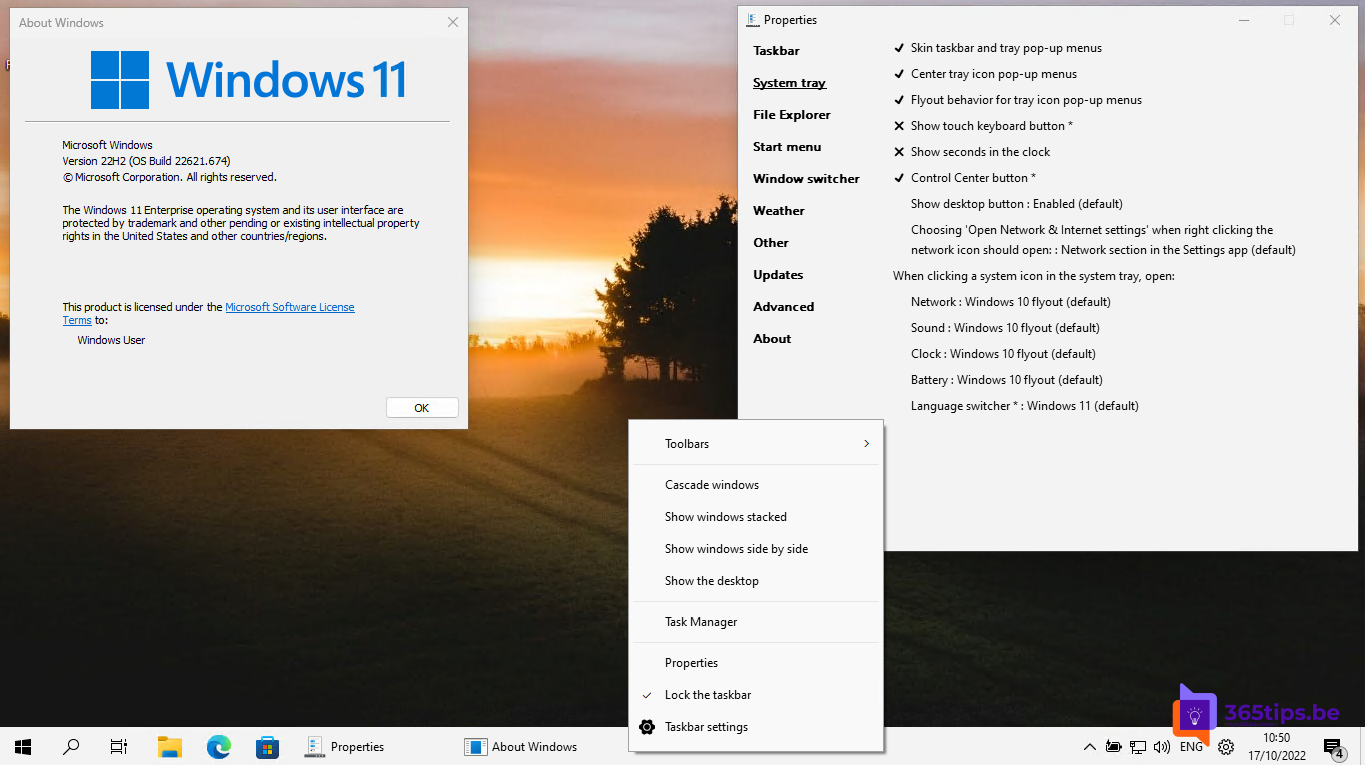
By default, Windows 11 groups all windows of the same app under one taskbar button, without a label. With three Excel files open, you see one green icon. If you'd rather see each window separately with its title, turn off combining taskbar buttons. This article shows how.
Stop combining taskbar buttons
- Right-click the taskbar > Taskbar settings. Or go to Settings > Personalization > Taskbar.
- Open Taskbar behaviors.
- Under Combine taskbar buttons and hide labels, choose Never.
Each window now gets its own button with the name of the document or website.

The three options
- Always: one button per app, no labels (the default).
- When taskbar is full: separate buttons with labels until space runs out.
- Never: always separate buttons with labels.
When taskbar is full is often the best compromise on a laptop with a small screen.
On multiple monitors
Using a second screen? There's a separate setting below it, Combine taskbar buttons and hide labels on other taskbars. Also tick Show my taskbar on all displays if you want a taskbar on every screen.

Don't see the option?
Install the latest updates through Settings > Windows Update. On a work laptop, IT may lock the taskbar with a policy. Third-party tools are no longer needed for this.
More taskbar settings
- Under Taskbar alignment, put the buttons on the left instead of in the centre.
- Hide items you don't use, such as Widgets or Search.
- See also customise the Start menu and the classic right-click menu.
Read also
How to customize the Windows 11 Start menu: left, without Recommended or like Windows 10
How to get the full (classic) right-click menu back in Windows 11
How to put windows side by side in Windows 11 with Snap
Nederlandstalige versie: Taakbalkknoppen niet meer combineren in Windows 11