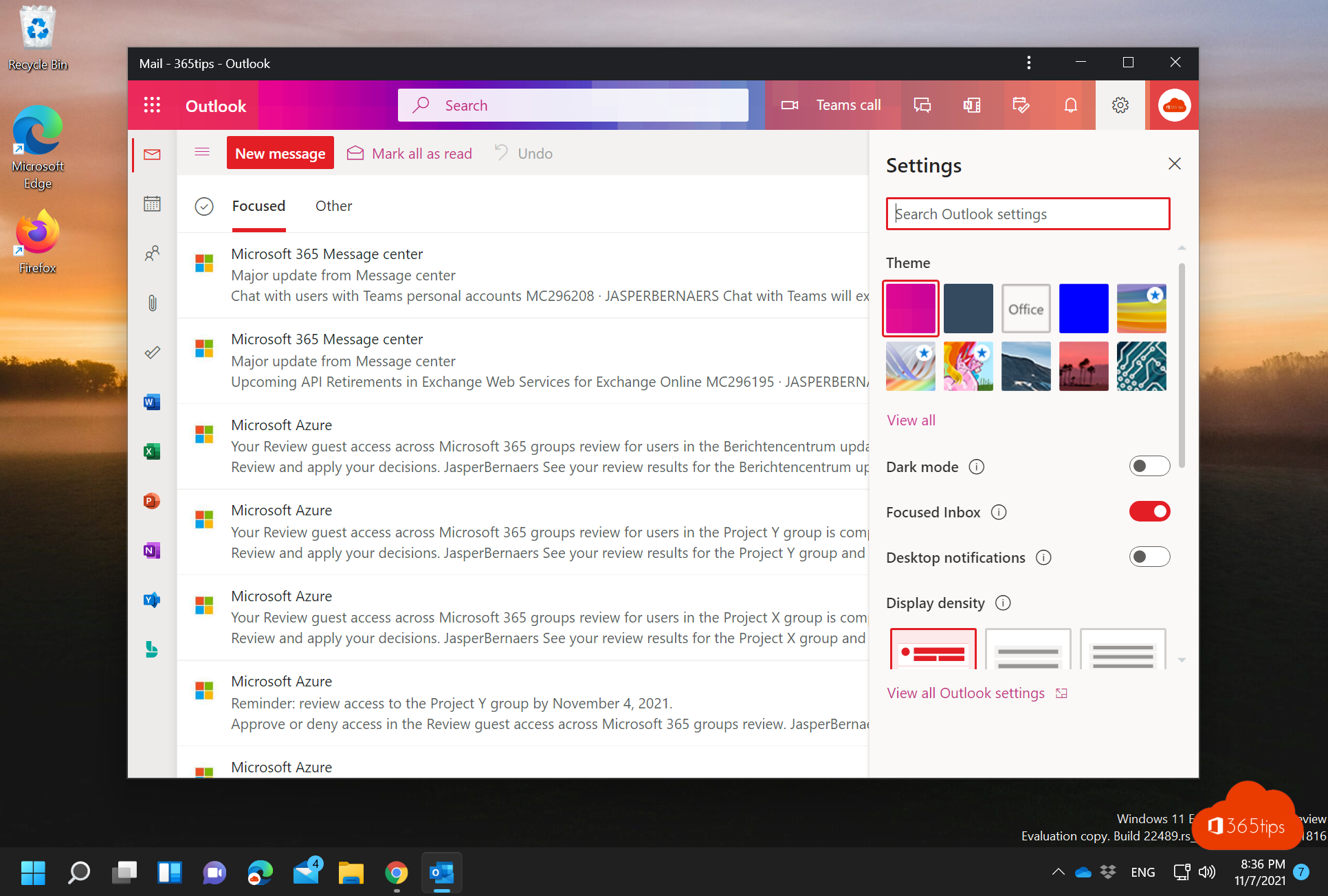
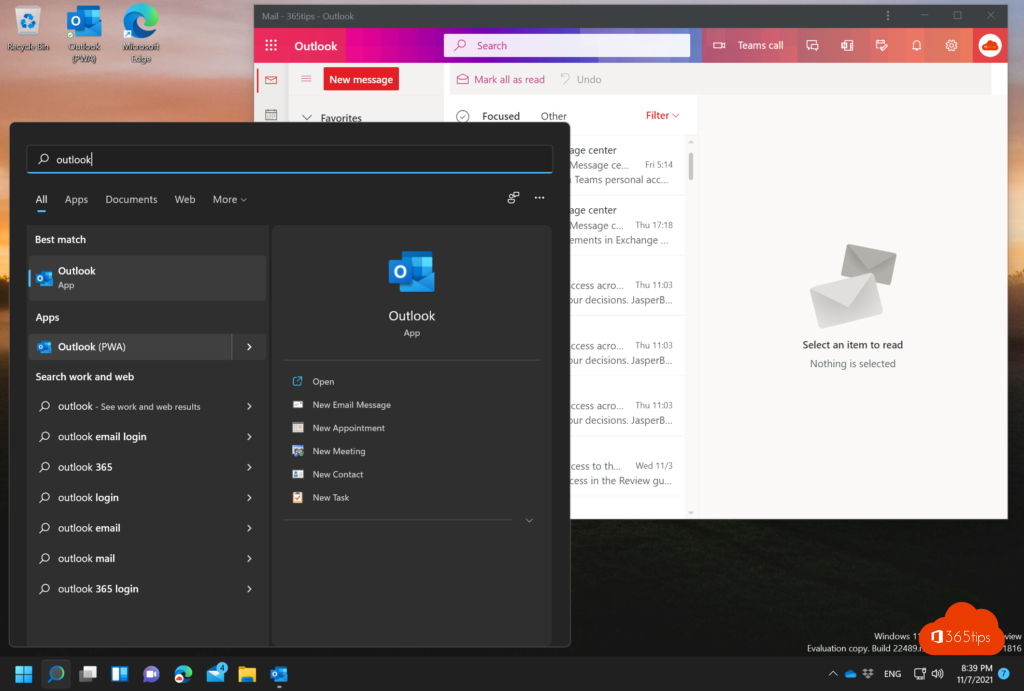
If you use Outlook on the web, you can install it as an app (a PWA). Outlook then opens in its own window, with its own taskbar icon and notifications, without an address bar or tabs. This works in Microsoft Edge and Google Chrome.
Install in Microsoft Edge
- Go to outlook.office.com and sign in.
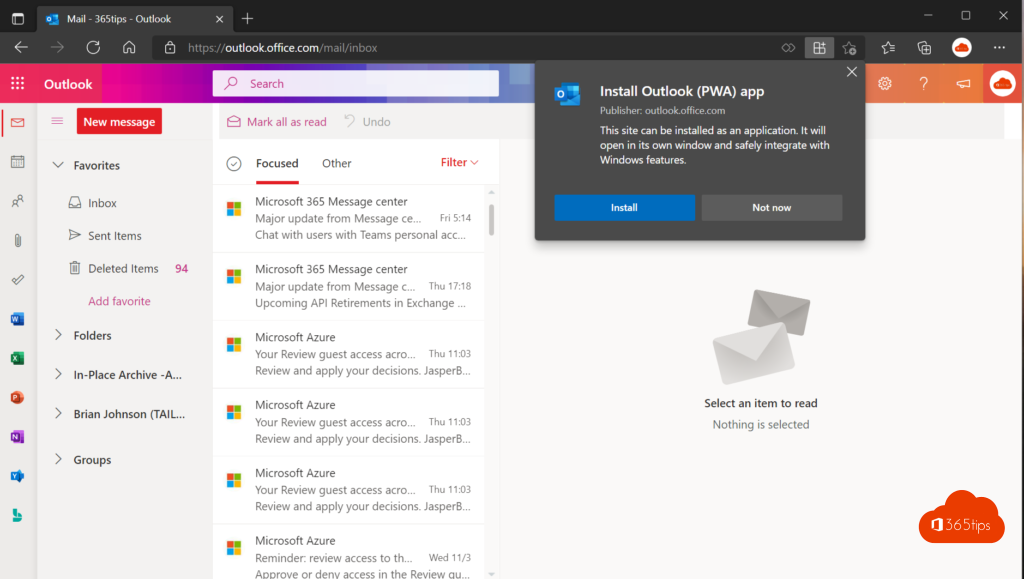
- Select the app icon on the right of the address bar, or go to Settings and more (...) > Apps > Install this site as an app.
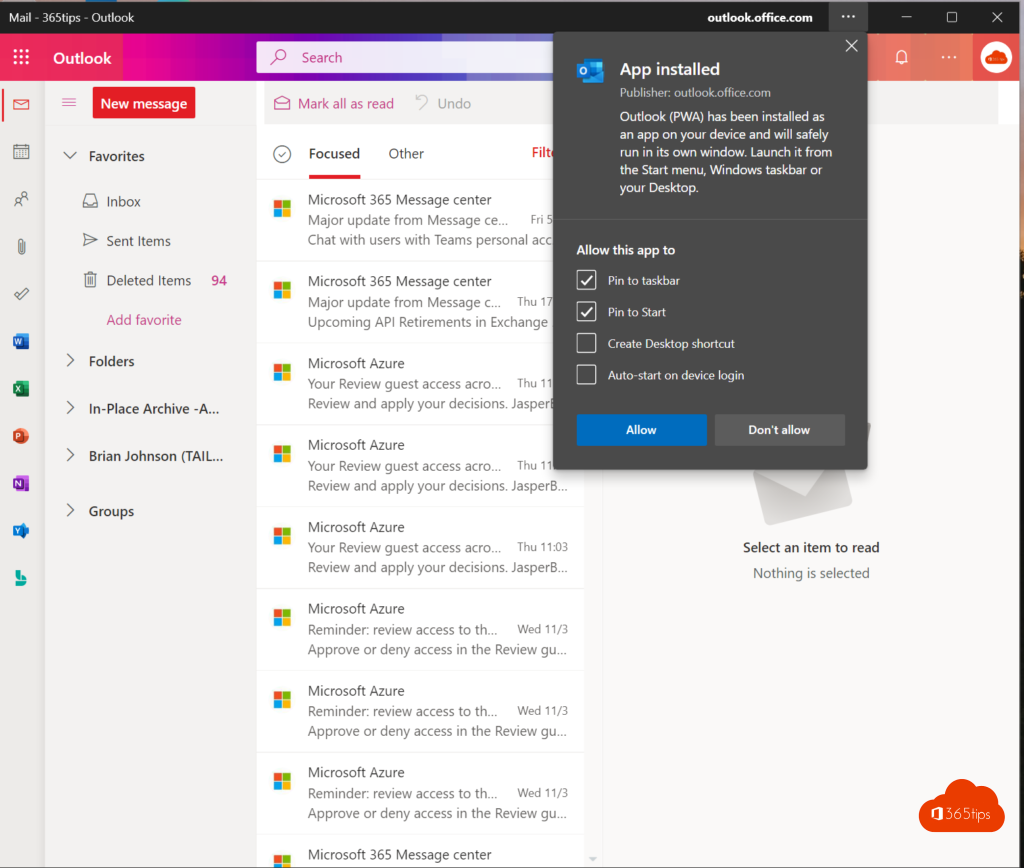
- Select Install. Then choose whether to pin Outlook to the taskbar or Start menu.
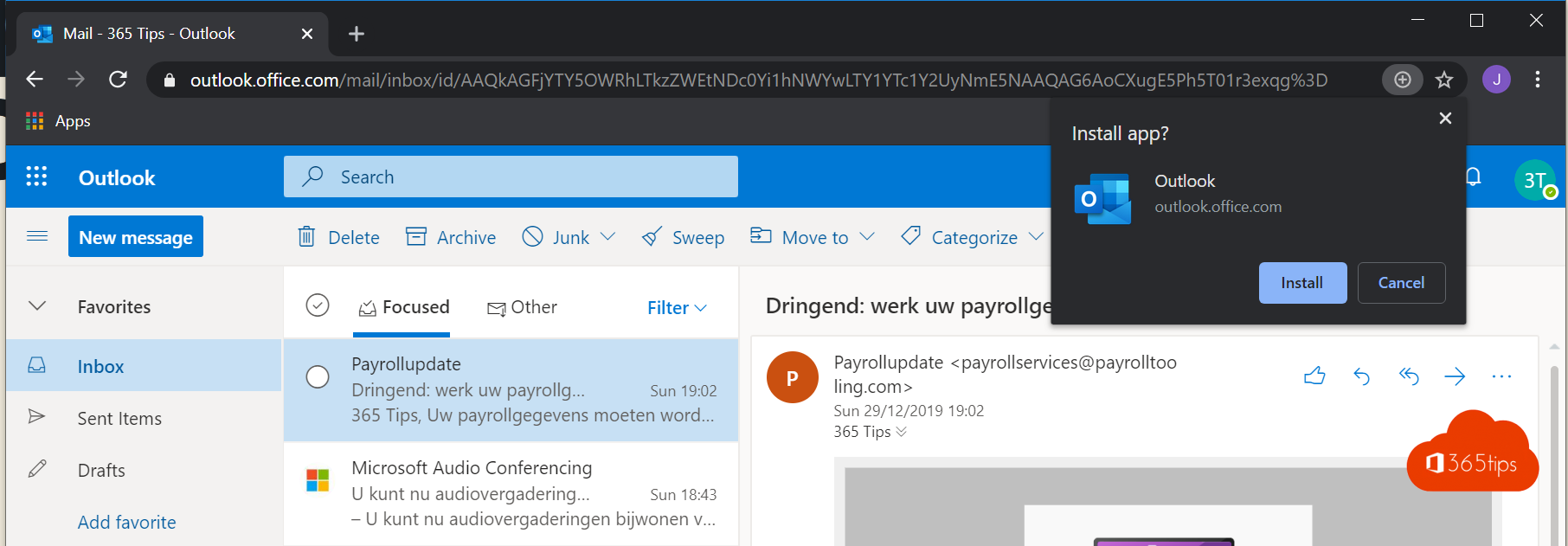
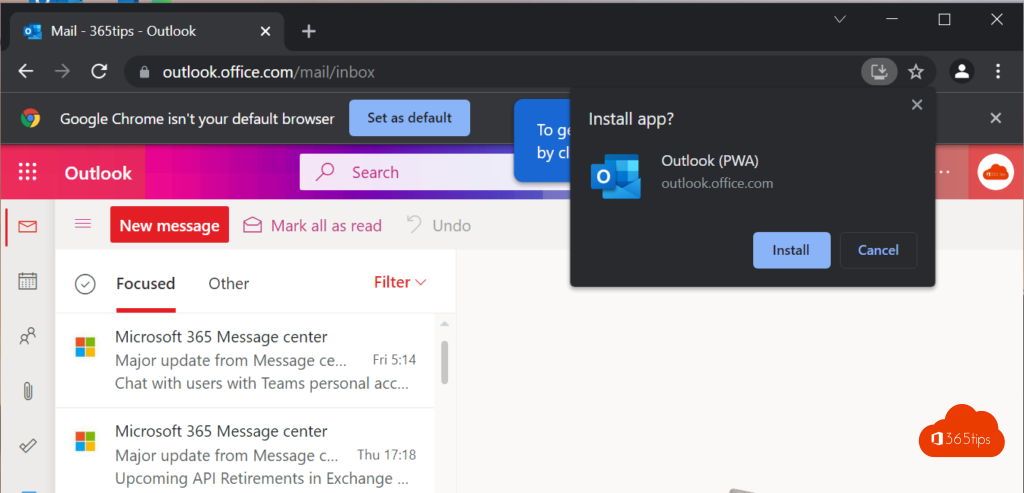
Install in Google Chrome
- Go to outlook.office.com and sign in.
- Select the install icon on the right of the address bar, or go to the menu (⋮) > Cast, save, and share > Install page as app.
- Select Install.
Remove the app
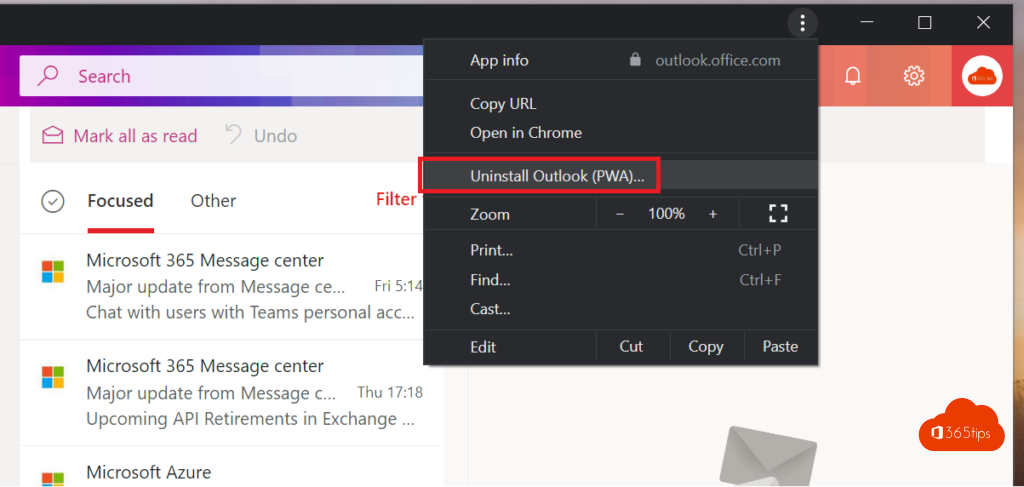
Open the Outlook app, select the three dots at the top and choose Uninstall. You can also remove it under Settings > Apps in Windows.
Tip
Turn on desktop notifications in Outlook on the web, so you also see new emails when the window is in the background. For other web apps, see create a website shortcut with Edge.
Read also
Turn on desktop notifications in Outlook on the web
Create a shortcut to a website on the desktop or taskbar
Turn on dark mode in Outlook on the web, Windows and mobile
Nederlandstalige versie: Outlook op het web installeren als app in Edge of Chrome