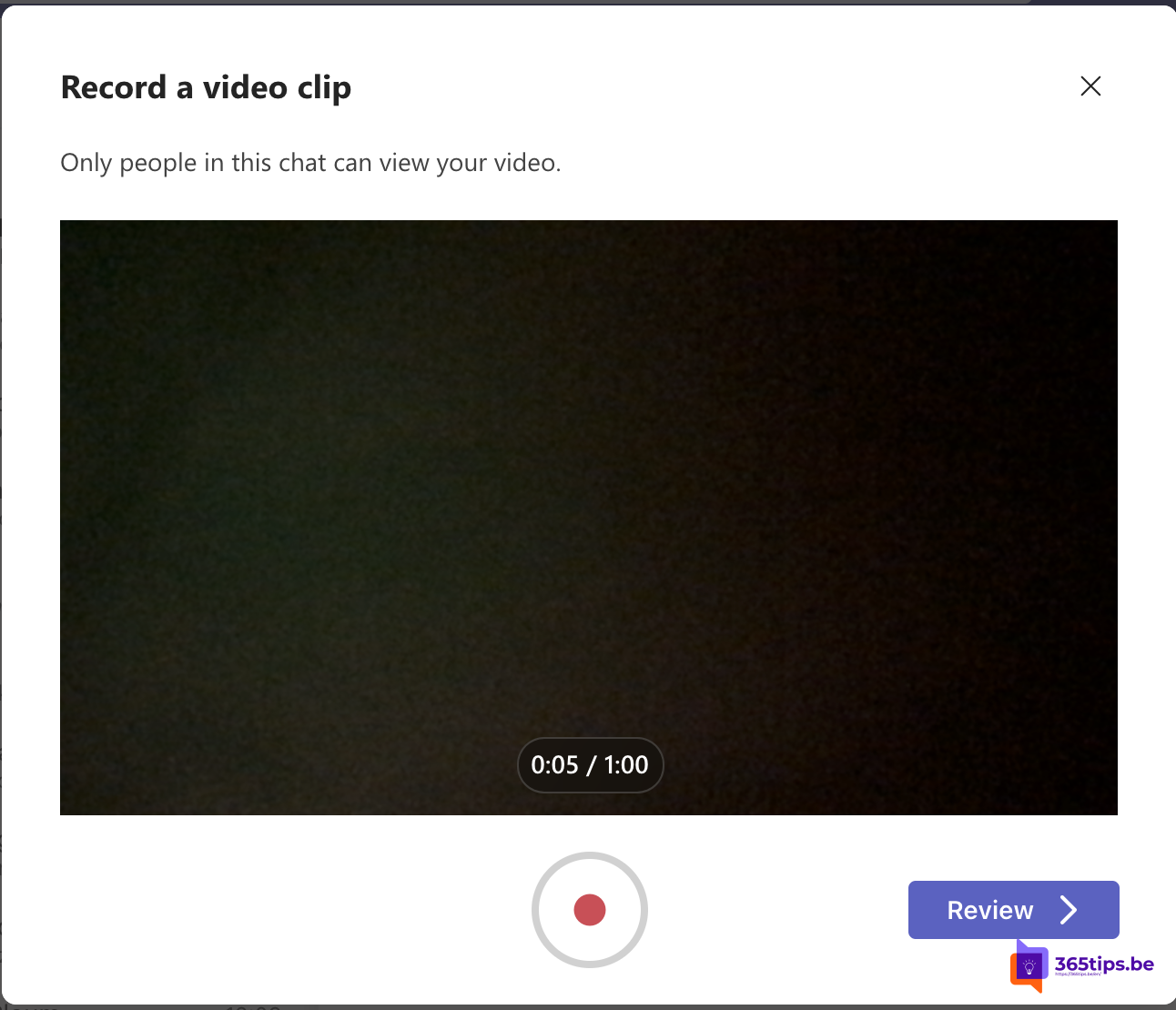
Sometimes explaining something in a short video is faster than typing a long message. In a Microsoft Teams chat you can record and send a video clip, just like a video message in WhatsApp. Your colleague watches it when it suits them. Video clips are still available in the new Teams; the button now sits among the extra compose options and its location can differ per version.
Record a video clip
- Open a chat with a colleague or a group chat.
- Below or next to the compose box, click Actions and apps (the plus sign) and choose Record video clip. In some versions the camera icon sits directly by the compose box.
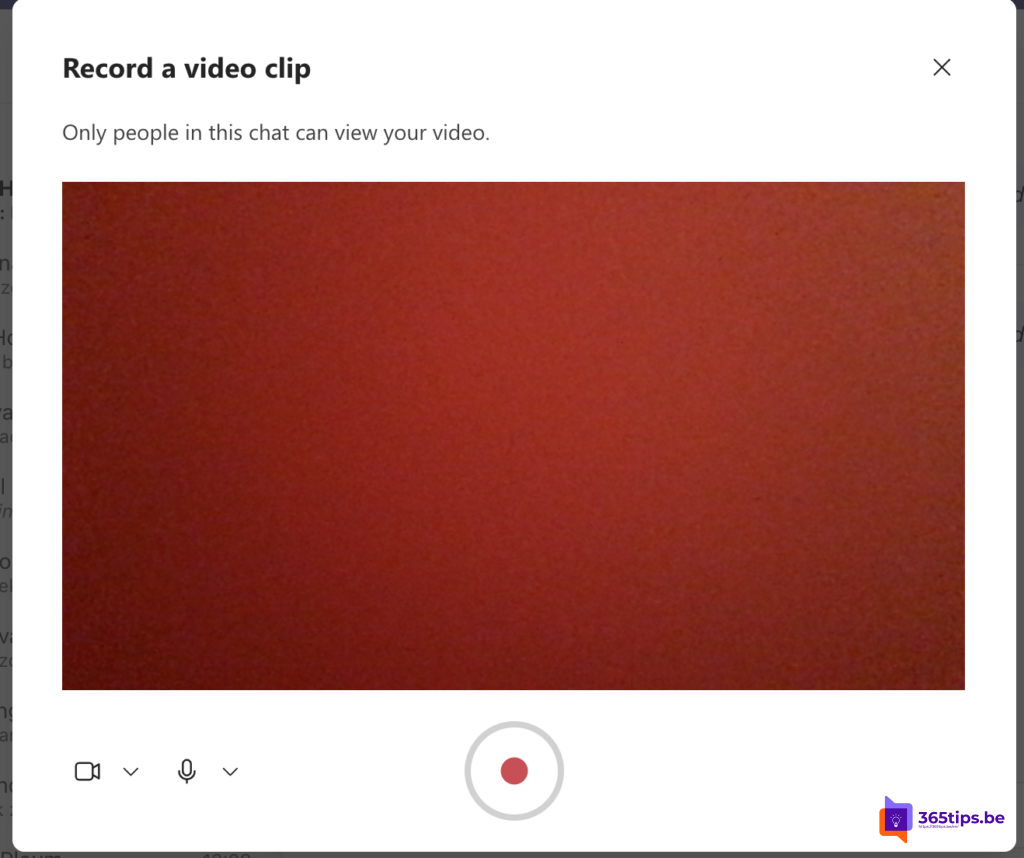
- Choose whether to record your camera, your screen or both. You can also use a background effect.
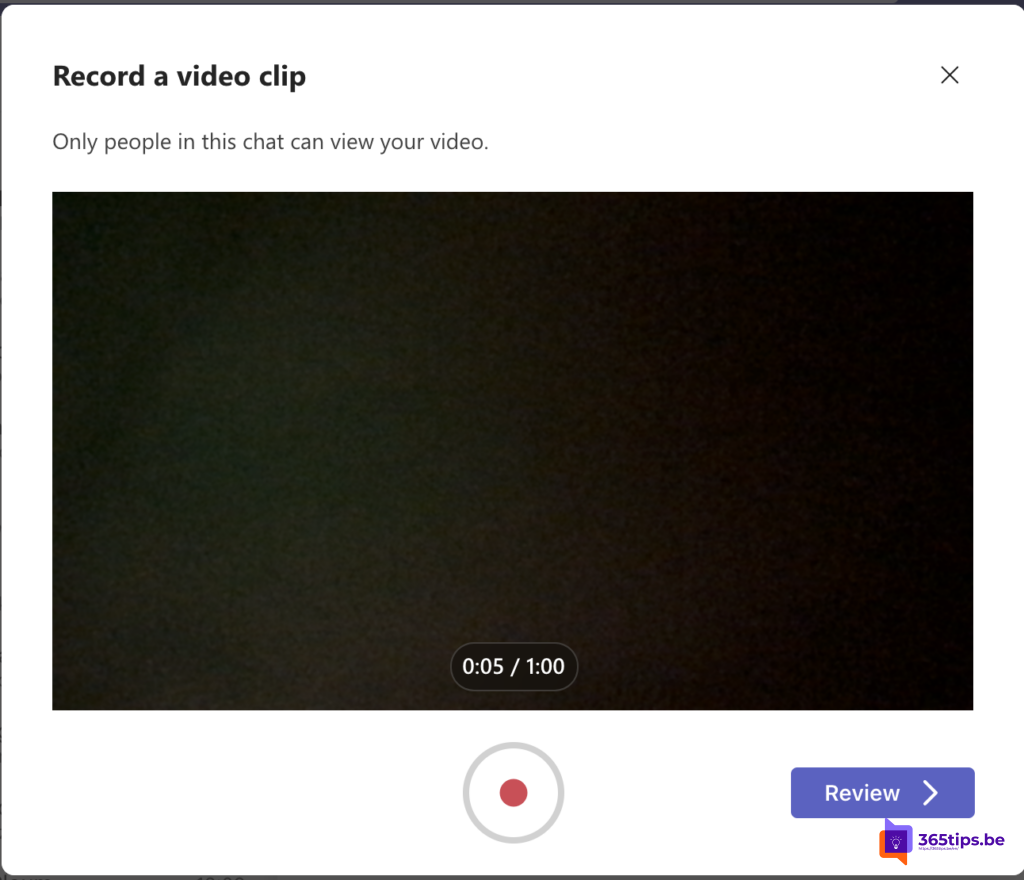
- Click the record button and record your message.

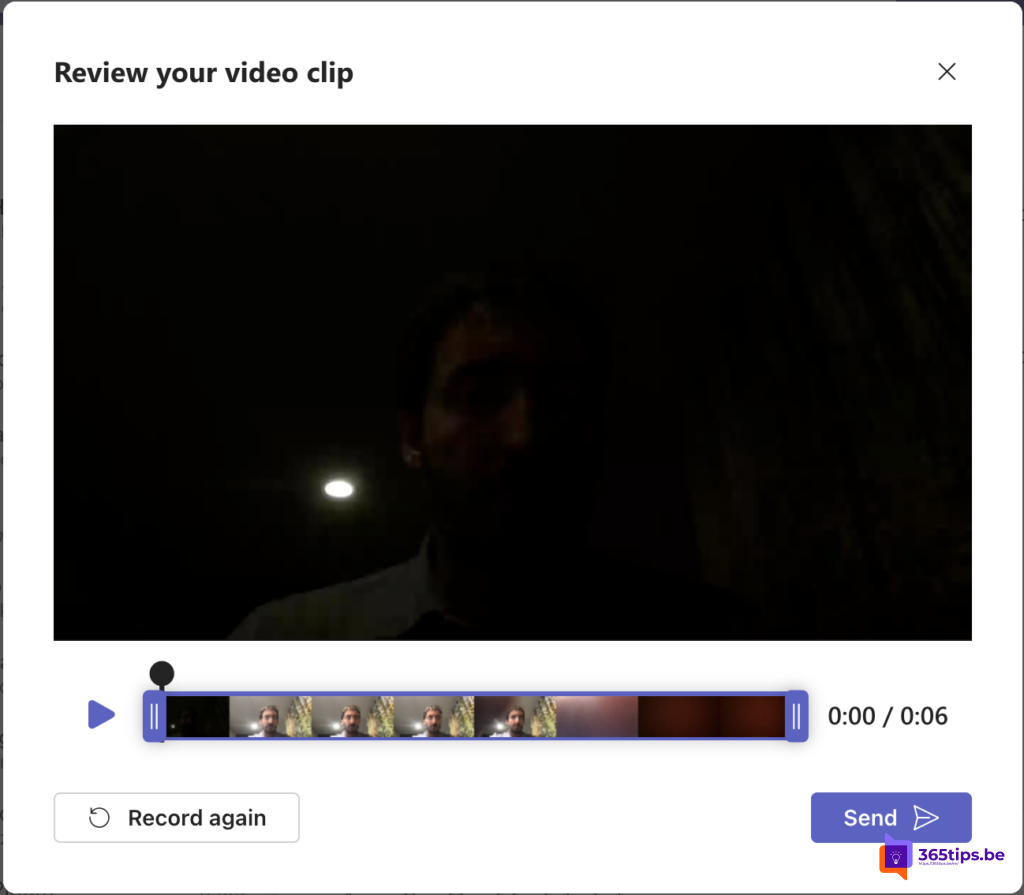
Review, trim and send
- Watch the recording again before sending.
- Trim a bit off the start or end if needed.
- Not happy? Record the clip again.
- Click Send.
Tips
- Keep your clip short and to the point.
- Use a screen recording to show how something works in an app.
- Don't see the option? Your admin may have turned it off in policy.
Also see chat scenarios in Teams and schedule a message in Teams.
Read also
Chatting in Microsoft Teams: four scenarios and when to use each
Use emoji, GIFs and stickers in Teams and Outlook
How to schedule a chat message in Microsoft Teams
Nederlandstalige versie: Een korte videoclip opnemen en versturen in Microsoft Teams
More in English
▸Reply to a specific message in Microsoft TeamsReply to a specific message in a Teams chat or channel with the original as a quote, on your computer or…
▸How to chat with yourself in Microsoft TeamsYour own chat in Teams works as a personal scratchpad: notes, links and files from your phone to your laptop.…
▸Set up and use Walkie Talkie in Microsoft TeamsTurn your smartphone into a two-way radio with Walkie Talkie in Teams. How admins make the app available, how…
▸The most useful Microsoft Teams features in one listTips for chat, meetings and productive work in Teams, each with a link to a full…