An emoji, GIF or sticker makes a chat a bit more human. A thumbs-up sometimes says more than a sentence. This article shows how to use them in Microsoft Teams and Outlook, and how to add your own emoji.
Emoji, GIFs and stickers in Teams
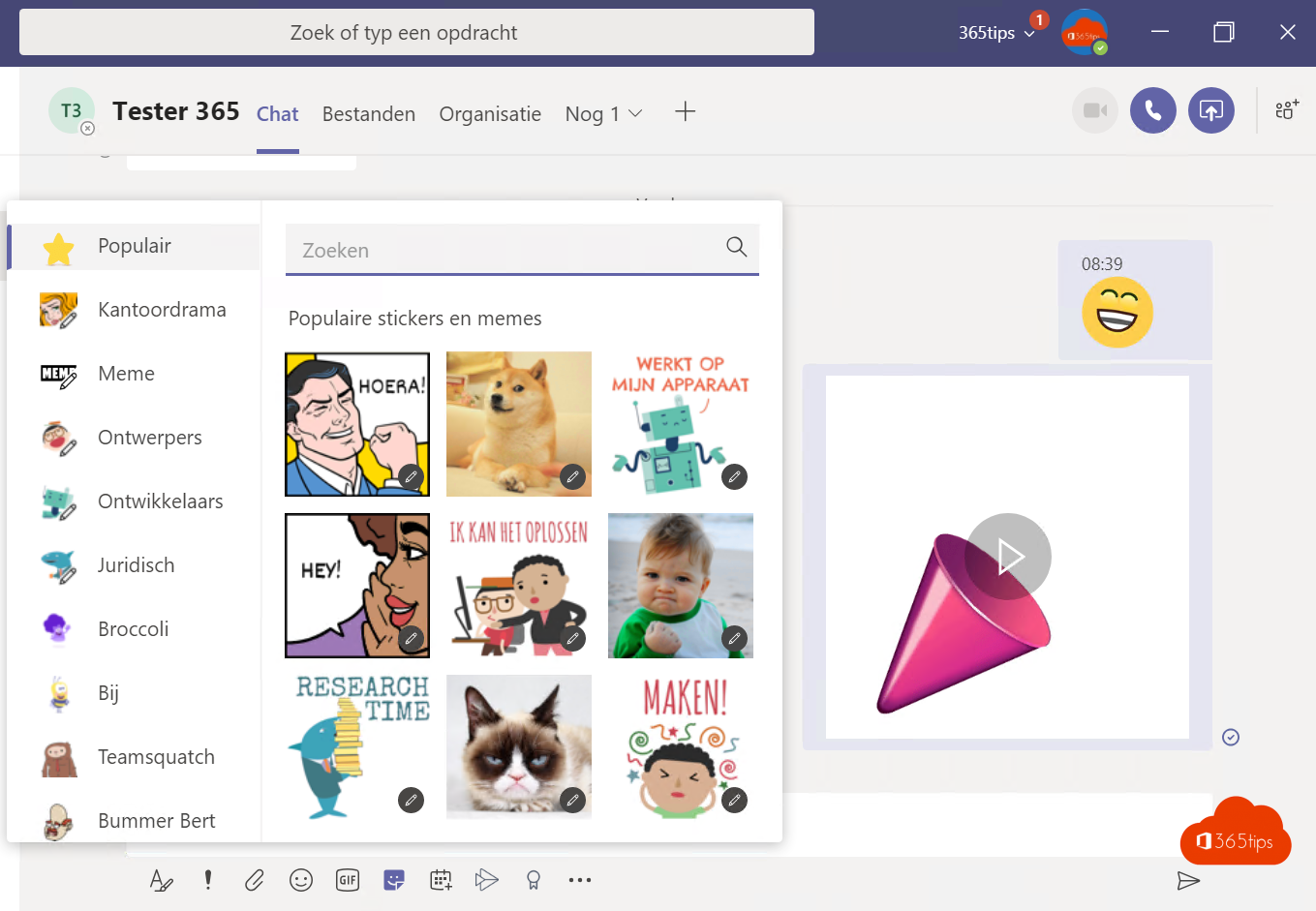
- In the message box, select the emoji icon (smiley). Pick an emoji, or type a colon and a word, such as
:smile. - In the same window, choose the GIF tab and search for a word.
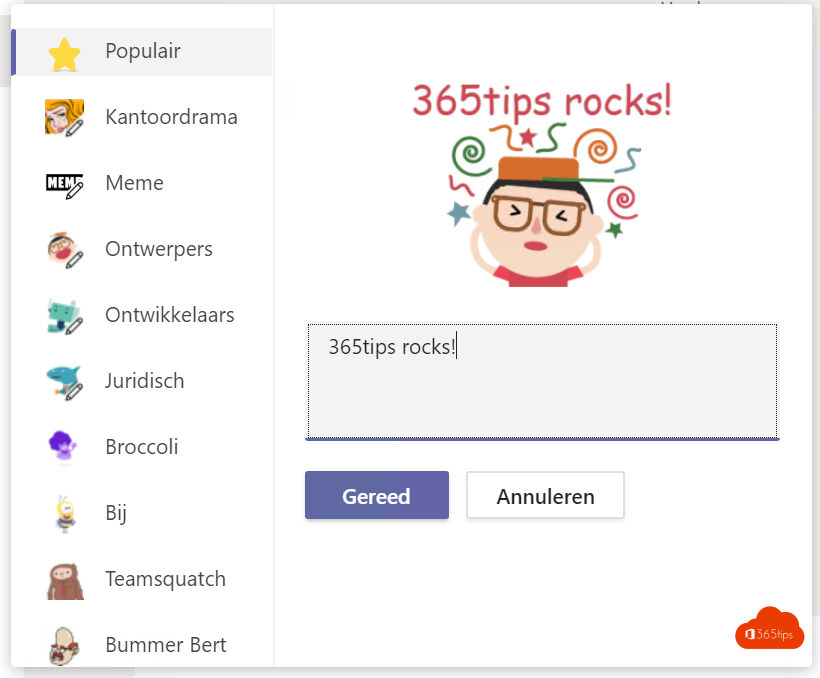
- Choose Stickers for a speech bubble or meme with your own text.


React to a message
Hover over a message and pick a quick reaction, such as thumbs-up or heart. Use the arrow or + to choose from all emoji.

Add your own emoji
Open the emoji window, choose your organization's tab and select Add emoji. Upload a square image and give it a name. Colleagues can then use it too. Don't see the option? Your admin has turned off custom emoji.
Emoji in Outlook and anywhere in Windows
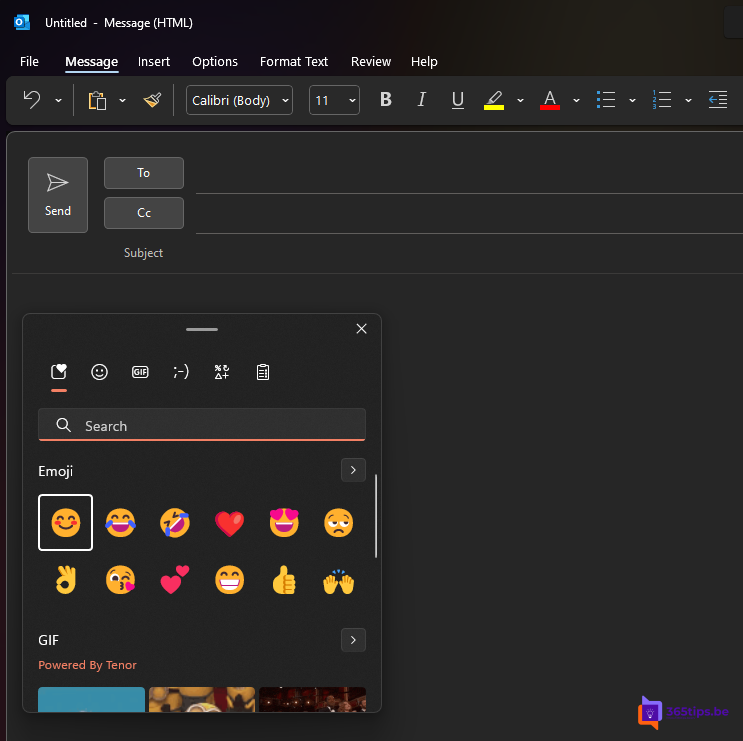
In Outlook, select the emoji icon in the ribbon of a new message. In any app in Windows, open the emoji panel with Windows + . (period). It also has GIFs and symbols. See Windows 11 keyboard shortcuts.

For admins
In the Teams admin center, the messaging policy controls whether users can use GIFs, stickers and memes, and which GIF content rating applies. See messaging policies in Teams.
Read also
Give a colleague a compliment with Praise in Teams
Turn live reactions on or off in Microsoft Teams meetings
The most useful keyboard shortcuts for Windows 11
Nederlandstalige versie: Emoji's, GIF's en stickers gebruiken in Teams en Outlook