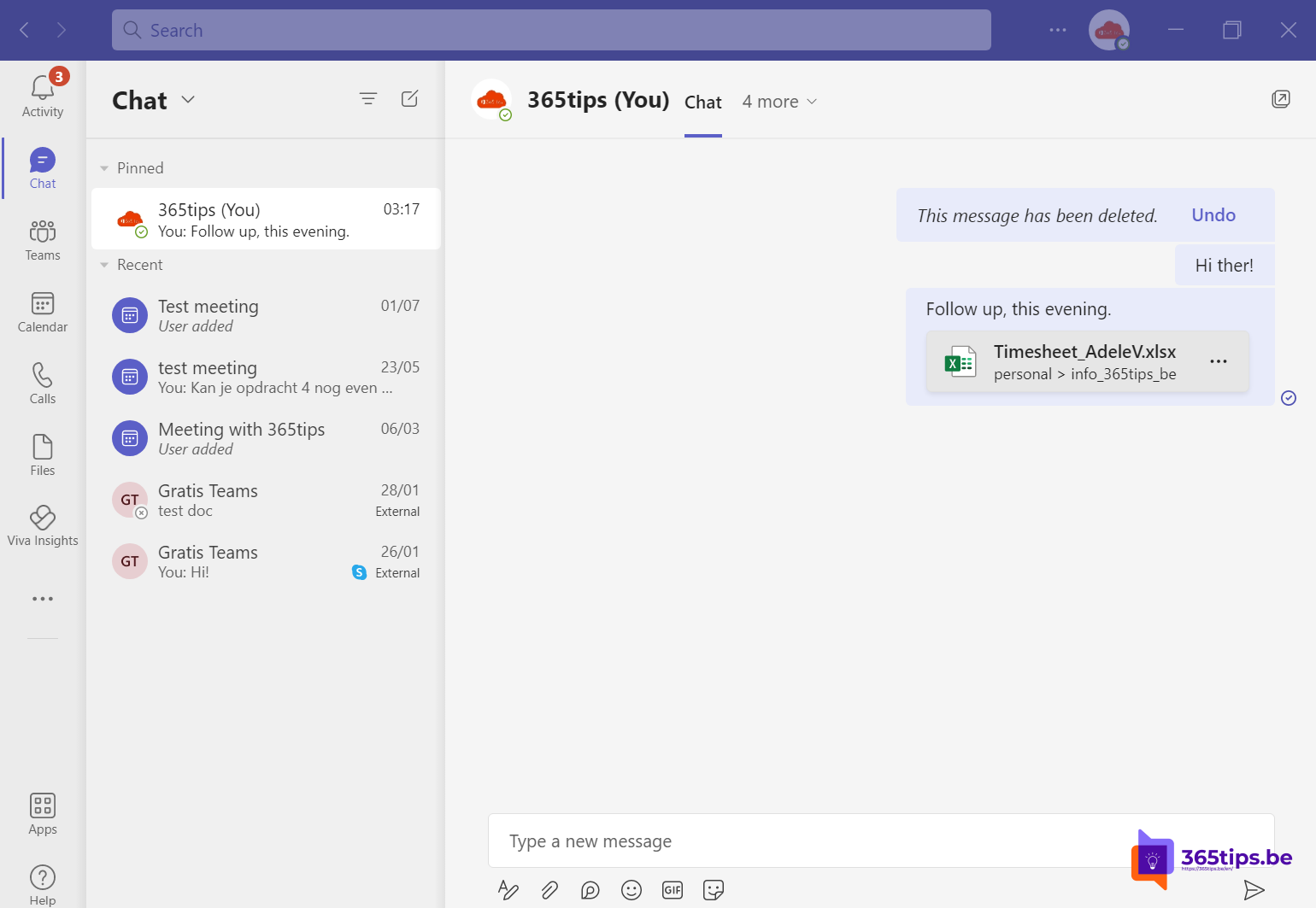
A quick note, a link you want to read later, a file you want to get from your phone to your laptop: in Microsoft Teams you can chat with yourself. Your own chat works like a personal scratchpad that goes everywhere with you, on your computer and your phone. This article shows how to find that chat, what you can do with it and a few handy ways to use it.
Find your own chat
- Open Chat in Teams.
- At the top of the list you'll see your own name followed by (You). Click it.
- Don't see it? Click New chat and type your own name.
Tip: right-click your own chat and choose Pin so it always stays at the top.

What can you do with it?
- Notes and to-dos: quickly type something you don't want to forget. With formatting (
Ctrl + Shift + Xopens the format bar) you can make lists or headings. - Save links: paste a link to an article, document or meeting to look at later.
- Files from phone to computer: in the Teams app on your phone, send a photo or document to yourself and open it right away on your laptop. Files go into your own OneDrive, in the Microsoft Teams Chat Files folder.
- Draft messages: write a long message or announcement in your own chat first, then copy it to a channel.
- Loop components: add a Loop task list or table via + that you can also share in other chats and that stays up to date everywhere.
- A meeting with yourself: start a meeting from your own chat to test your camera, microphone or screen sharing.
Saved messages
Want to keep a message from someone else? You don't have to copy it to yourself. Hover over the message, click ... and choose Save this message. You'll find all saved messages via your profile picture > Saved.
Find what you sent yourself
- Use the search box at the top of Teams and filter on your own chat.
- Files are on the Shared (or Files) tab of your own chat.
- Give your notes a fixed tag, such as #todo or #read, so search finds them quickly.
Who can see it?
Only you see your own chat. The same rules apply as for other chats in your organization, though: retention policies, eDiscovery and backups can include your own chat too. So don't put passwords in it; use a password manager for that.
Alternatives
- Microsoft To Do or Planner for tasks with a deadline.
- OneNote for longer, structured notes.
- Loop for notes you want to share and update together.
For quick, loose notes your own chat is often fastest, since Teams is open anyway.
Read also
How to schedule a chat message in Microsoft Teams
How to set out of office and a status message in Microsoft Teams
How to add external guests in Microsoft Teams
Nederlandstalige versie: Met jezelf chatten in Microsoft Teams