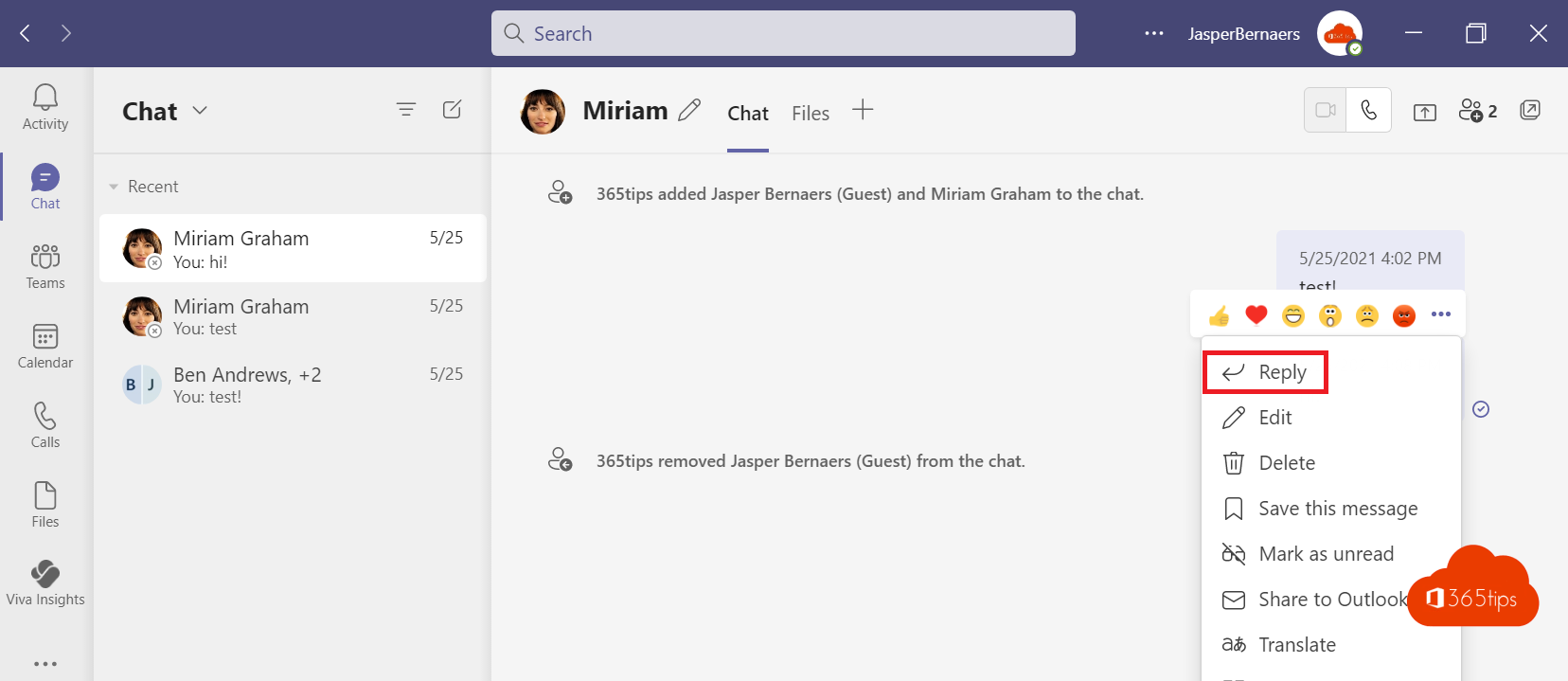
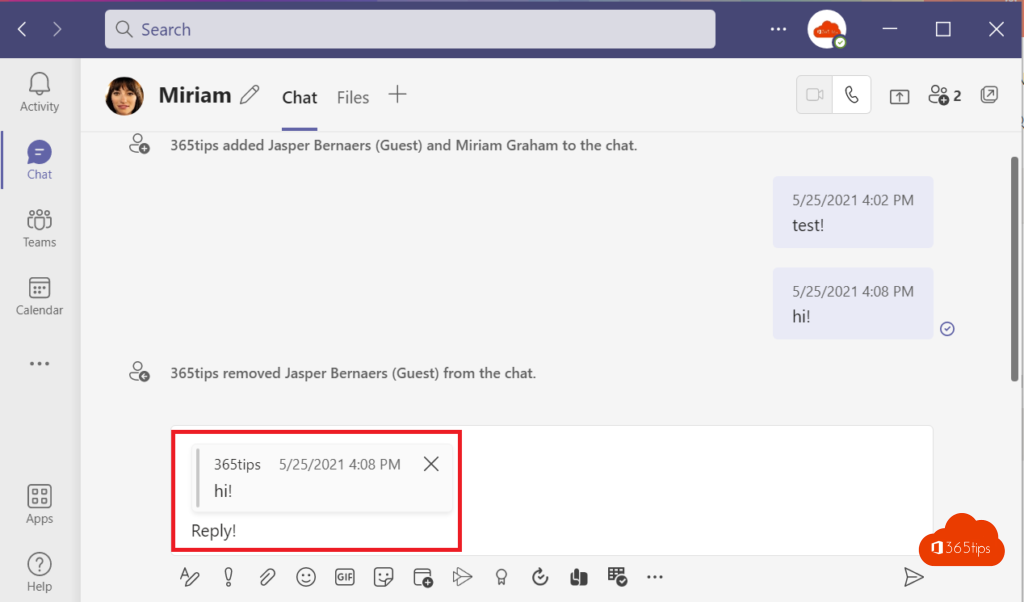
In a busy group chat it quickly gets unclear which message you're replying to. Just like in WhatsApp, Microsoft Teams lets you reply to a specific message: Teams shows the original message as a quote above your reply. This article shows how on your computer and your phone.
In a chat
- Hover over the message.
- Select More options (...) > Reply (or the reply arrow next to the reactions).
- The message appears as a quote in the compose box. Type your reply and send.
Select the quote in a reply and Teams jumps to the original message.
On your phone
Swipe the message to the right, or press and hold it and tap Reply.
In a channel
- In a channel with the Posts layout, select Reply under a post. Your reply goes in the same conversation thread.
- In a channel with the Threads layout (like a chat), use More options > Reply to quote a message.
Tips
- Use an @mention if you want someone to be sure to see your reply.
- Just showing agreement? Use a reaction like a thumbs-up to keep the chat calmer.
- Long reply? Press Shift + Enter for a new line without sending, or open the compose box with Ctrl + Shift + X. More in Teams keyboard shortcuts.
- Replied to the wrong message? Edit or delete your reply.
Read also
The most useful Microsoft Teams keyboard shortcuts for Windows and Mac
Delete a message or an entire chat in Microsoft Teams
Mark a message as unread in Microsoft Teams
Nederlandstalige versie: Op een specifiek bericht antwoorden in Microsoft Teams
More in English
▸Mark a message as unread in Microsoft TeamsMark a Teams chat or channel message as unread to follow up later, and view all unread messages with the…
▸How to chat with yourself in Microsoft TeamsYour own chat in Teams works as a personal scratchpad: notes, links and files from your phone to your laptop.…
▸Create a task from a chat message in Microsoft TeamsTurn a Teams message into a Planner task with a link back to the original message. Plus alternatives like…
▸Turn read receipts on or off in Microsoft TeamsTurn off read receipts in Teams chats on your computer or phone, and learn how admins can enforce them for…