An equipment list, a log of customer questions or an onboarding task schedule: with Microsoft Lists you track information in a shared list with columns, views and rules. It works like a simple database without any programming. This article gets you started in three steps.
Step 1: create a list
- Open Lists from the Microsoft 365 app launcher, or in Teams via Apps.
- Select New list.
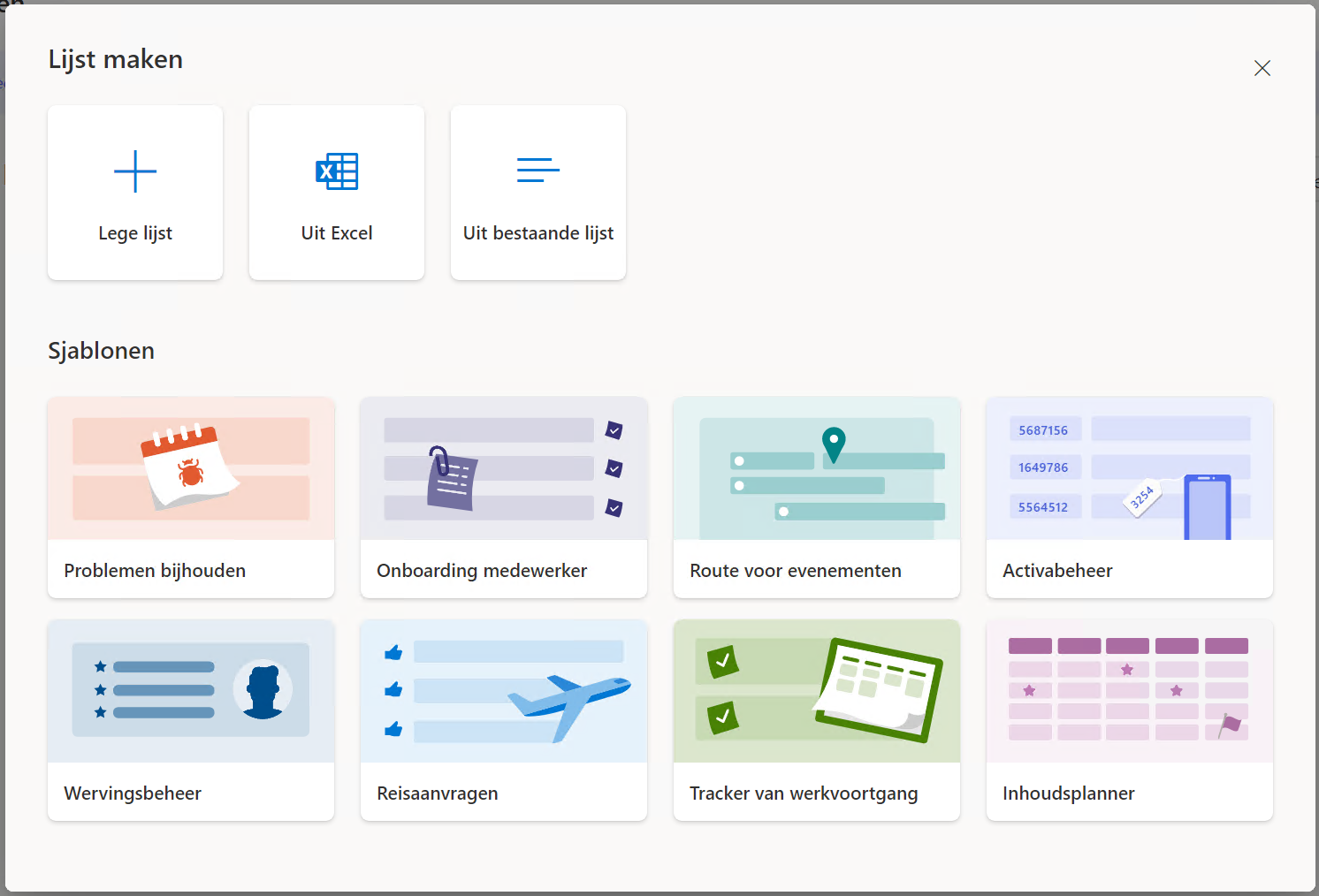
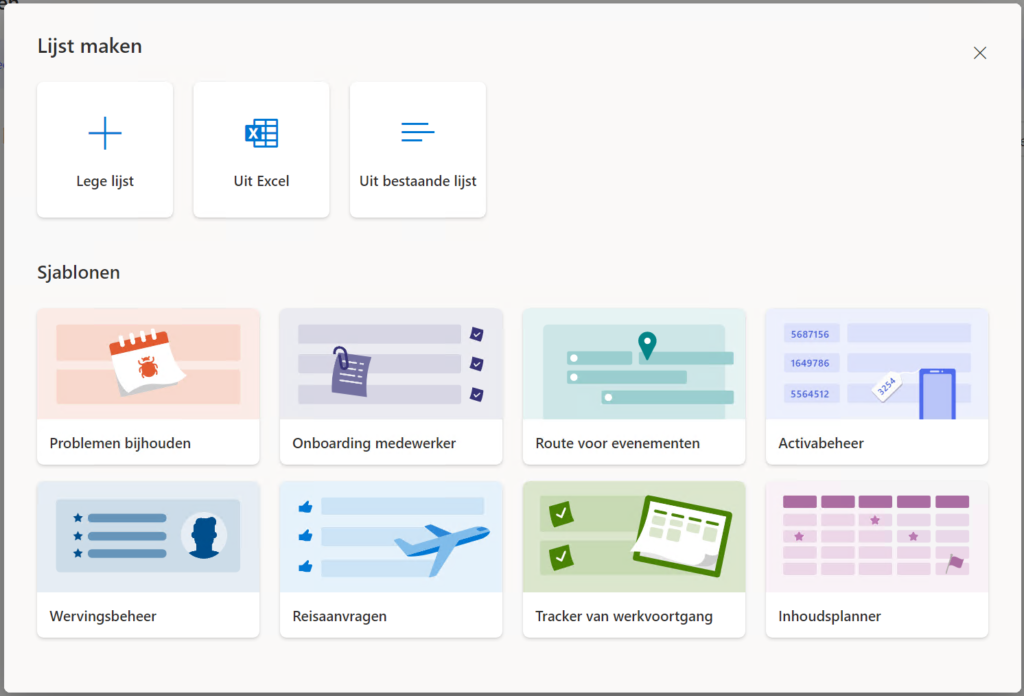
- Choose Blank list, a template (such as Issue tracker, Asset manager or Onboarding), an Excel file or an existing list.
- Enter a name, colour and icon, and choose where to save it: My lists or a SharePoint site.
Step 2: columns and views
- Select Add column and choose the type: text, choice, date, person, yes/no, number, image or hyperlink.
- Choose a view: list, grid, gallery, calendar or board.
- Use filters and grouping, and save a view such as My open items.
- Colour rows with conditional formatting.

Step 3: share and automate
- Select Share to give colleagues access. A list in a team site is shared with all members automatically.
- Add the list as a tab in a Teams channel.
- Create rules via Automate > Rules, such as an email when the status changes.
- Build an app on your list. Read create a Power App from a list.
Lists or Excel?
Use Lists when several people add and follow up rows at the same time, with notifications and permissions. Use Excel for calculations, analysis and charts.
Read also
Convert an Excel file into a list in Microsoft Lists
Create a kanban board with board view in Microsoft Lists
Create a Power App from a SharePoint list
Nederlandstalige versie: Aan de slag met Microsoft Lists in 3 stappen
More in English
▸Convert an Excel file into a list in Microsoft ListsImport an Excel table into Microsoft Lists, pick the right column types and collaborate in one list instead…
▸Create a kanban board with board view in Microsoft ListsTurn a Microsoft Lists list into a kanban board with cards per status. Create a board view, customize the…
▸Get notified when someone changes a SharePoint or Teams fileSharePoint alerts are being retired. Get notified of new or changed files with SharePoint rules or Power…
▸Manage tasks with the Planner app in Microsoft TeamsUse the Planner app in Teams for personal tasks and shared plans, add a plan to a channel and see what…