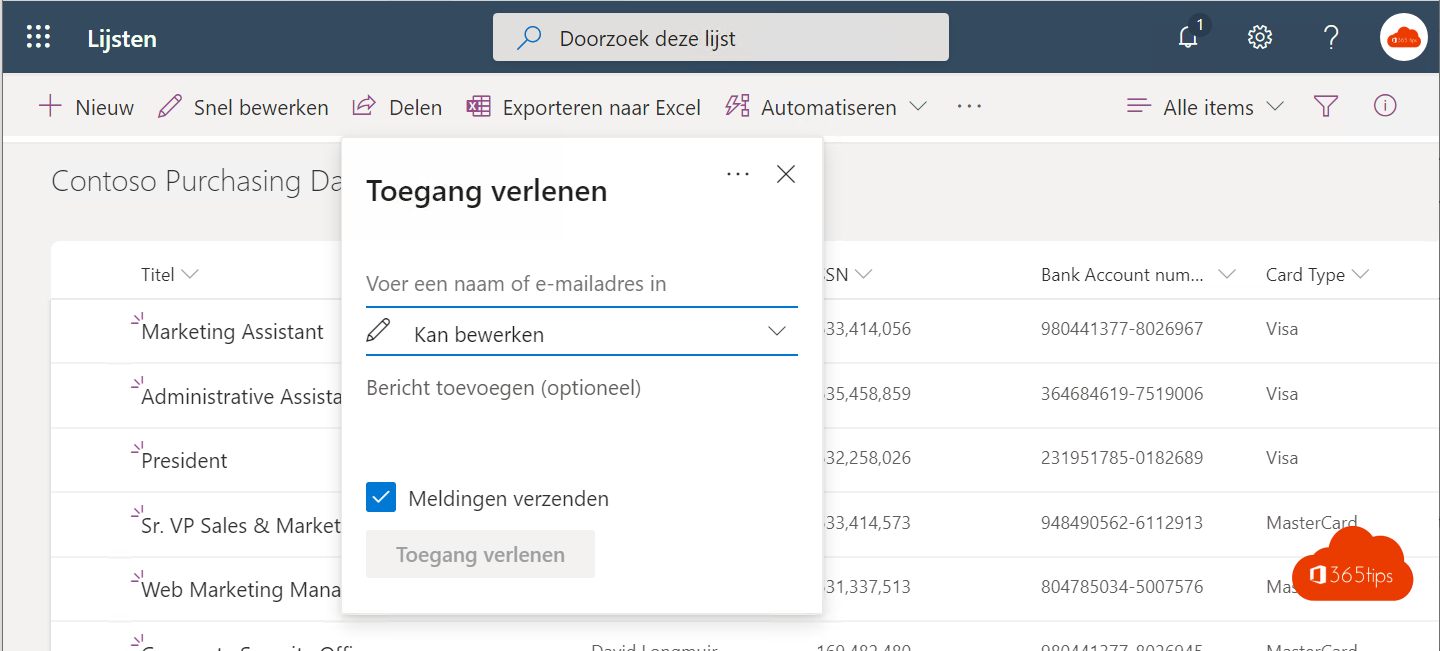
A list in Microsoft Lists becomes really useful when colleagues help fill it: sign-ups, reports, stock or a project overview. In this article you share a list so others can enter data, or only see a form.
Share a list
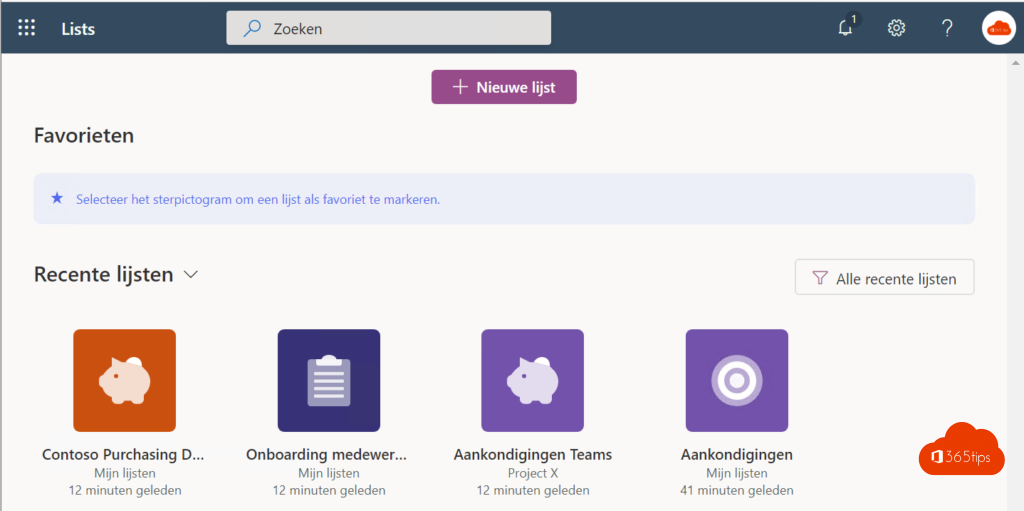
- Open the list in Lists or in Teams.
- Select Share at the top right.
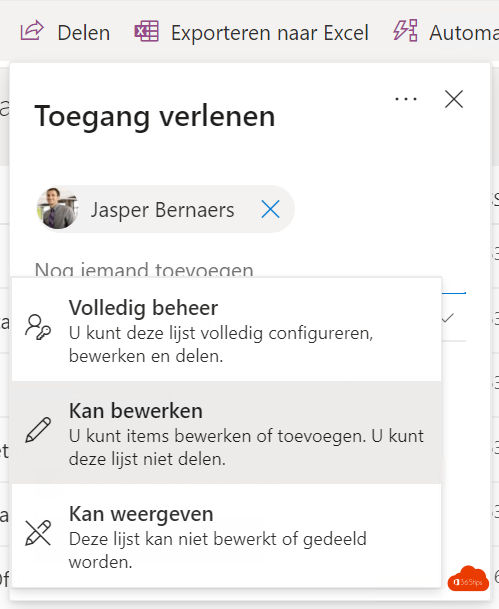
- Type your colleagues' names and choose Can edit, so they can add and change items.
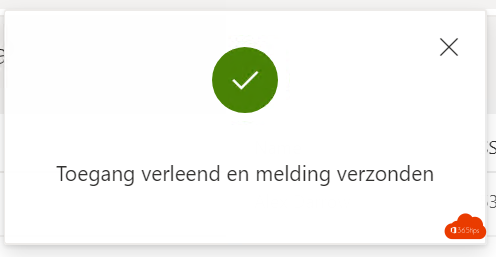
- Select Send, or copy the link.

Only fill in via a form
Should colleagues only add new data without seeing the whole list? Select Forms and create a form based on the columns. Share the link to the form. Every response becomes a new item in the list.

Tips
- Make the columns you really need required.
- Use a choice column instead of free text, so you can filter later.
- Set a rule to get notified when someone adds an item.
- If the list lives in a team, everyone in the team already has access.

Also see getting started with Microsoft Lists and rules and notifications in SharePoint.
Read also
Get started with Microsoft Lists in 3 steps
Use an existing SharePoint list in Microsoft Lists
Get notified when someone changes a SharePoint or Teams file
Nederlandstalige versie: Een lijst delen zodat collega's gegevens kunnen invullen
More in English
▸Convert an Excel file into a list in Microsoft ListsImport an Excel table into Microsoft Lists, pick the right column types and collaborate in one list instead…
▸Create a kanban board with board view in Microsoft ListsTurn a Microsoft Lists list into a kanban board with cards per status. Create a board view, customize the…
▸Create and share a form or quiz with Microsoft FormsCreate a form or quiz in Microsoft Forms, add branching, choose who can respond and view results in charts or…
▸Create a Power App from a SharePoint listBuild an app for PC and phone from your SharePoint list with Power Apps, without coding. Customize, share,…