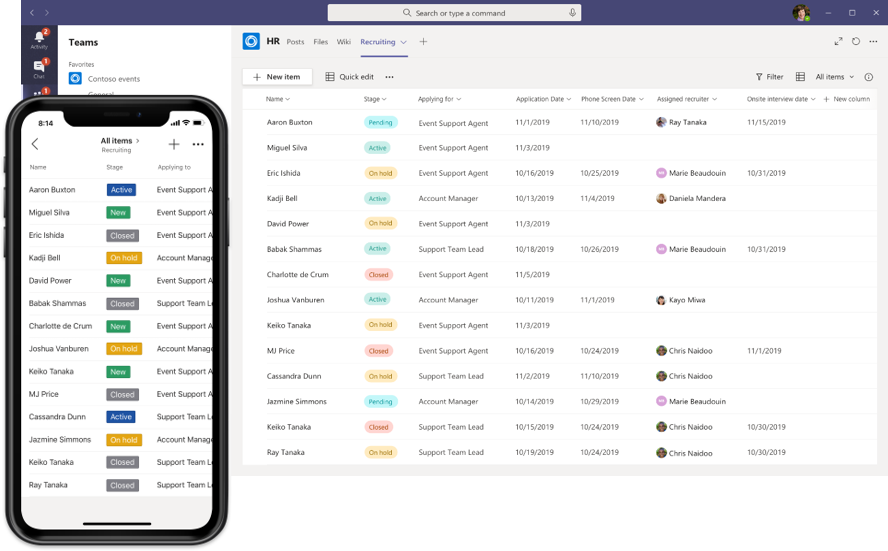
With Microsoft Lists you track information in a clear list: tasks, issues, inventory, events or new hires. You can use a list right inside a Teams channel, so your whole team works in the same data. Here's how to add one.
Add a list to a channel
- Open the team and the channel.
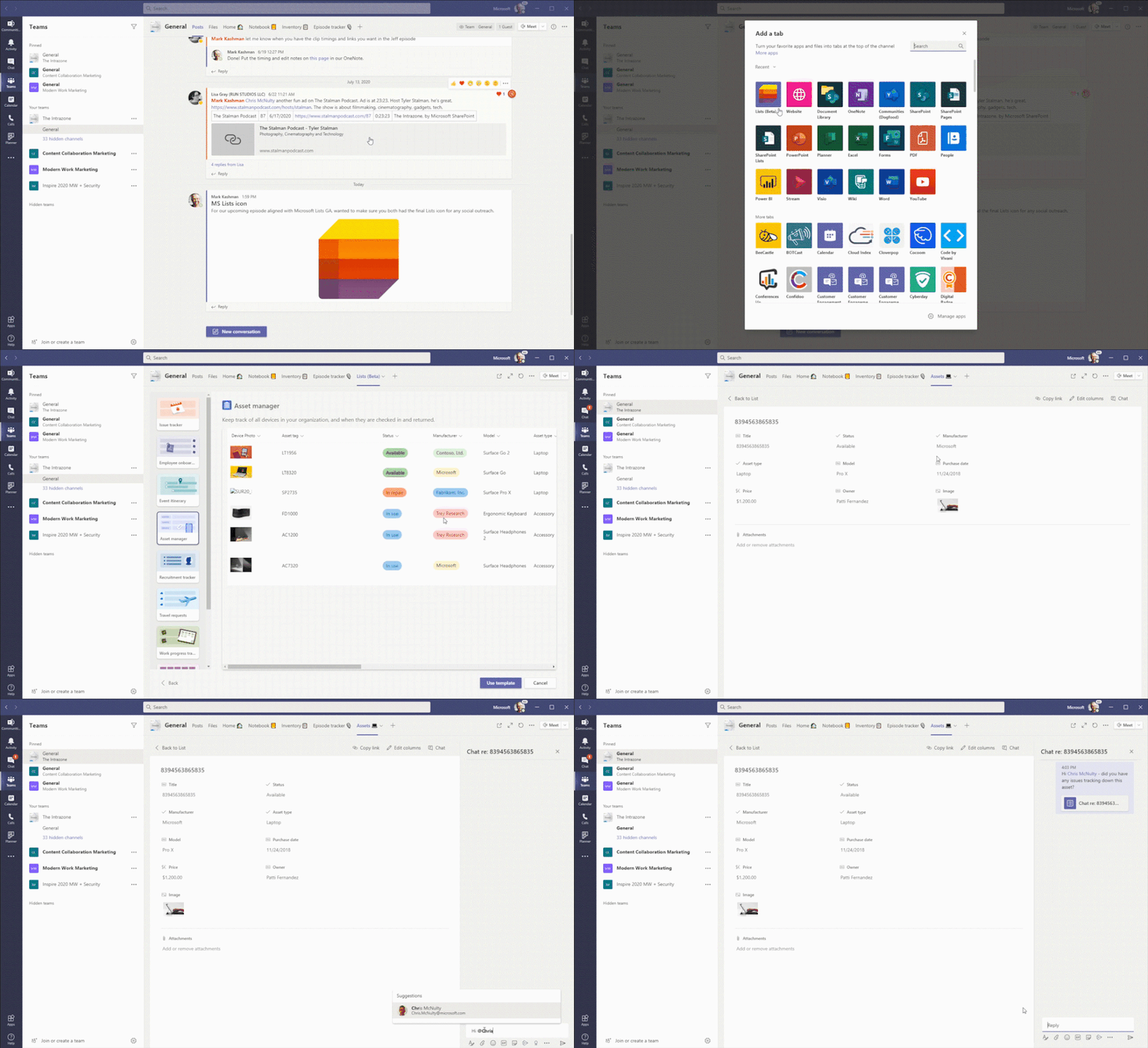
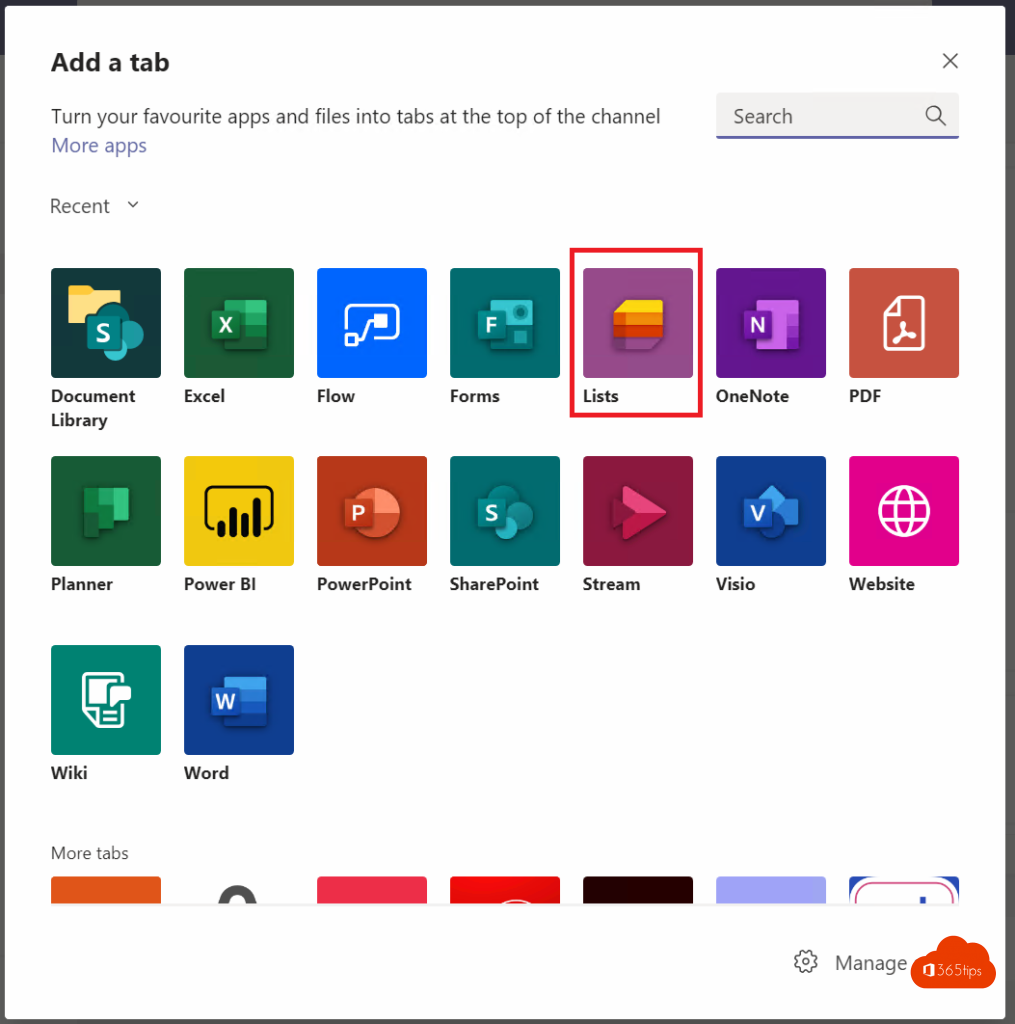
- Select + (Add a tab) at the top.
- Search for Lists and choose the app.
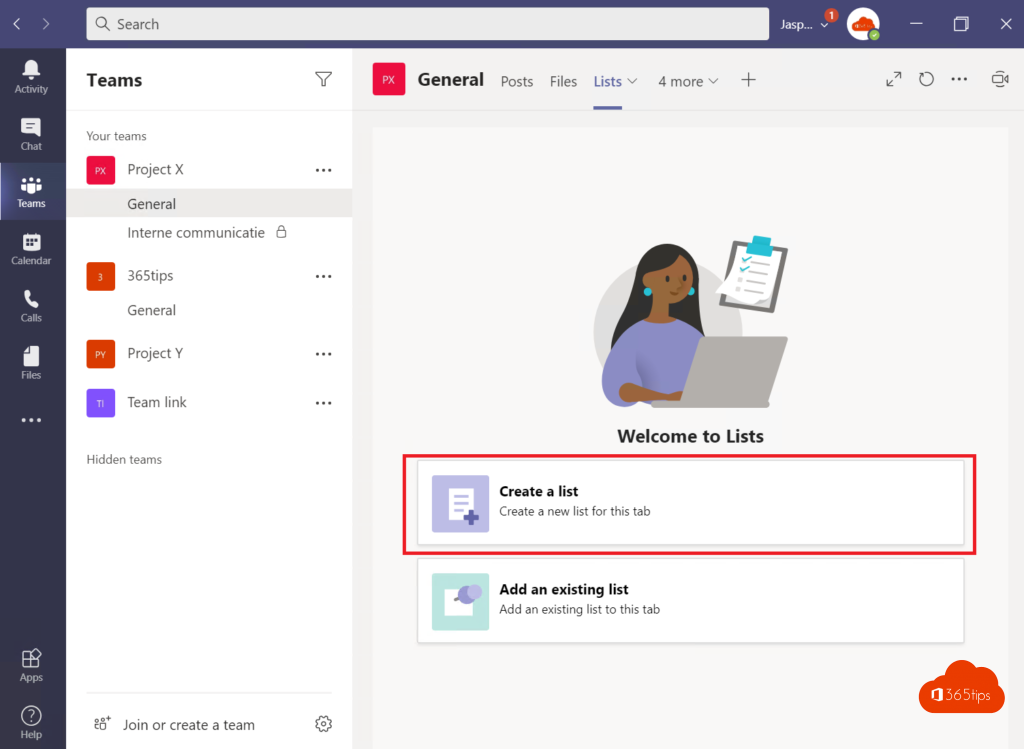
- Choose whether to create a new list or add an existing one.
Create a new list
You have several starting points:
- Blank list: start from scratch and add your own columns.
- From Excel: import a table from an Excel file.
- From an existing list: reuse the structure of a list you already have.
- Template: start with a ready-made list, such as an issue tracker, employee onboarding or an event itinerary.

Why templates help
A template already contains the right columns, views and formatting. Columns you don't need are easy to delete or change. You're up and running in minutes.

Handy tips
- Use a board view to show items as cards per status.
- Set up rules to get notified when something changes.
- The list lives in the team's SharePoint site, so everyone with access to the team can use it.
Also see getting started with Microsoft Lists and board view in Microsoft Lists.
Read also
Get started with Microsoft Lists in 3 steps
What is Microsoft Lists and how do you start?
Convert an Excel file into a list in Microsoft Lists
Nederlandstalige versie: Microsoft Lists gebruiken in een Teams-kanaal
More in English
▸Create a kanban board with board view in Microsoft ListsTurn a Microsoft Lists list into a kanban board with cards per status. Create a board view, customize the…
▸Use an existing SharePoint list in Microsoft ListsYour SharePoint lists are already in Microsoft Lists. Here's how to find them and create a new list from an…
▸Manage tasks with the Planner app in Microsoft TeamsUse the Planner app in Teams for personal tasks and shared plans, add a plan to a channel and see what…
▸The most useful Microsoft Teams features in one listTips for chat, meetings and productive work in Teams, each with a link to a full…