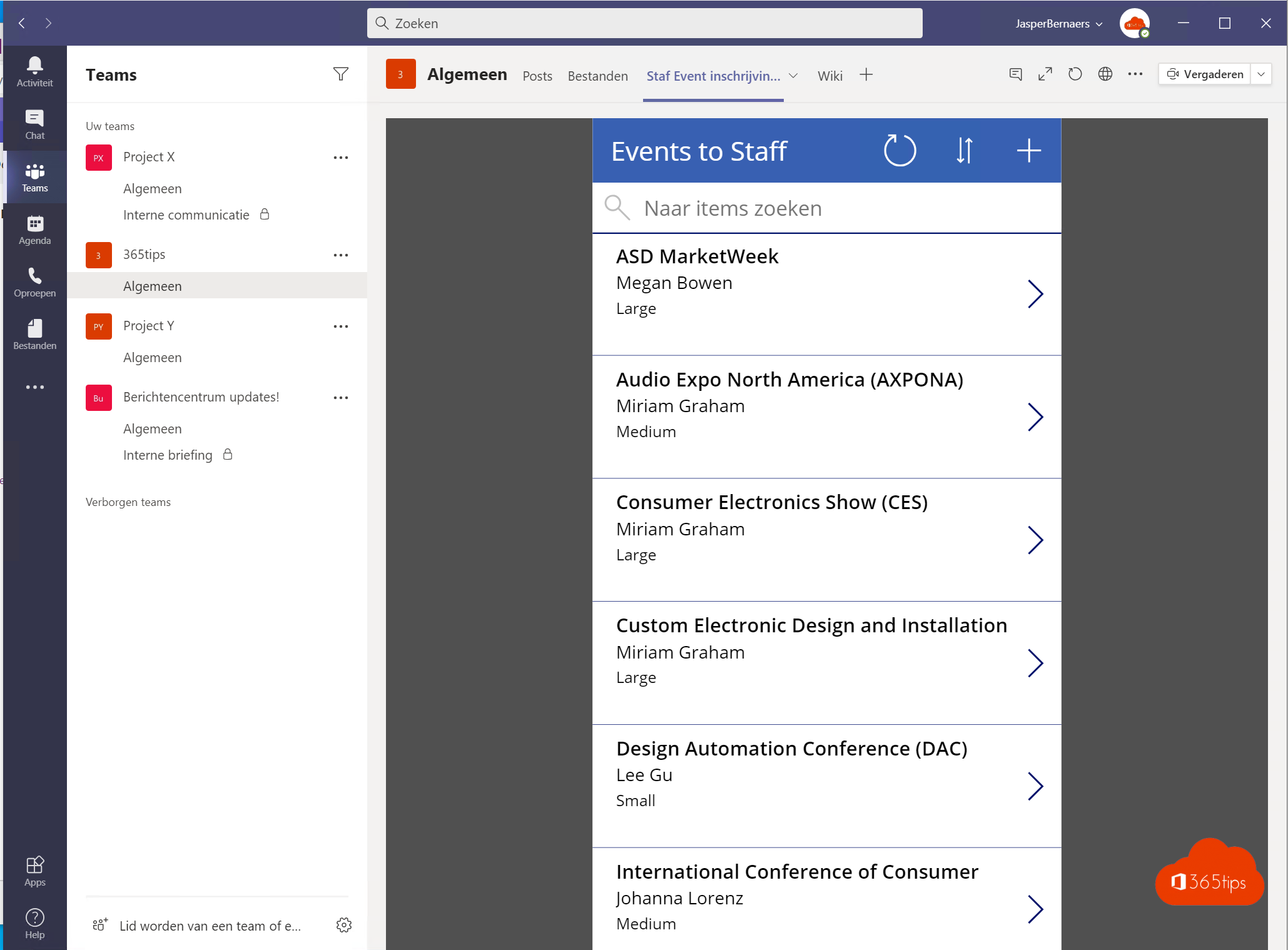
A SharePoint list is handy, but on a phone it's clumsy and colleagues sometimes enter the wrong thing. With Power Apps you build an app from your list in a few clicks: an overview, a detail screen and a form that work on PC, tablet and phone. No coding. This article shows how to create the app, customize it, share it and put it in Teams.
What do you need?
- A list in SharePoint or Microsoft Lists with the columns you want in the app, for example an Equipment loans list with name, item, date and status.
- A Microsoft 365 license that includes Power Apps. Apps on SharePoint data are covered by Microsoft 365's standard rights; premium connectors need a separate Power Apps license.
- Edit rights on the list.
Create the app
- Open the list in SharePoint or Microsoft Lists.
- Select Integrate > Power Apps > Create an app at the top.
- Name the app and select Create.
- Power Apps Studio opens with a ready-made three-screen app: browse (list), details and edit (form).
Press F5 or the play button to test the app straight away.

Customize the app
- Pick fields: select the form on the edit screen and choose Edit fields on the right to add, hide or reorder fields.
- Titles and colors: select an element and change its text or color in the properties pane, or pick another Theme.
- Search and sort: the browse screen already has a search box; adjust the gallery formula to search other columns.
- Default values: fill in the date automatically with Today(), or the user's name with User().FullName.
Select Save and then Publish to make the new version available.

Share the app
- Go to make.powerapps.com > Apps.
- Select ... next to your app > Share.
- Add colleagues or a group. Choose Co-owner for people who may edit the app.
Note: app users also need access to the list. Share the SharePoint site or list with the same people.
The app in Teams or on your phone
- Teams: add a tab in a channel with + > Power Apps and pick your app. See also add SharePoint pages and lists to Teams.
- Phone: install the Power Apps app from the App Store or Play Store, sign in and open your app. Optionally add a shortcut to your home screen.
Just a better form?
If you only want a nicer form for the list, choose Integrate > Power Apps > Customize forms. The list stays in SharePoint, but a custom form opens for new items. For a kanban view of the same list, see board view in Microsoft Lists.
Read also
Create a kanban board with board view in Microsoft Lists
Add a SharePoint page, site or list to Microsoft Teams
Request and give approvals with the Approvals app in Teams
Nederlandstalige versie: Een Power App maken op basis van een SharePoint-lijst