A driver is the software that makes your hardware work: the graphics card, Wi-Fi, Bluetooth, the printer or the touchpad. An outdated or faulty driver is often behind a black screen, dropping Wi-Fi, missing sound or a blue screen. This article shows how to update drivers in Windows 11 and Windows 10: through Windows Update, Device Manager and the manufacturer's tools, and how to roll back an update when it goes wrong.
Method 1: Windows Update
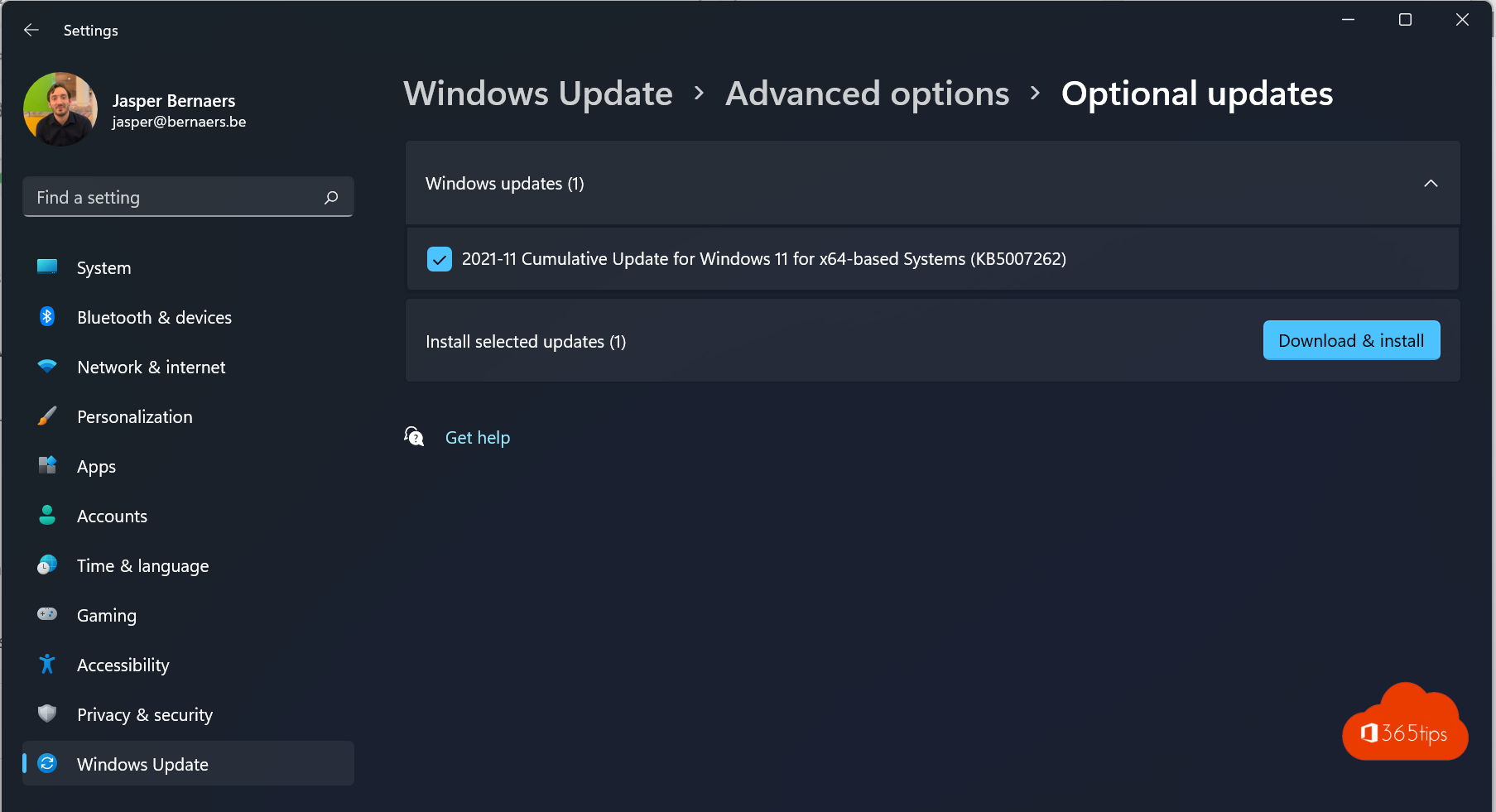
Windows installs most drivers automatically. Extra and newer drivers are listed under optional updates:
- Open Settings (
Windows + I) > Windows Update. - Click Advanced options > Optional updates.
- Expand Driver updates, tick what you need and click Download & install.
- Restart the PC if Windows asks.
Only install optional drivers if you have a problem with that device. If everything works, you don't need them.


Method 2: Device Manager
- Right-click Start and choose Device Manager.
- Expand the category, for example Display adapters or Network adapters.
- Right-click the device > Update driver.
- Choose Search automatically for drivers, or Browse my computer for drivers if you already downloaded the driver.
A yellow exclamation mark next to a device means its driver is missing or not working properly.
Method 3: from the manufacturer
The newest drivers often appear at the manufacturer first. That pays off especially for graphics cards and laptops:
| Brand | Tool |
|---|---|
| Dell | Dell Command | Update or SupportAssist |
| HP | HP Support Assistant (or HP Image Assistant for administrators) |
| Lenovo | Lenovo Vantage (or Lenovo System Update) |
| Microsoft Surface | Through Windows Update |
| NVIDIA / AMD / Intel | NVIDIA app, AMD Software: Adrenalin Edition, Intel Driver & Support Assistant |
Only download drivers from the manufacturer's official website. Third-party "driver updater" programs are unnecessary and often install unwanted software.
Roll back a driver
Something broke after an update? Restore the previous driver:
- Open Device Manager, right-click the device > Properties.
- Open the Driver tab and click Roll Back Driver.
- Pick a reason and click Yes.
If the button is greyed out, no previous version was kept. Uninstall the device instead (right-click > Uninstall device) and restart; Windows installs a default driver.
Common problems
- Black screen or flicker after a graphics driver update: start in Safe Mode (hold Shift while clicking Restart) and roll back the driver.
- Windows keeps reinstalling an old driver: install the manufacturer's version again. Administrators can exclude drivers from Windows Update by policy.
- No Wi-Fi after a reinstall: download the network driver on another PC and copy it over with a USB stick, or use a network cable or your phone's USB hotspot.
- Printer stopped working: remove the printer under Settings > Bluetooth & devices > Printers & scanners and add it again.
For administrators
List all installed drivers with:
pnputil /enum-driversInstall a driver (INF) from a folder:
pnputil /add-driver C:\Drivers\*.inf /subdirs /installOrganizations manage drivers centrally with driver update policies in Microsoft Intune or with Windows Autopatch, approving updates before they reach every device. See also how to pause or delay Windows 11 updates.
Read also
How to pause or delay Windows 11 updates and prevent restarts
Run Command Prompt as administrator in Windows 11 and 10: 6 ways
Find and delete large files in Windows 11 and 10: 5 ways
Nederlandstalige versie: Stuurprogramma's (drivers) bijwerken in Windows 11 en 10