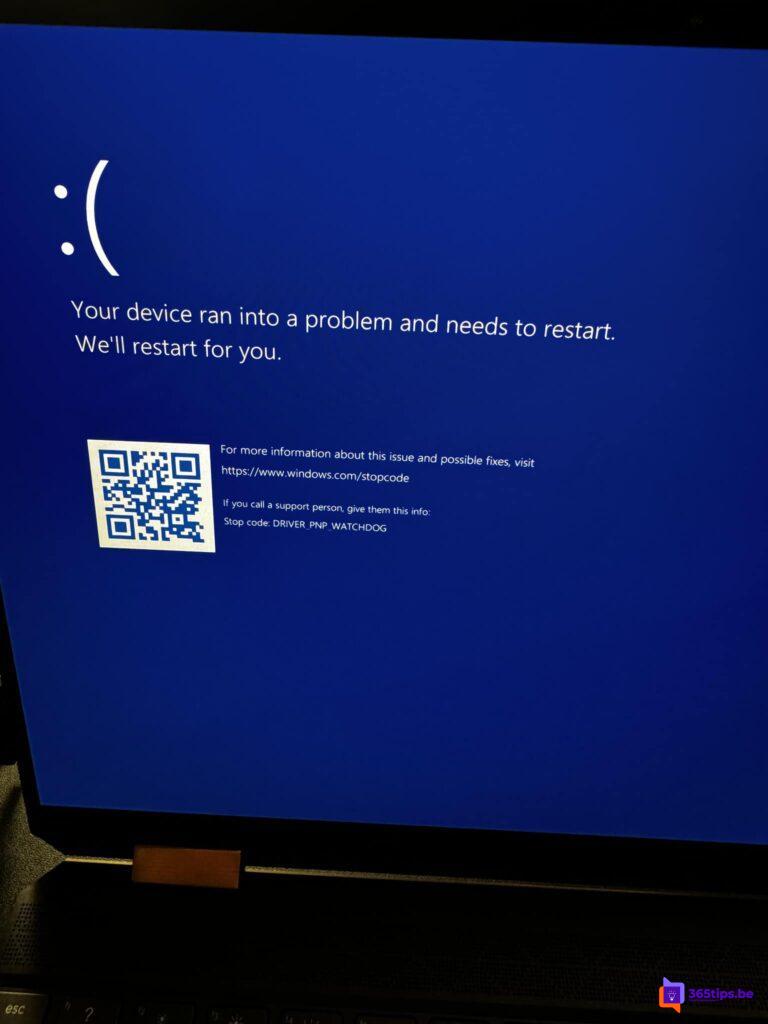
Your PC restarts with a blue screen and the error code DRIVER_PNP_WATCHDOG. It means a driver didn't respond in time, often for storage (SSD or hard drive), after an update or after a BIOS change. These steps usually fix it.
Simple steps first
- Restart the PC and unplug all external devices (USB sticks, docks, external drives).
- Install all updates via Settings > Windows Update, including optional updates for drivers. See update drivers in Windows 11.
- Update the chipset and storage drivers from your PC or motherboard manufacturer's website.
Repair Windows
Open Command Prompt as administrator and run:
sfc /scannow
DISM /Online /Cleanup-Image /RestoreHealth
chkdsk C: /f
Then restart the PC.
Does the error come back?
- Undo a recent change: remove a recent update via Windows Update > Update history > Uninstall updates, or go back to a restore point.
- BIOS settings: did you change the storage mode (for example AHCI or RAID)? Change it back.
- Update the BIOS through the manufacturer.
- Volume Shadow Copy service: check in services.msc that it isn't disabled.
- Safe mode: start in safe mode via Settings > System > Recovery > Advanced startup to remove a driver.
Last resort
If nothing helps, the SSD may be failing. Back up your files and test the drive with the manufacturer's tool. Then you can reset Windows 11. Also see the most useful CMD commands.
Nederlandstalige versie: Het blauwe scherm DRIVER_PNP_WATCHDOG oplossen in Windows 11
Related articles
▸Fix the 0x0 0x0 error code on a Windows PCA step-by-step plan to fix the generic 0x0 0x0 error: updates, sfc and DISM, clean boot, drivers and recovery.
▸How to update drivers in Windows 11 and 10Update drivers in Windows 11 through Windows Update, Device Manager or your manufacturer's tool, and roll…
▸Updates for other Microsoft products and optional updates in Windows 11Turn on Receive updates for other Microsoft products in Windows 11, and learn which optional updates and…
▸The most useful CMD commands for WindowsAn overview of handy Command Prompt commands: network, system repair, Group Policy, processes and files, each…
▸Enable, create and use system restore points in Windows 11Turn on system protection in Windows 11, create a restore point yourself and roll Windows back to an earlier…