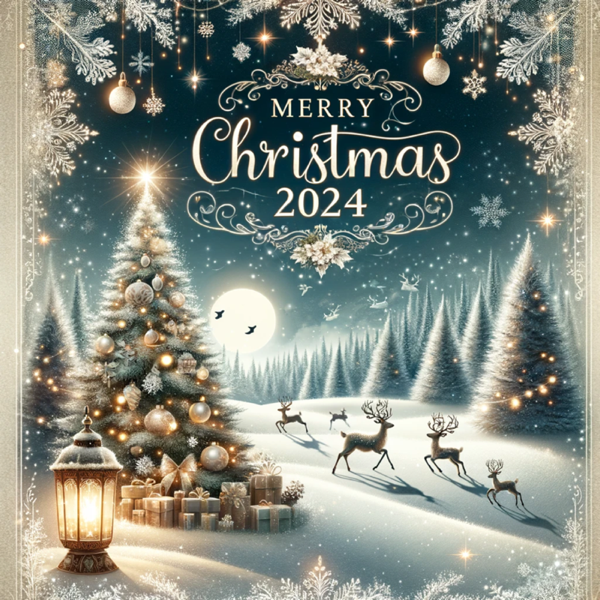
The last meeting before the Christmas break or an online end-of-year drink? A Christmas background in Teams sets the mood right away: a Christmas tree, lights, snow or a cosy fireplace. Here is a selection of free Christmas backgrounds and tips for a festive meeting. The old tip of using Snap Camera for Santa hats no longer works: Snap Camera was discontinued in 2023.
How to set a background
- Right-click an image below and choose Save image as.
- In the new Teams, open the pre-join screen of a meeting, or during the meeting select the arrow next to Camera.
- Choose Video effects and settings (the exact name can vary, for example Effects and avatars).
- Under Backgrounds, select Add new and pick your image.
- Select the background and choose Apply.
A landscape image of about 1920 × 1080 pixels works best. The images on this page are resized; for a sharper version, look up the photo on the original photo site. Note that an admin can turn off custom backgrounds, and with Teams Premium your organization can also provide official backgrounds. More in set a custom background in Teams.
Christmas backgrounds

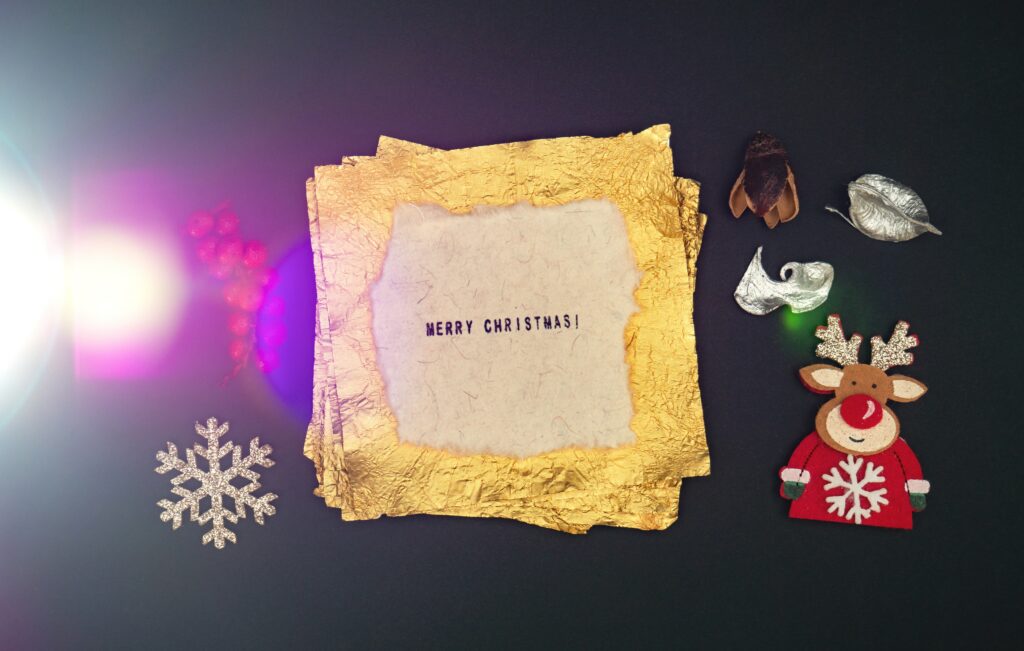

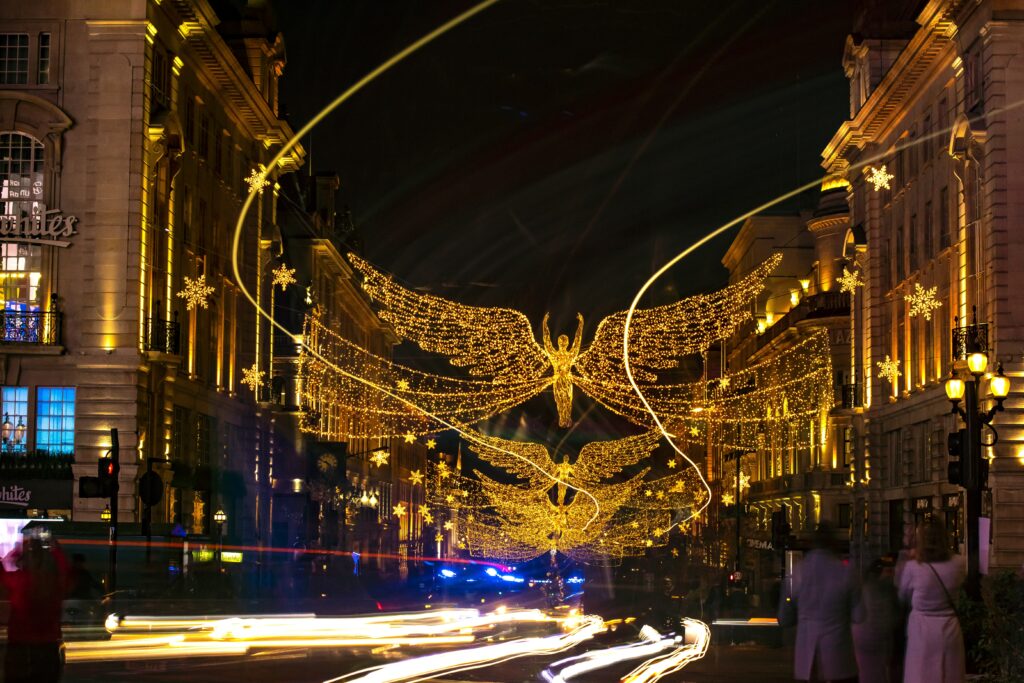






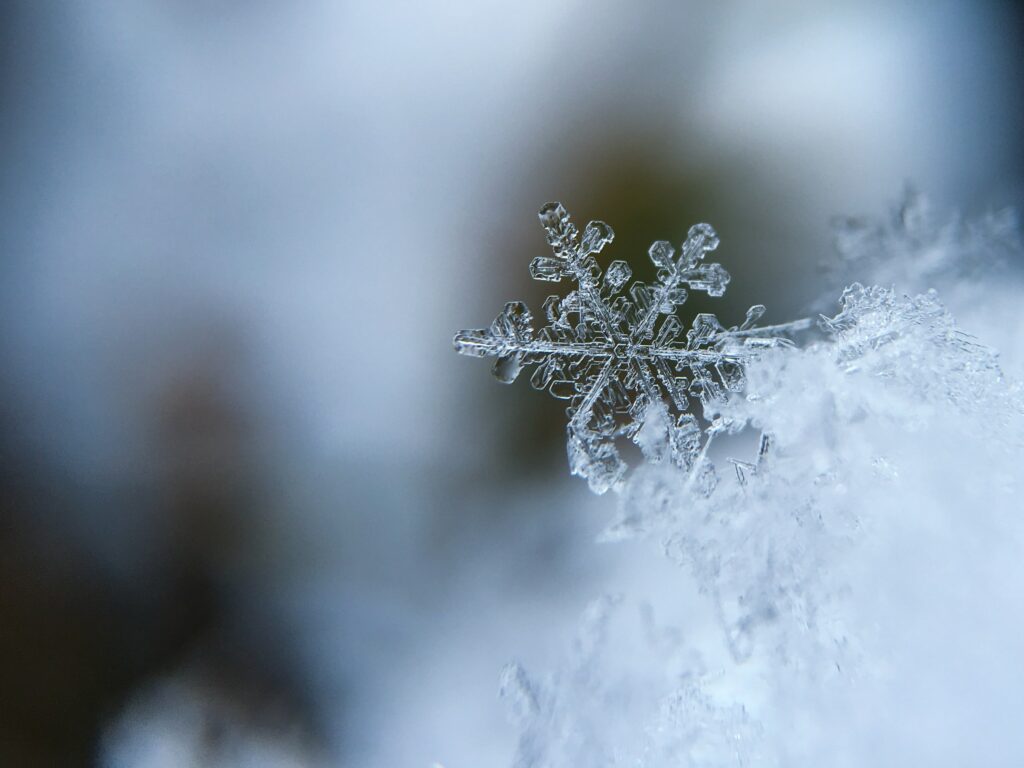

More Christmas spirit in your meeting
- Use the built-in video effects and filters in Teams instead of external camera apps.
- Send reactions, GIFs or stickers in the chat.
- Try Together mode, so everyone sits together in one room.
Also see celebrate the holidays with Teams.
Read also
Set a custom background in Microsoft Teams
Celebrate the holidays with Microsoft Teams
Together mode in Microsoft Teams: one shared virtual space
Nederlandstalige versie: Kerstachtergronden voor Microsoft Teams