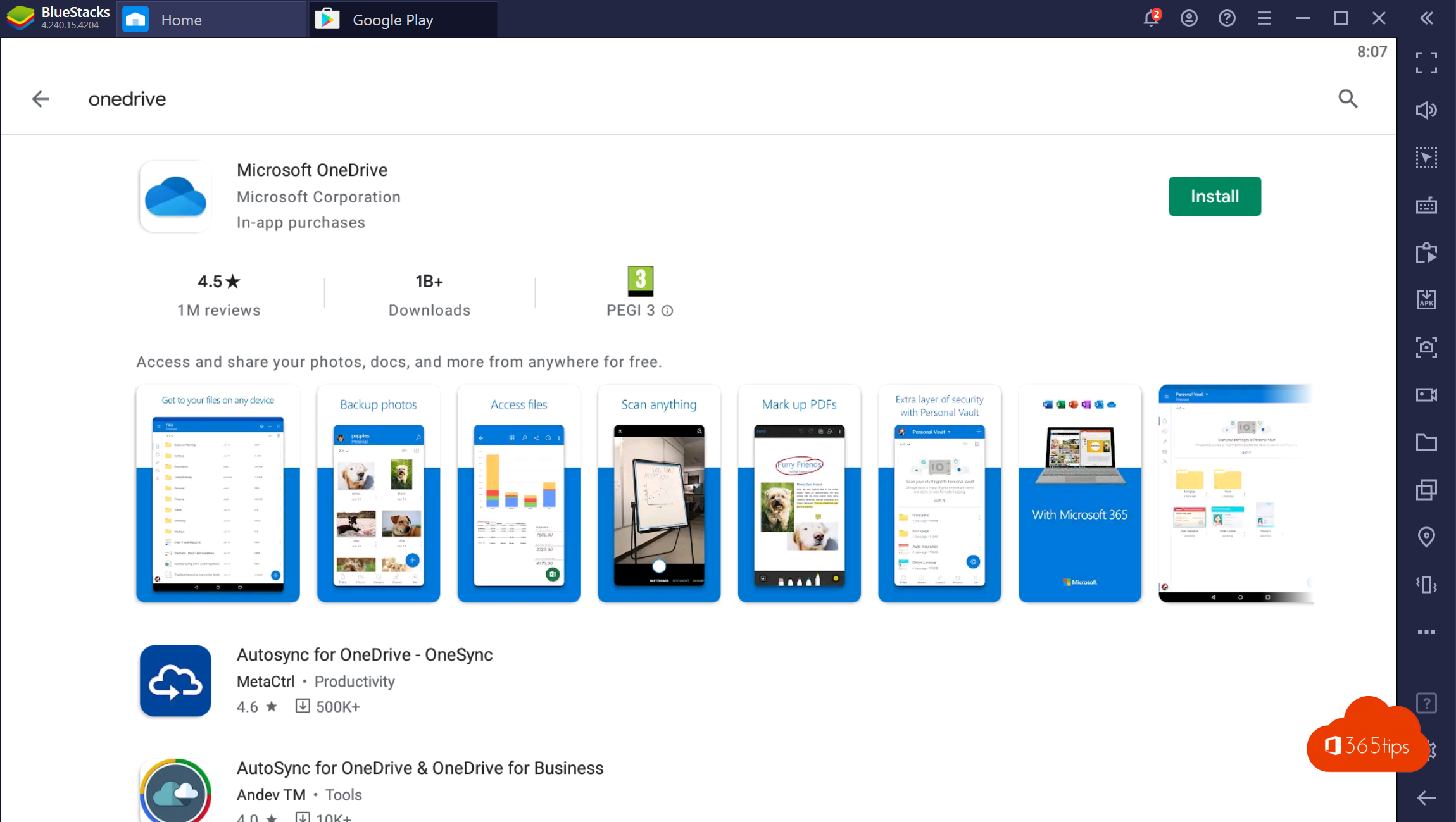
Want to test the Android version of Microsoft Teams without a phone? With an Android emulator such as BlueStacks you run Android apps on your Windows PC or Mac. Handy for IT admins who want to create instructions or screenshots. Microsoft has discontinued the Windows Subsystem for Android, so an emulator remains an option.
What is BlueStacks?
BlueStacks is a free program that emulates an Android device on your computer. You install apps from the Google Play Store, just like on an Android phone.

Install BlueStacks and add Teams
- Download BlueStacks from the official BlueStacks website.
- Install it and sign in with a Google account.
- Open the Play Store and search for Microsoft Teams.
- Install the app and sign in with your work or school account.


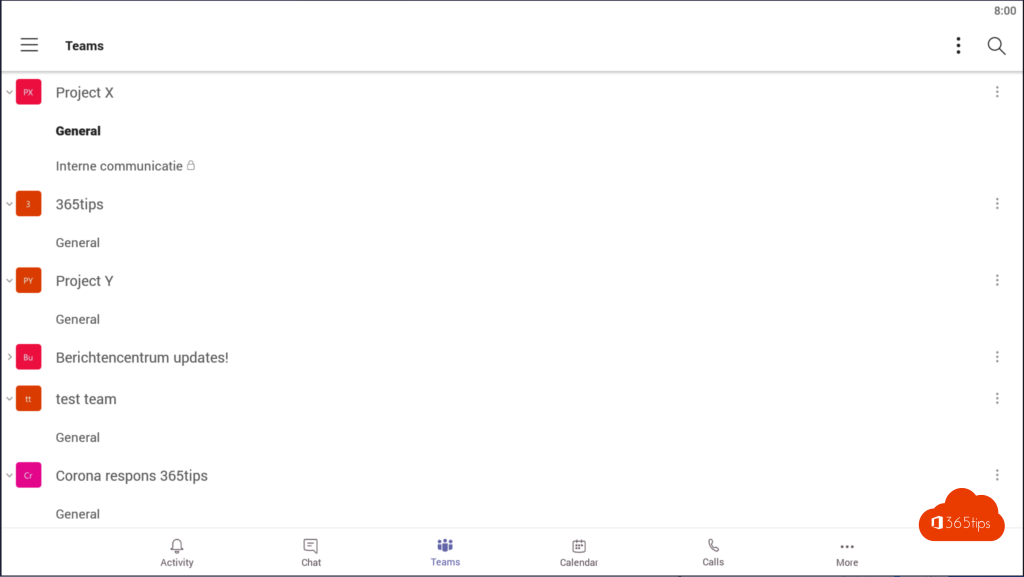

Things to keep in mind
- An emulator is not a managed device. Apps with app protection policies or Conditional Access may refuse to work or behave differently. For real policy tests, use a real device.
- Camera, microphone and notifications don't always work like on a real phone.
- Use a test account, and only install BlueStacks if your IT policy allows it.
Also see Android apps on Windows 11 and create a Microsoft 365 test tenant.
Read also
Android apps on Windows 11: the subsystem is gone, here are the alternatives
Create a Microsoft 365 tenant for testing
Make a slow Teams mobile app faster on Android and iPhone
Nederlandstalige versie: De Android-app van Microsoft Teams testen op je pc met BlueStacks