Without agreements, Teams quickly grows into hundreds of teams with vague names, abandoned teams and guests who no longer belong. With governance you keep order: who can create teams, what they're called, who can join and what happens when a team is no longer used. Here are the technical settings.
1. Who can create teams?
By default anyone can create a team. To limit that to a group, use PowerShell. Read restrict who can create teams. Make sure there's a simple request process.

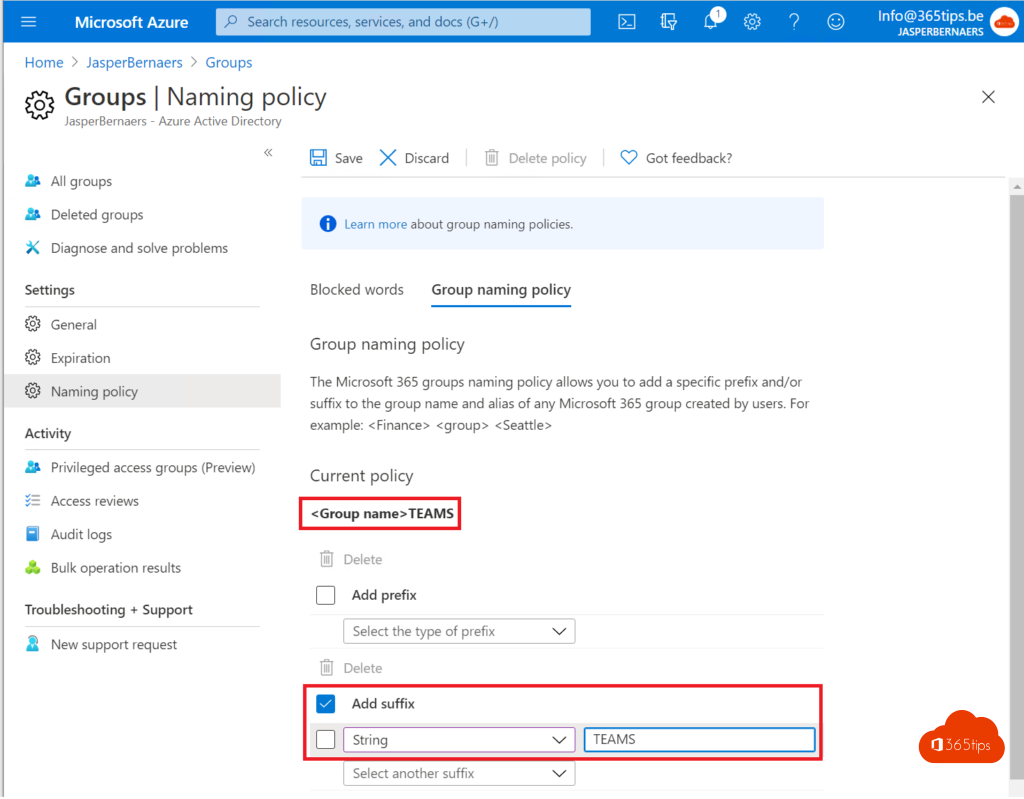
2. Naming policy
A naming policy for Microsoft 365 groups automatically adds a prefix or suffix, such as PRJ- or -External, and blocks words. Set it via Entra admin center > Groups > Naming policy. This requires Entra ID P1.

3. Expiration policy
With an expiration policy, owners must renew a team every so many days. Teams still in active use renew automatically. Read clean up teams with an expiration policy.

4. Sensitivity labels
With sensitivity labels from Microsoft Purview you decide when a team is created whether it's private, whether guests are allowed and whether files can be shared externally.

5. Guests and external users
Set guest access and external access deliberately, and review guests regularly with access reviews (Entra ID Governance).
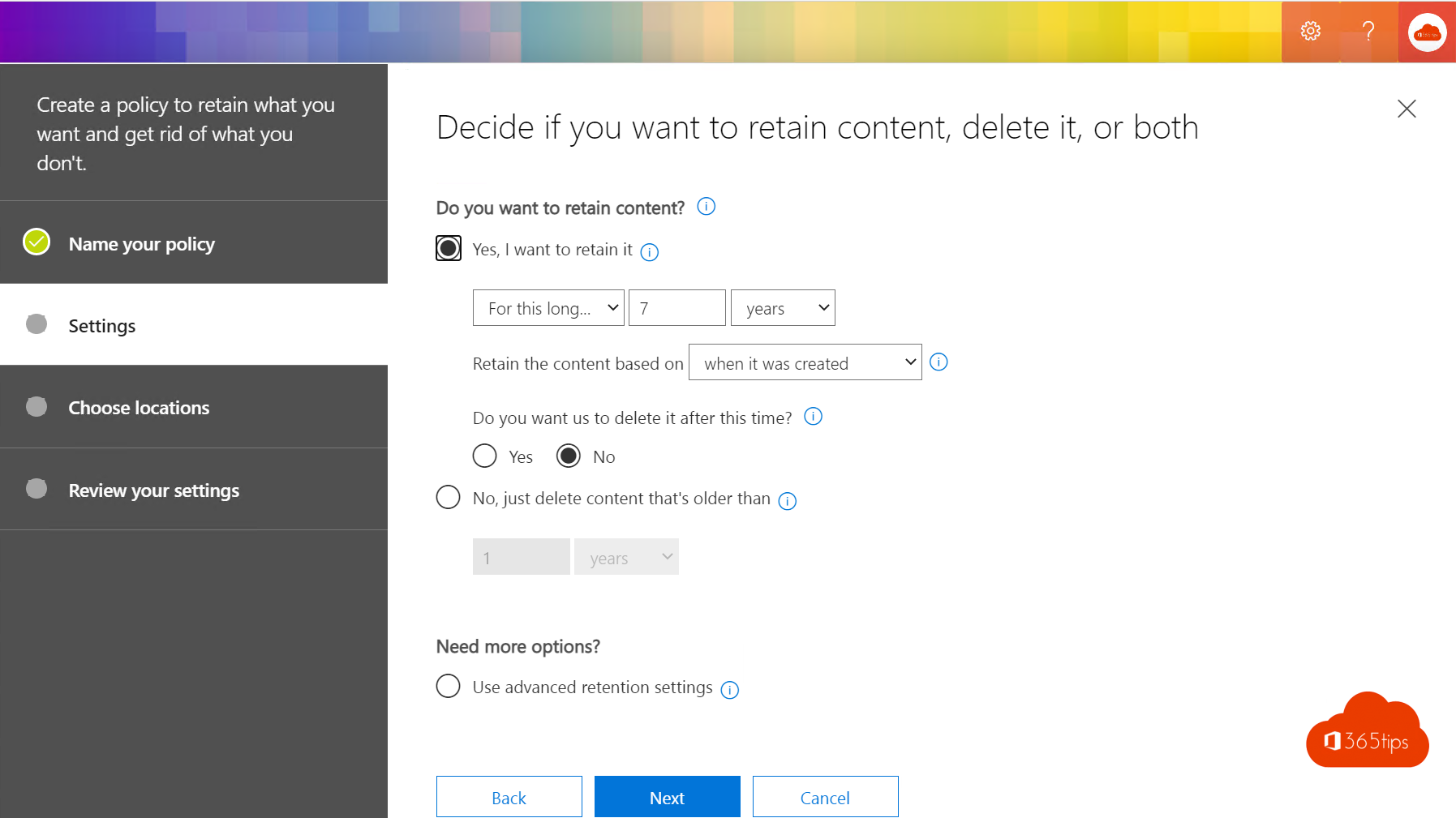
6. Retention and archiving
Set retention policies for chats and channel messages, and archive teams of finished projects instead of deleting them.
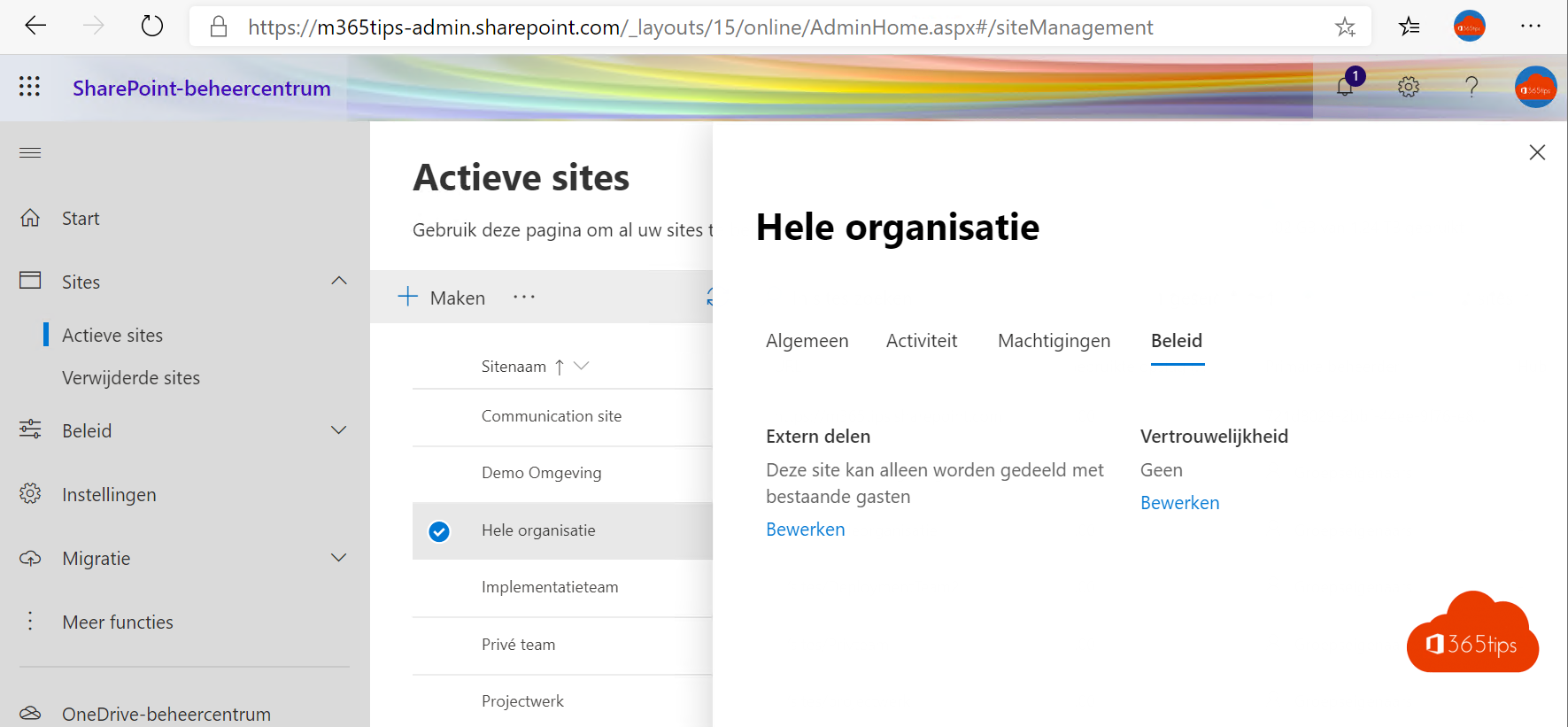
Also see 10 success factors for Teams and public, private or org-wide team.
Read also
Restrict who can create a team in Microsoft Teams
Clean up Microsoft Teams automatically with expiration policies and archiving
Ten success factors for setting up Microsoft Teams
Nederlandstalige versie: Technische governance voor Microsoft Teams: best practices