A program that freezes, a slow PC or a service that needs restarting: with Task Manager you see what's running on your PC and step in. This article shows how to open Task Manager, end an app and stop or start services in Windows 11.
Open Task Manager
- Ctrl + Shift + Esc: the fastest way.
- Right-click Start (or the taskbar) > Task Manager.
- Ctrl + Alt + Delete > Task Manager.
The tabs
- Processes: all apps and background processes with their CPU, memory and disk use. Search by name at the top.
- Performance: graphs of CPU, memory, disk, network and GPU.
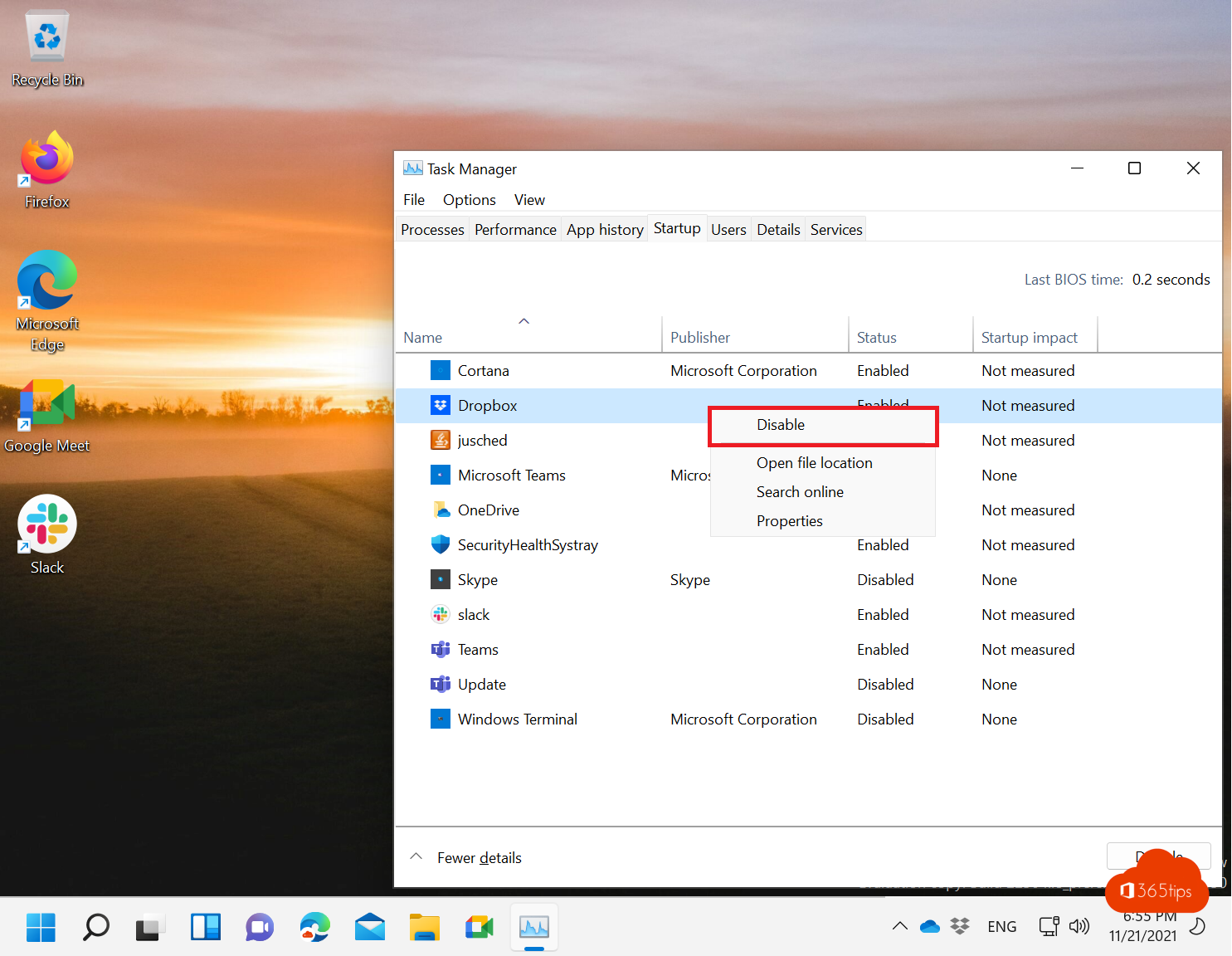
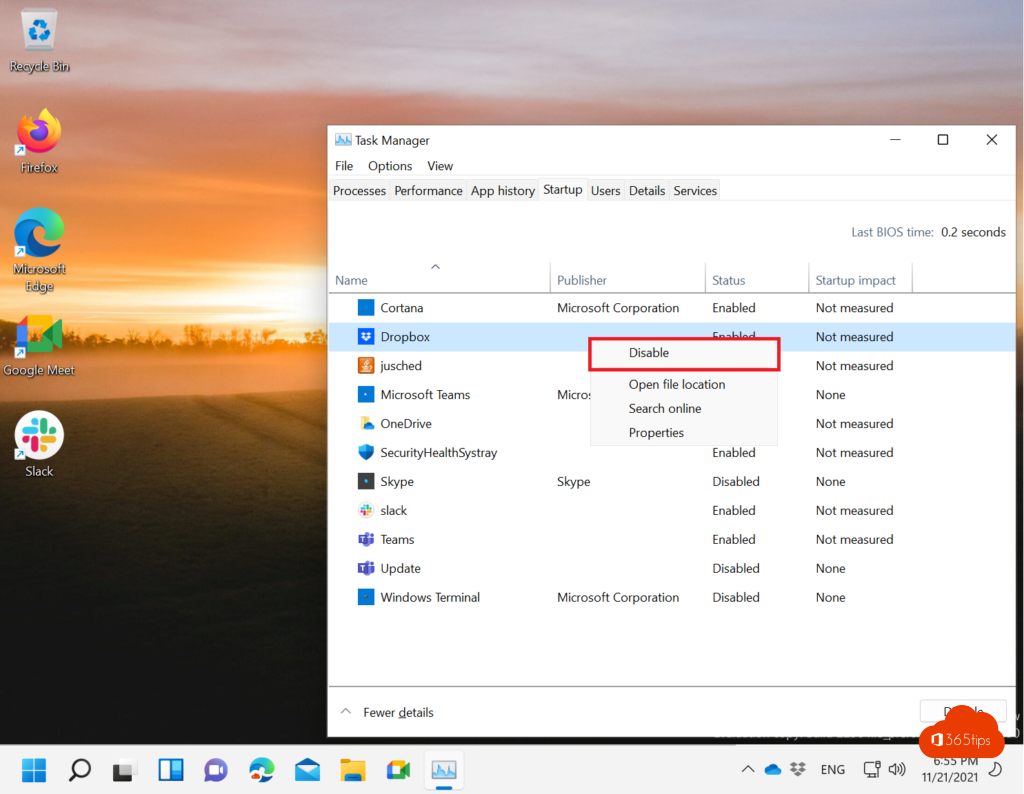
- Startup apps: what starts with Windows. Read speed up a slow PC.
- Details and Services: for advanced users.
End an app
Select the app on the Processes tab and select End task at the top. Unsaved work is lost. Efficiency mode gives a heavy app lower priority without closing it.
File Explorer or taskbar frozen?
Find Windows Explorer on the Processes tab, right-click > Restart. The taskbar and desktop reload without restarting the PC.
Stop and start services
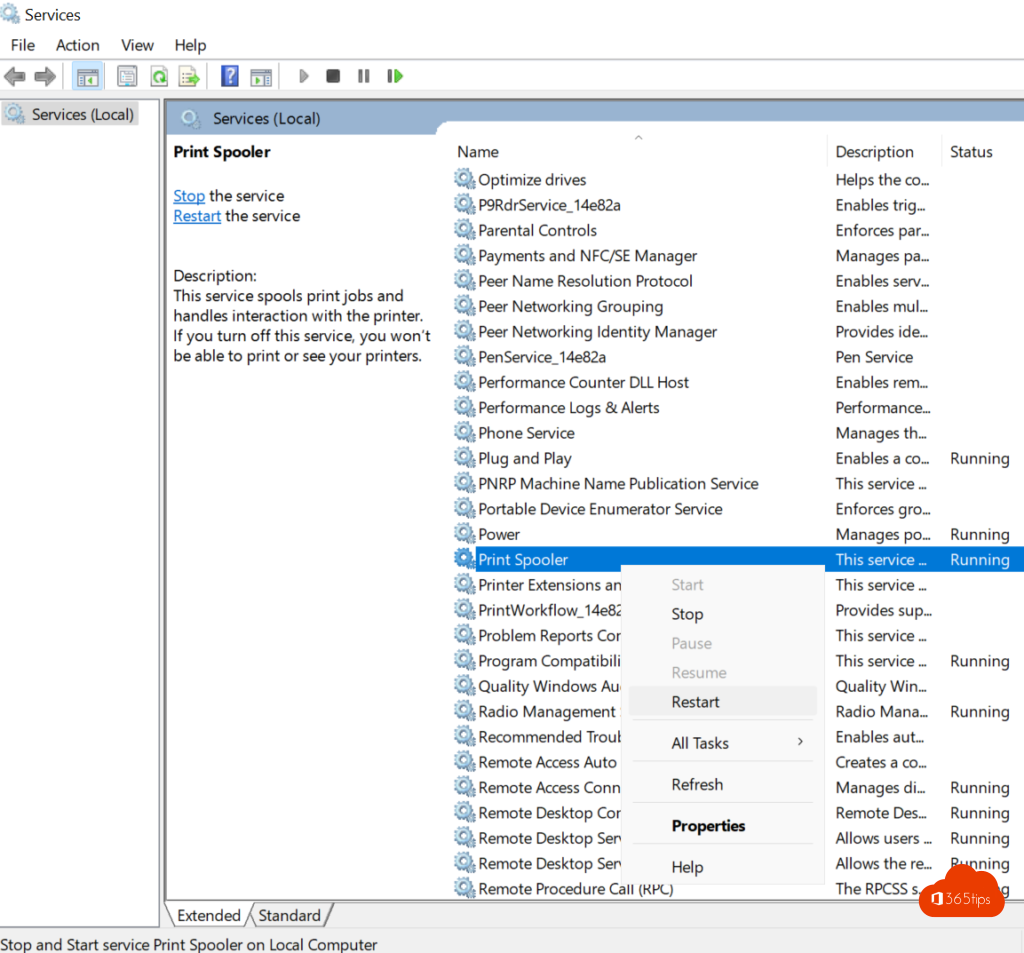
- Open the Services tab in Task Manager, or press Windows + R and type services.msc.
- Find the service, such as Print Spooler if the printer is stuck.
- Right-click > Stop, Start or Restart.
In services.msc you also choose the startup type: automatic, manual or disabled. Don't disable services you don't recognise.
With PowerShell
Get-Service spooler, Restart-Service spooler or Stop-Process -Name notepad, in a terminal as administrator. On a Mac instead? Read force quit an app on a Mac.
Read also
Speed up a slow Windows 11 computer: 10 tips
Force quit a frozen app on a Mac: 5 ways
Shut down, restart or hibernate a Windows 11 PC
Nederlandstalige versie: Taakbeheer openen en services stoppen of starten in Windows 11