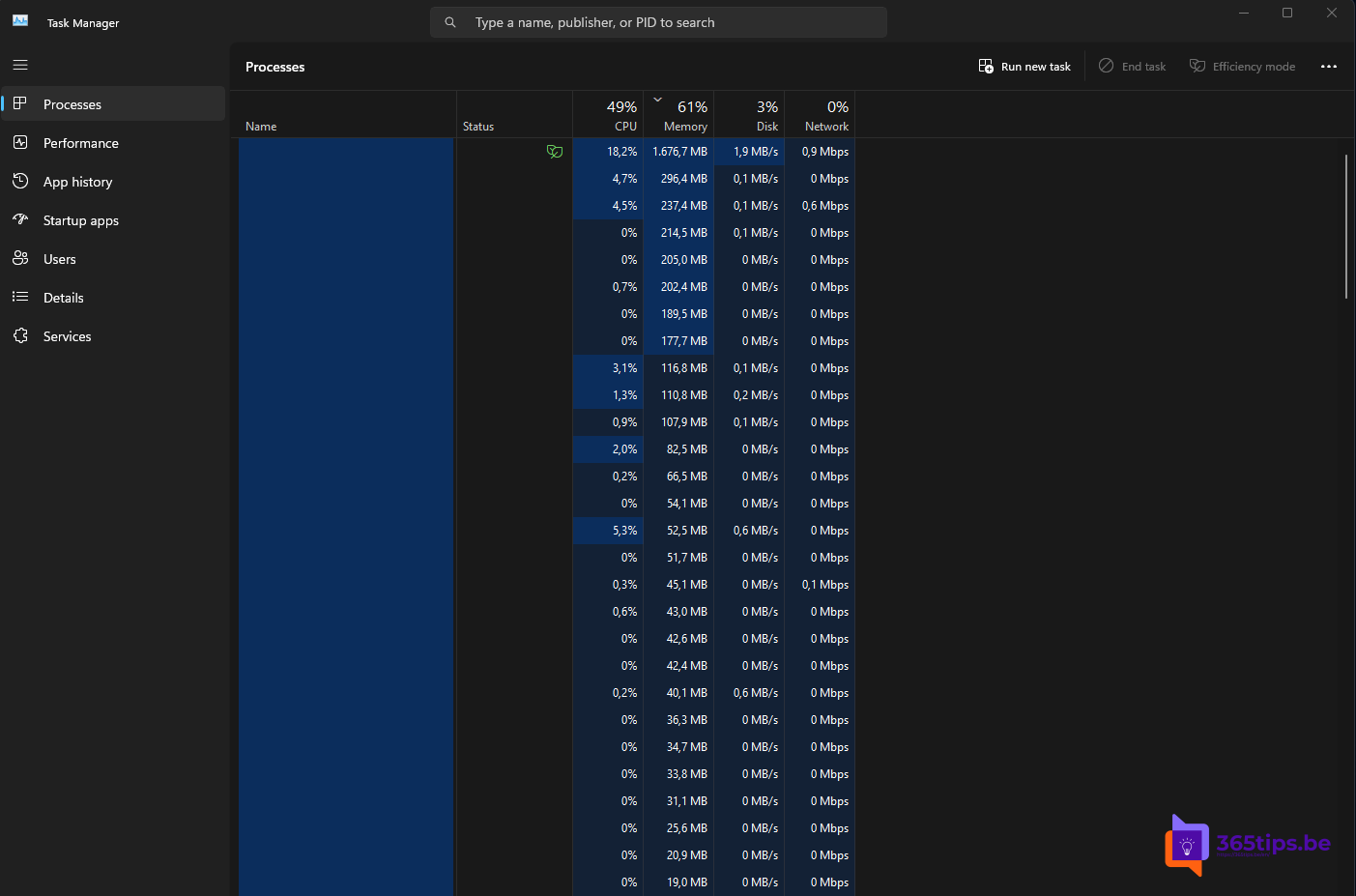
You want to click a process in Task Manager, but the list keeps jumping around as CPU usage changes. A hidden trick helps: hold down the Ctrl key. As long as you do, Task Manager pauses updating the list.
Pause with Ctrl
- Open Task Manager with Ctrl + Shift + Esc.
- Go to Processes and sort by, for example, CPU.
- Hold Ctrl. The list freezes.
- Click the process you're after, then release Ctrl.
Set the update speed
In Task Manager, go to Settings > Real time update speed and choose High, Normal, Low or Paused. With Paused, the list only refreshes when you press F5.
More Task Manager tips
- Find a process with the search box at the top.
- Right-click a process > Open file location to see where it comes from.
- Use Efficiency mode to make an app use fewer system resources.
- Manage services and startup apps. Read Task Manager and services in Windows 11.
Also see speed up a slow Windows 11 PC and Windows 11 keyboard shortcuts.
Read also
Open Task Manager and stop or start services in Windows 11
Speed up a slow Windows 11 computer: 10 tips
The most useful keyboard shortcuts for Windows 11
Nederlandstalige versie: De processenlijst in Taakbeheer pauzeren met de Ctrl-toets
More in English
▸Seven tips to work more productively in Windows 11Snap layouts, clipboard history, virtual desktops, File Explorer tabs, focus sessions and shortcuts in…
▸The most useful CMD commands for WindowsAn overview of handy Command Prompt commands: network, system repair, Group Policy, processes and files, each…
▸Fix the 0x0 0x0 error code on a Windows PCA step-by-step plan to fix the generic 0x0 0x0 error: updates, sfc and DISM, clean boot, drivers and…
▸Find and delete large files in Windows 11 and 10: 5 waysC: drive full? Find the largest files in Windows 11 and 10 with Storage settings, size:gigantic in File…