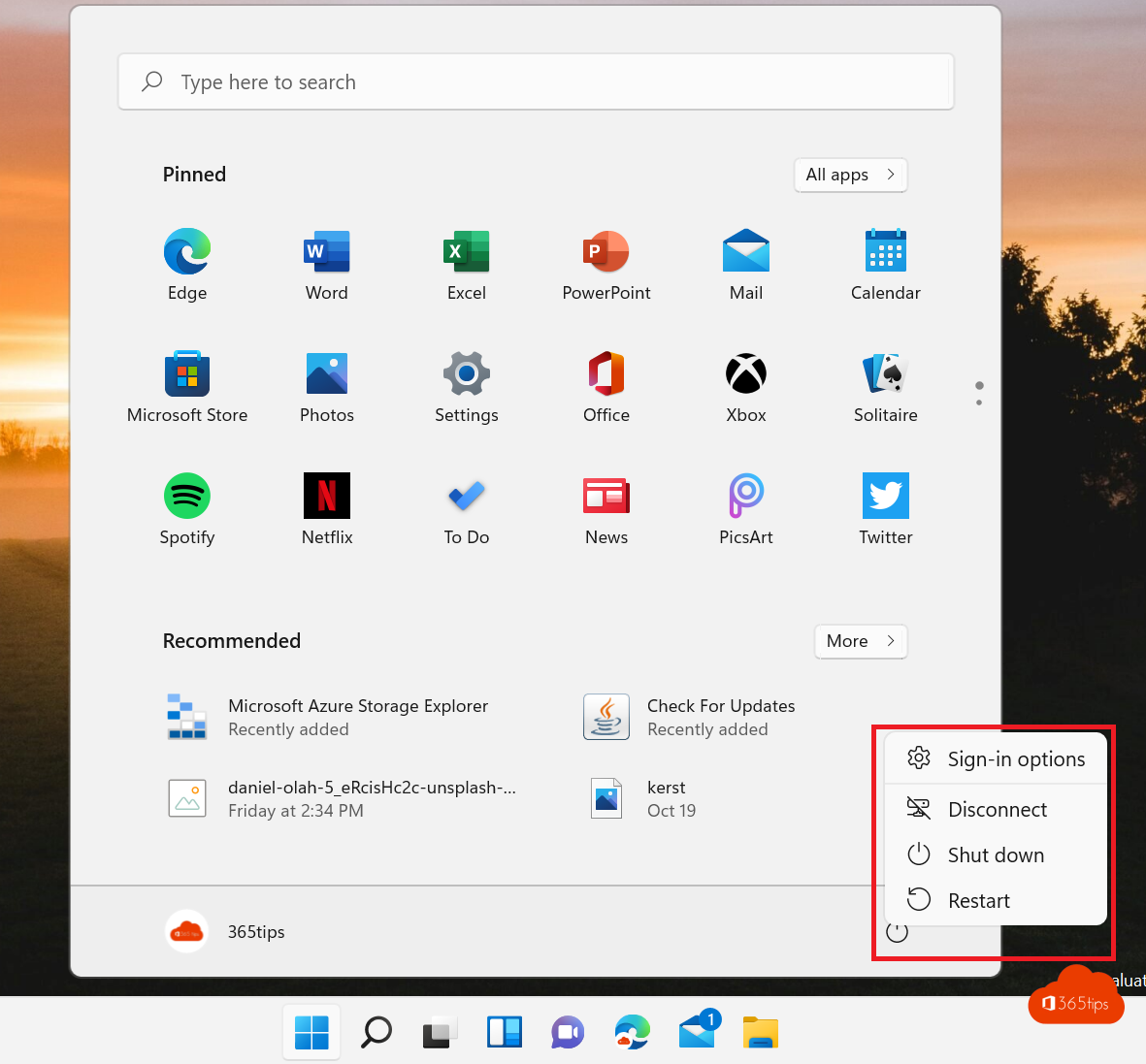
Shut down, restart, sleep or hibernate: Windows 11 offers several ways to stop your PC, each with a different purpose. This article explains the difference, how to add hibernate to the power menu and which quick methods exist.
What's the difference?
| Option | What happens? | When to use it? |
|---|---|---|
| Sleep | The PC stays on at low power; everything stays in memory | Short break, closing the laptop lid |
| Hibernate | Memory is written to disk and the PC turns off | Longer break, keep everything open without draining the battery |
| Shut down | Apps close and the PC turns off | In the evening or before travelling |
| Restart | Full shutdown and start again | After updates or when something hangs |
Restart fixes more problems than shutting down. Because of Fast startup, shutting down in Windows isn't always a full restart.
Quick methods
- Start menu > power button.
- Windows + X > Shut down or sign out. With the keyboard: Windows + X, then U, then U (shut down) or R (restart).
- On the desktop: Alt + F4 and choose the action.
- Ctrl + Alt + Delete > power button at the bottom right.

Add hibernate
- Open Control Panel > Power Options > Choose what the power buttons do.
- Select Change settings that are currently unavailable.
- Under Shutdown settings, tick Hibernate and select Save changes.
Option missing? Run powercfg /hibernate on in a terminal as administrator.

From the command line
- Shut down: shutdown /s /t 0
- Restart: shutdown /r /t 0
- Full shutdown without Fast startup: shutdown /s /full /t 0
- Shut down in an hour: shutdown /s /t 3600 (cancel with shutdown /a)
Update and shut down
If an update is waiting you'll see Update and shut down. Want to postpone it? Read pause Windows 11 updates. PC sluggish? See speed up a slow Windows 11 PC.
Read also
Speed up a slow Windows 11 computer: 10 tips
How to pause or delay Windows 11 updates and prevent restarts
Run Command Prompt as administrator in Windows 11 and 10: 6 ways
Nederlandstalige versie: Een Windows 11-pc afsluiten, opnieuw opstarten of in sluimerstand zetten