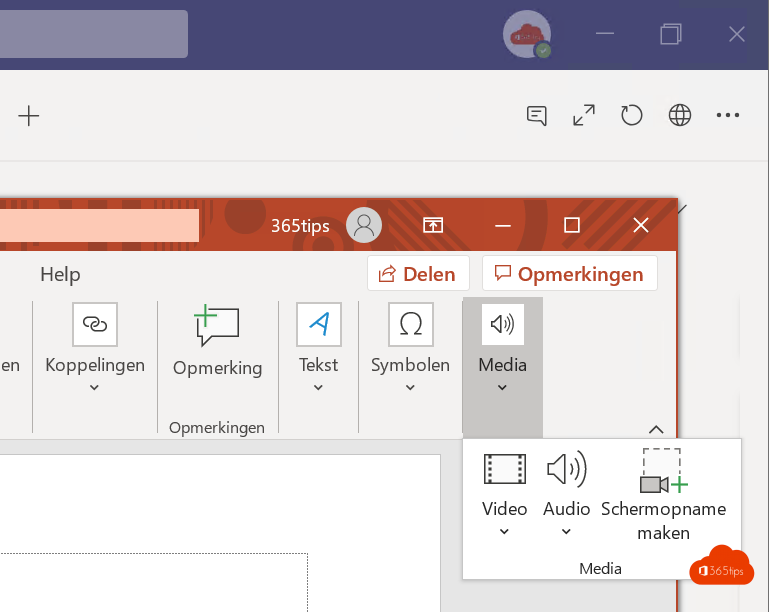
Want to make a short how-to video for colleagues without extra software? You can with PowerPoint. Its built-in screen recording captures part of your screen, with sound and pointer, and puts the video straight into your slide. You can also save it as a separate video file.
Make a screen recording
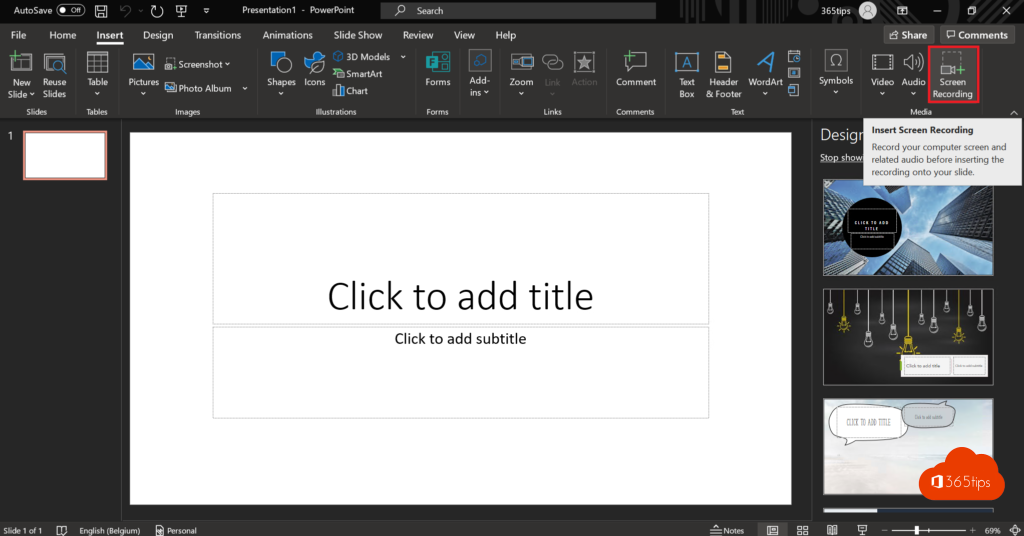
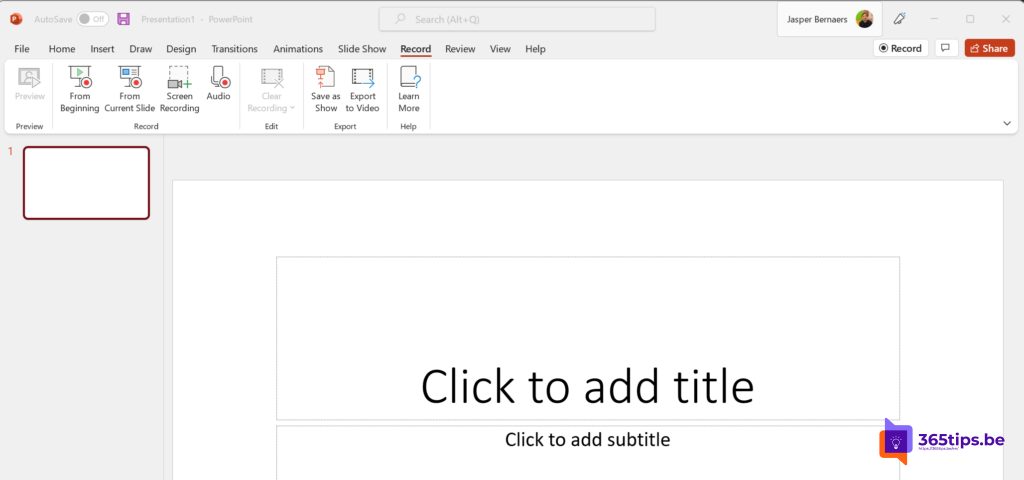
- Open PowerPoint and go to Insert > Screen Recording (or the Record tab > Screen Recording).
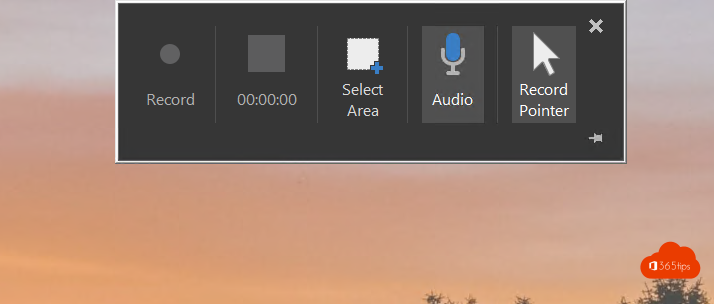
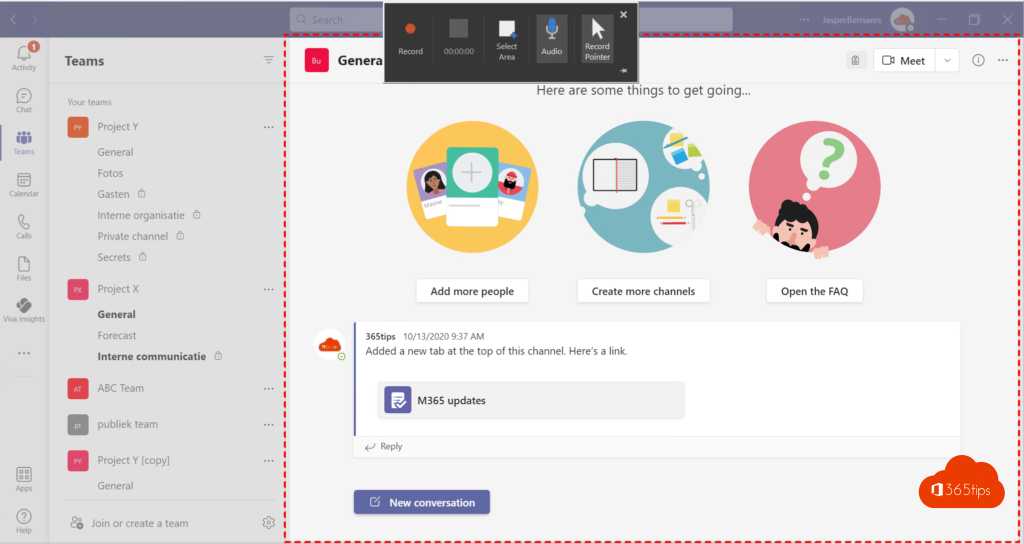
- Select Select Area and drag a frame around the part of your screen you want to record.
- Choose whether to record audio and the pointer.
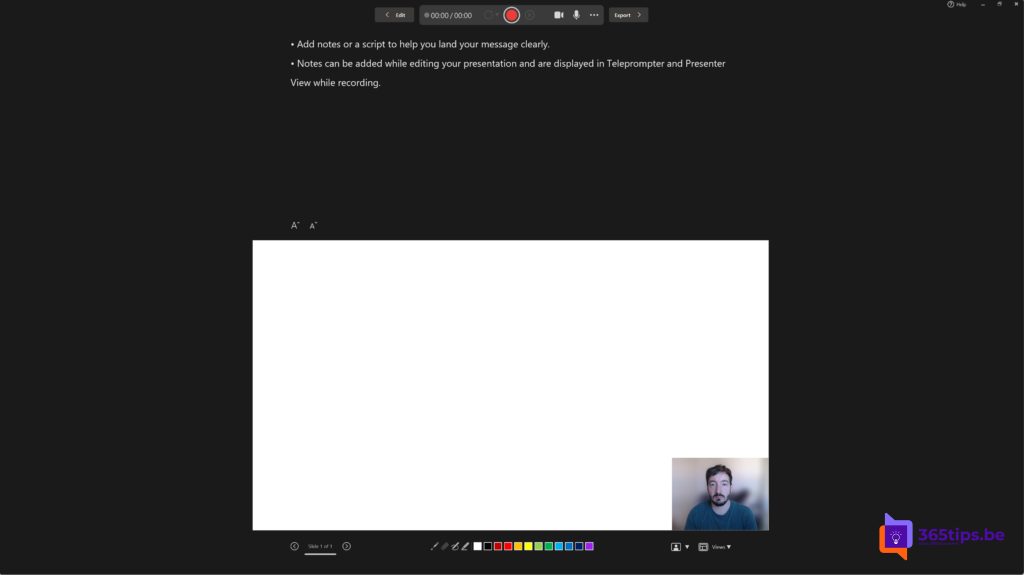
- Select Record. Stop with the button in the toolbar or with Windows + Shift + Q.
Save the video
The recording sits as a video in your slide. Right-click it and choose Save Media as to save it as an .mp4 file. Then share it in Teams, Stream or by email.
Trim it
Select the video and choose Playback > Trim Video to cut the start or end. For more editing, use Clipchamp.
Other ways
- The Snipping Tool in Windows 11 has a record button. Read screen recording in Windows 11.
- Clipchamp records your screen and camera at the same time.
Also see sharper Teams meeting recordings.
Read also
Record your screen in Windows 11 without extra software
Get a sharper recording of a Teams meeting
Present a PowerPoint in Teams with PowerPoint Live
Nederlandstalige versie: Een schermopname maken met PowerPoint