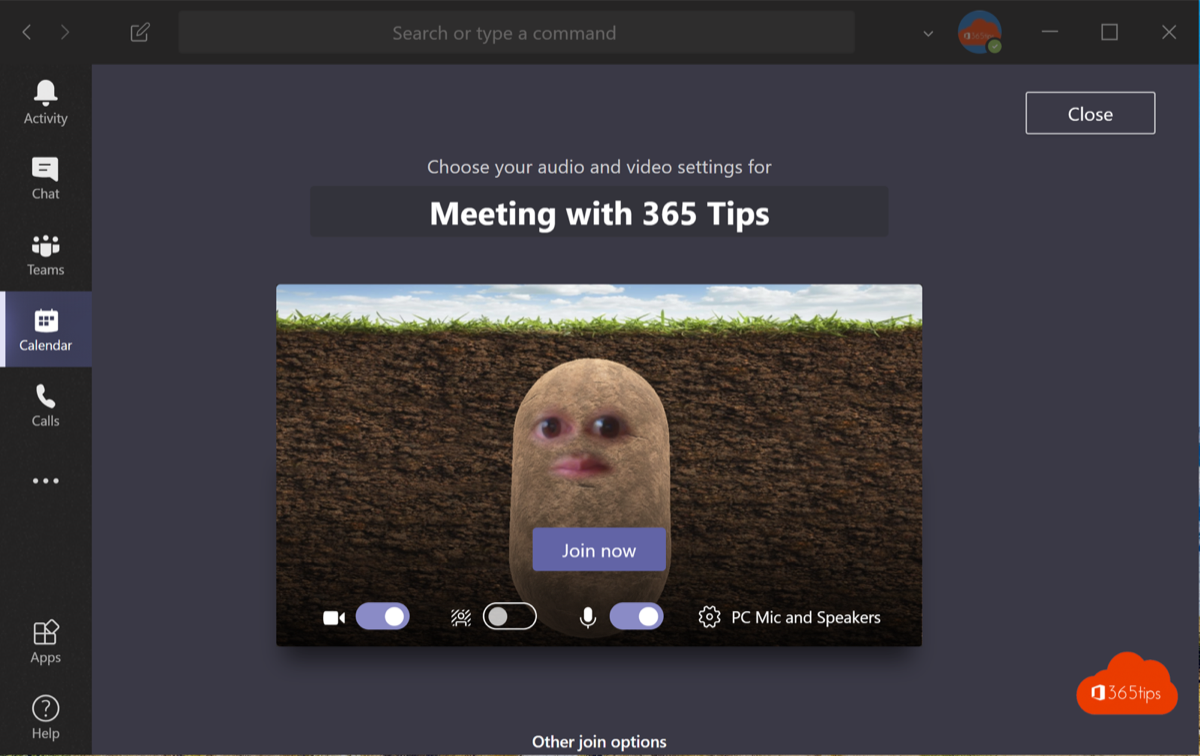
You used to be able to use funny Snapchat filters in Microsoft Teams, Zoom and other video calls with the Snap Camera app. That app no longer exists. Here's what changed and how you can still liven up your video in Teams today.
Snap shut down Snap Camera for Windows and Mac in early 2023. The app no longer works and can't be downloaded anymore. Use the built-in video effects in Teams instead.
What was Snap Camera?
Snap Camera was a free program that presented itself as an extra webcam. You chose the Snap Camera camera in Teams and could then put Snapchat filters (lenses) over your face, such as a potato or a hat.
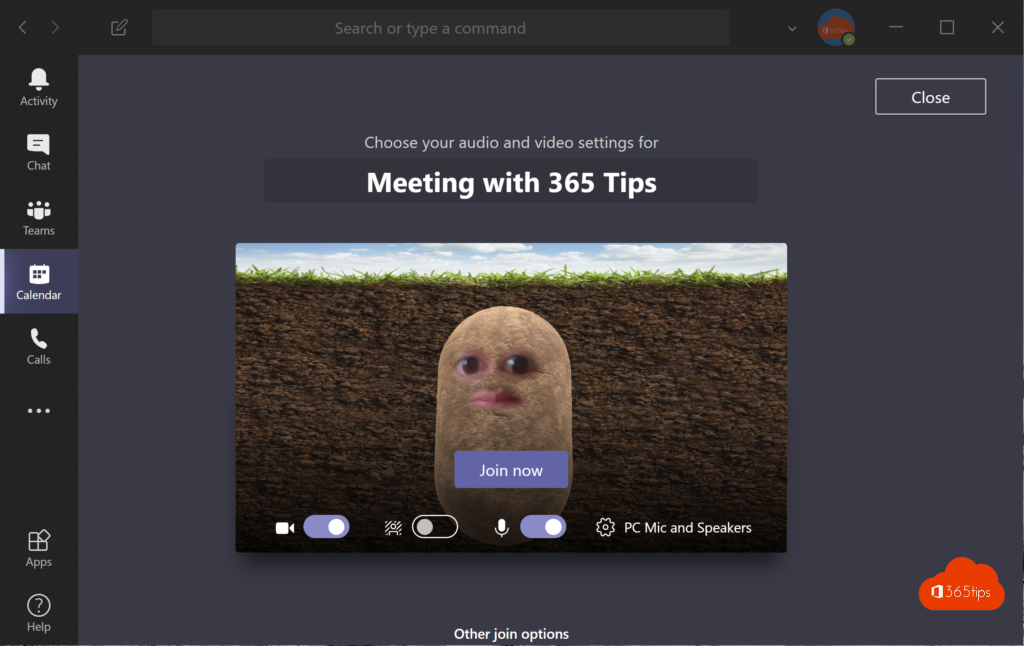
Still have the app on your PC? Remove it via Settings > Apps > Installed apps. Software that no longer gets updates is best removed.
Alternatives in Teams itself
In the meeting pre-join screen, or during the meeting via the arrow next to Camera, click Video effects and settings. You'll find, among other things:
- Backgrounds: blur, a standard background or your own image.
- Filters or effects: for example frames or color filters. What you see depends on your version and your organization.
- Adjust brightness and soft focus for a better picture.
You can also use live reactions such as thumbs up, heart or applause. Your admin can disable some effects. The exact names may differ.
Other options
- On a Copilot+ PC, Windows offers Windows Studio Effects, such as background blur, eye contact and creative filters, for every app that uses the camera.
- With OBS Studio and its virtual camera you can build your own scenes with logos, text or overlays.
- On a work laptop, only install extra camera software if your IT department allows it.
Also see set a custom background in Teams, brightness and soft focus in Teams and OBS virtual camera in Teams.
Read also
Set a custom background in Microsoft Teams
Turn on brightness correction and soft focus in Microsoft Teams
OBS Studio and Microsoft Teams: how to use the virtual camera
Nederlandstalige versie: Snapchat-filters in Microsoft Teams: Snap Camera bestaat niet meer