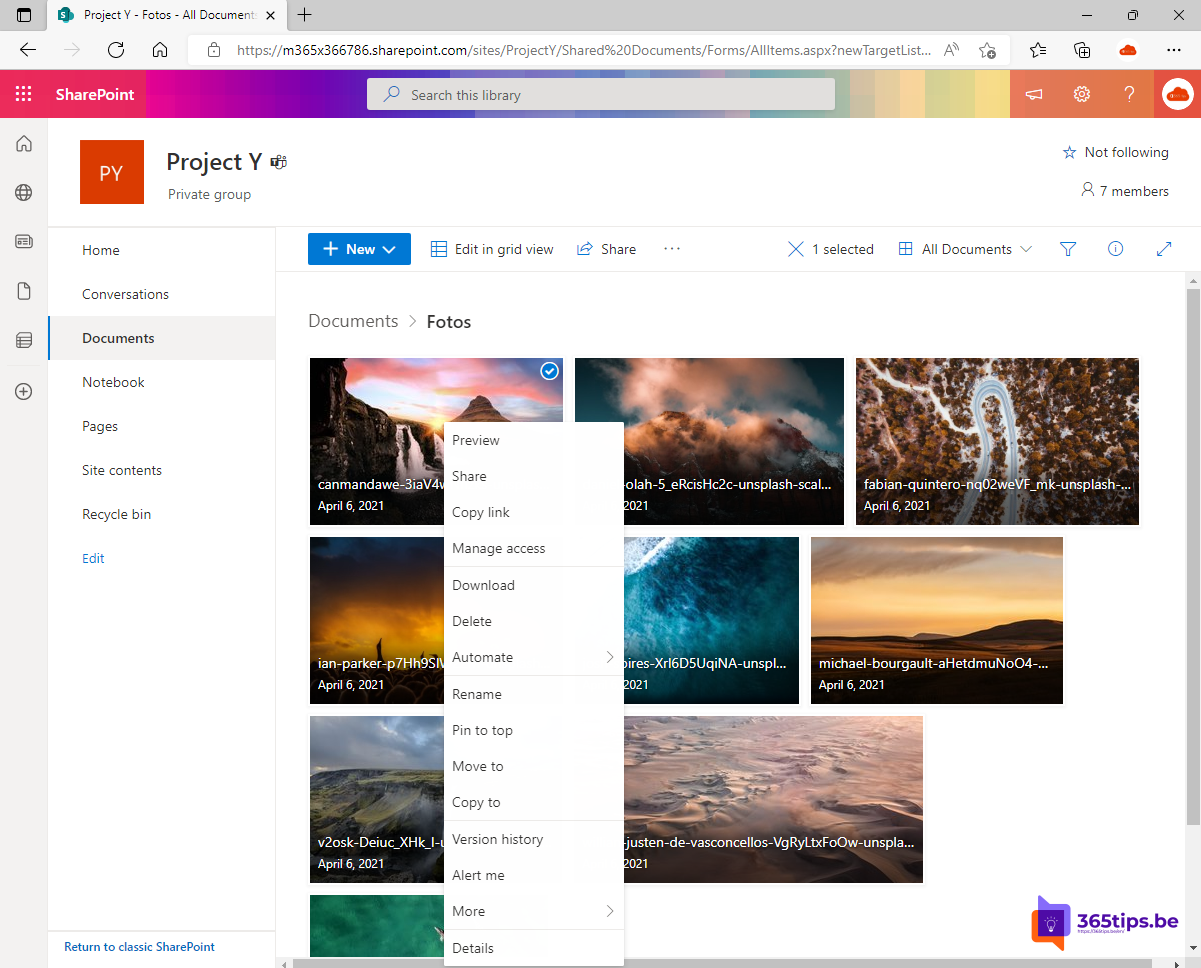
You want to know when someone changes, adds or deletes a file in SharePoint or Teams. You used to use Alert me for that. Microsoft is retiring those classic SharePoint alerts, replacing them with rules and Power Automate. This article shows how to get notified of changes now.
With a rule in SharePoint
- Open the library in SharePoint (in Teams: Files > Open in SharePoint).
- Select Automate at the top > Rules > Create a rule.
- Choose when the rule fires, for example A new file is added, Data in a column changes or A file is deleted.
- Choose who gets an email and select Create.
Rules work on Microsoft Lists too. Manage or turn them off via Automate > Rules > Manage rules.

With Power Automate
Want more, such as a message in Teams, alerts for one folder only or a daily summary? Build a flow:
- In the library, select Automate > Power Automate > Create a flow, or start at make.powerautomate.com.
- Trigger: When a file is created or modified (properties only).
- Action: Send an email or Post message in a chat or channel (Teams).
Quick look at what changed
- Select the information icon (i) on a file to see recent activity.
- Use version history to see who changed what.
- An @mention in a comment notifies a colleague about a specific passage.
Still had old alerts?
Existing alerts stop working after the retirement. Recreate them as a rule or flow. Admins can use PowerShell to list which alerts still exist. Related: save email attachments with Power Automate.
Nederlandstalige versie: Een melding krijgen wanneer iemand een SharePoint- of Teams-bestand wijzigt