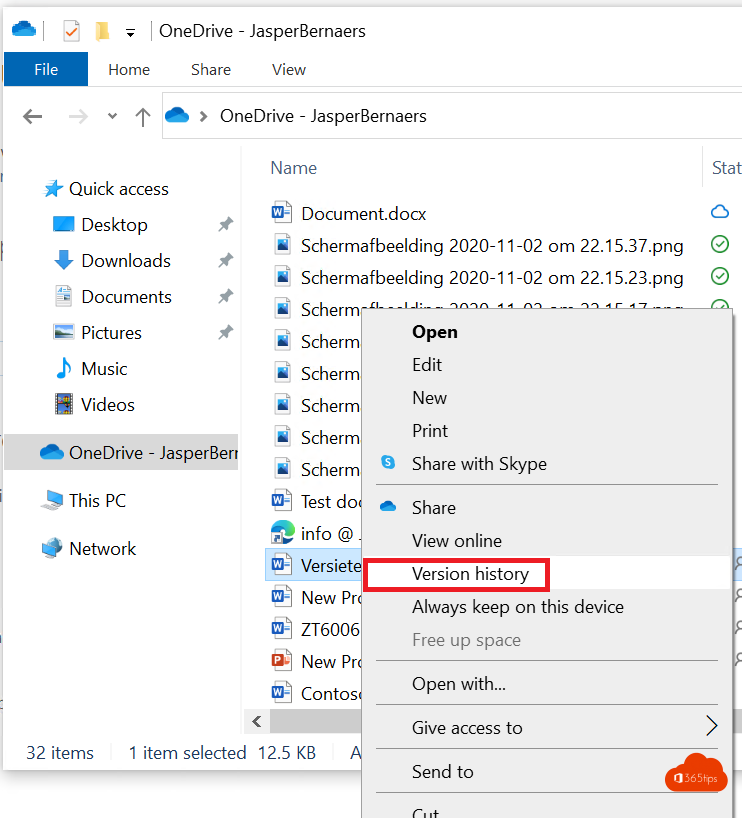
A colleague accidentally deleted half your document, or you want to go back to last week's version? Files in OneDrive, SharePoint and Teams keep earlier versions automatically. With version history you view and restore any version. This article shows how.
In OneDrive, SharePoint or Teams
- Go to the file (in Teams: the Files tab).
- Select More options (...) > Version history.
- You see every version with date, time and who changed it.
- Select the three dots next to a version > View, Restore or Delete.
Restoring makes the old version the new current one. Later versions are kept, so you lose nothing.


In Word, Excel or PowerPoint
Select the file name at the top > Version History. The list appears on the right. Select a version to open it and choose Restore, or copy just the text you need.

How many versions are kept?
- By default SharePoint and OneDrive keep up to 500 major versions per file.
- Admins can change the limits per site or organisation-wide, including age-based limits, in the SharePoint admin center > Settings > Version history limits.
- Versions count towards your storage. With large files that adds up fast.
Not working?
- Files on your local drive have no version history. Save them in OneDrive.
- A file copied elsewhere doesn't take its history along; moving does. Read move or copy files.
- File deleted? Read restore deleted OneDrive files.
- Never saved at all? See recover unsaved Word files.
Read also
Restore deleted OneDrive files up to 93 days after deletion
How to restore deleted files in Microsoft Teams and SharePoint
Recover an unsaved Word or Excel file
Nederlandstalige versie: Een oudere versie herstellen met de versiegeschiedenis in OneDrive en SharePoint