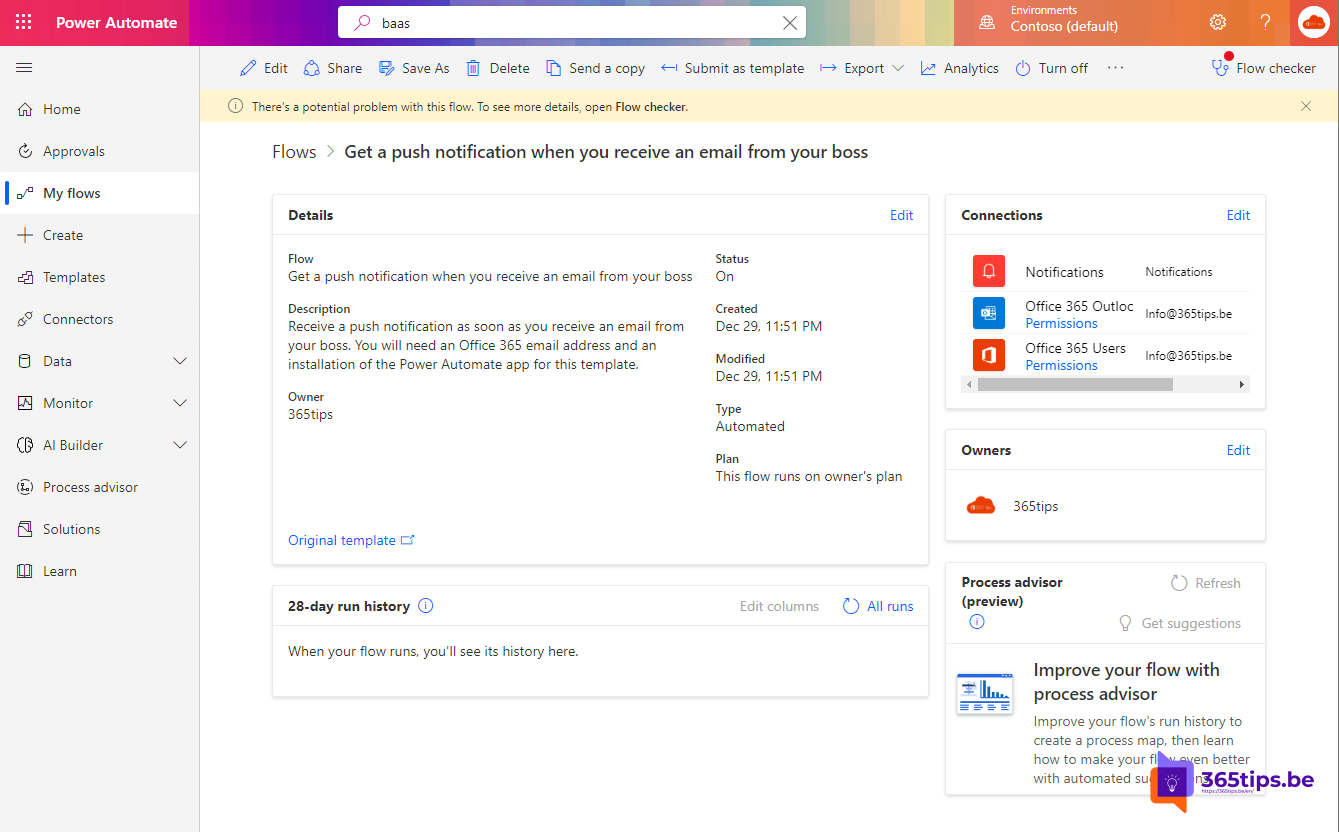
You turn off Outlook notifications to focus, but you don't want to miss an email from your manager or an important customer. With Power Automate you get a push notification on your phone as soon as a specific person emails you. There are also ways without Power Automate.
With Power Automate
- Go to make.powerautomate.com and search the templates for push notification and email from your boss.
- Choose the template that sends a push notification when you get an email from a specific person, and select Continue.
- Under From, fill in your manager's email address.
- Install the Power Automate app on your phone and sign in. That's where the notifications arrive.


With the Outlook app
Add the person to your favorites in the Outlook app. Then go to Settings > Notifications and choose to only get notifications for email from favorite people (the option differs by version).
With a rule in classic Outlook
Create a rule for email from that person, with the action Display a Desktop Alert or Play a sound. This only works while Outlook is open on your computer.
Also see what is Power Automate? and desktop notifications in Outlook on the web.
Read also
What is Microsoft Power Automate and how do you start?
Turn on desktop notifications in Outlook on the web
Set up your work email in the Outlook app on iPhone or Android
Nederlandstalige versie: Een pushmelding krijgen bij een e-mail van je leidinggevende