Want a LinkedIn post to go live at the best moment, even when you're busy? Schedule it. LinkedIn has a built-in feature for that, on your computer and in the app. Below you'll learn how to schedule a post and how to prepare it well.
Schedule a post on your computer
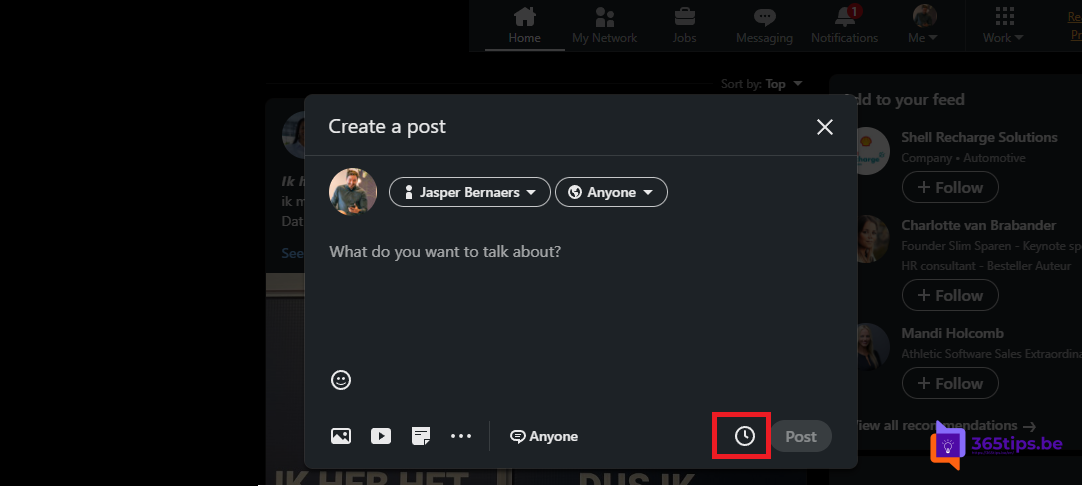
- Open linkedin.com and click Start a post at the top.
- Type your text and optionally add a photo, video or document.
- At the bottom, next to Post, click the clock icon.
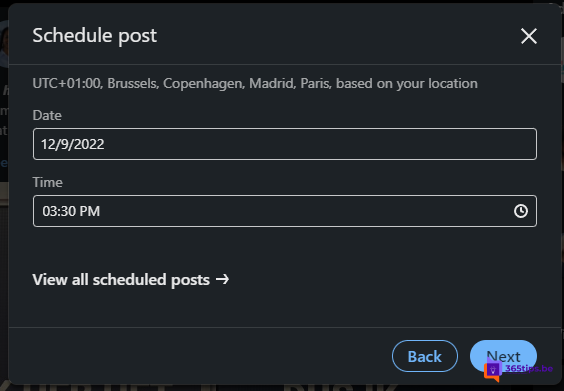
- Pick the date and time and click Next.
- Click Schedule.
The exact button names may vary.

Schedule in the app
- Tap Post (the plus sign) and write your post.
- Tap the clock icon, pick a date and time and confirm.
View or edit scheduled posts
Open the post composer again and click the clock icon. Choose View all scheduled posts. You can edit a scheduled post, change the time or delete it. LinkedIn notifies you as soon as the post is live.
How to write a good post
- Set your goal: are you sharing news, announcing something or sharing knowledge? A clear goal makes your post stronger.
- Start strong: only the first lines are visible before readers click more. Put your message there.
- Keep it readable: short paragraphs, maybe an image or document.
- Use a few relevant hashtags instead of a long list.
- End with a question or call to action, so readers respond.
- Pick your moment: schedule your post for when your network is online, for example on a weekday morning.
- Proofread before you schedule. Ask a colleague to take a look if you like.
Also see how to schedule a chat message in Microsoft Teams and how to find your saved LinkedIn posts.
Read also
Find your saved posts on LinkedIn
How to schedule a chat message in Microsoft Teams
Delete your LinkedIn account (or put it in hibernation)
Nederlandstalige versie: Een bericht plannen op LinkedIn