Do you want to stop people from opening your Excel file, or prevent colleagues from accidentally overwriting formulas? Excel has several kinds of protection for this, and they are often confused. This article explains which protection to use when, how to put a password on an Excel file or worksheet, how to remove the password again and what you can do if you forgot it.
Which protection do you need?
| Protection | What does it do? | Really secure? |
|---|---|---|
| Encrypt with password | Nobody can open the file without the password | Yes, the file is encrypted |
| Password to modify | Anyone can open it, but only save changes with the password | No, it is a speed bump |
| Protect Sheet | Cells, formulas and formatting cannot be changed | No, it prevents mistakes |
| Protect Workbook (structure) | Sheets cannot be added, deleted, hidden or renamed | No, it prevents mistakes |
Microsoft says it plainly: worksheet protection is not a security feature. It stops users from changing things by accident but does not protect confidential data. If nobody may read your data, encrypt the file.
Password protect an Excel file (encrypt)
- Open the file in the Excel desktop app.
- Go to File > Info.
- Click Protect Workbook > Encrypt with Password.
- Type a password, click OK and type it again to confirm.
- Save the file. From now on Excel asks for the password when opening it.
Set a password to open and a password to modify
Want everyone to be able to read the file, but only some people to change it?
- Choose File > Save As and click Browse.
- At the bottom of the dialog, click Tools > General Options.
- Enter a Password to open and/or a Password to modify. Optionally tick Read-only recommended.
- Click OK and save the file.
Anyone without the password to modify can open the file read-only. They can still save a copy under another name, so do not use this to protect data.
Protect a worksheet
Ideal for a template or form in which colleagues may only fill in certain cells.
- Select the cells others may change.
- Right-click > Format Cells > Protection tab and untick Locked. By default all cells are locked.
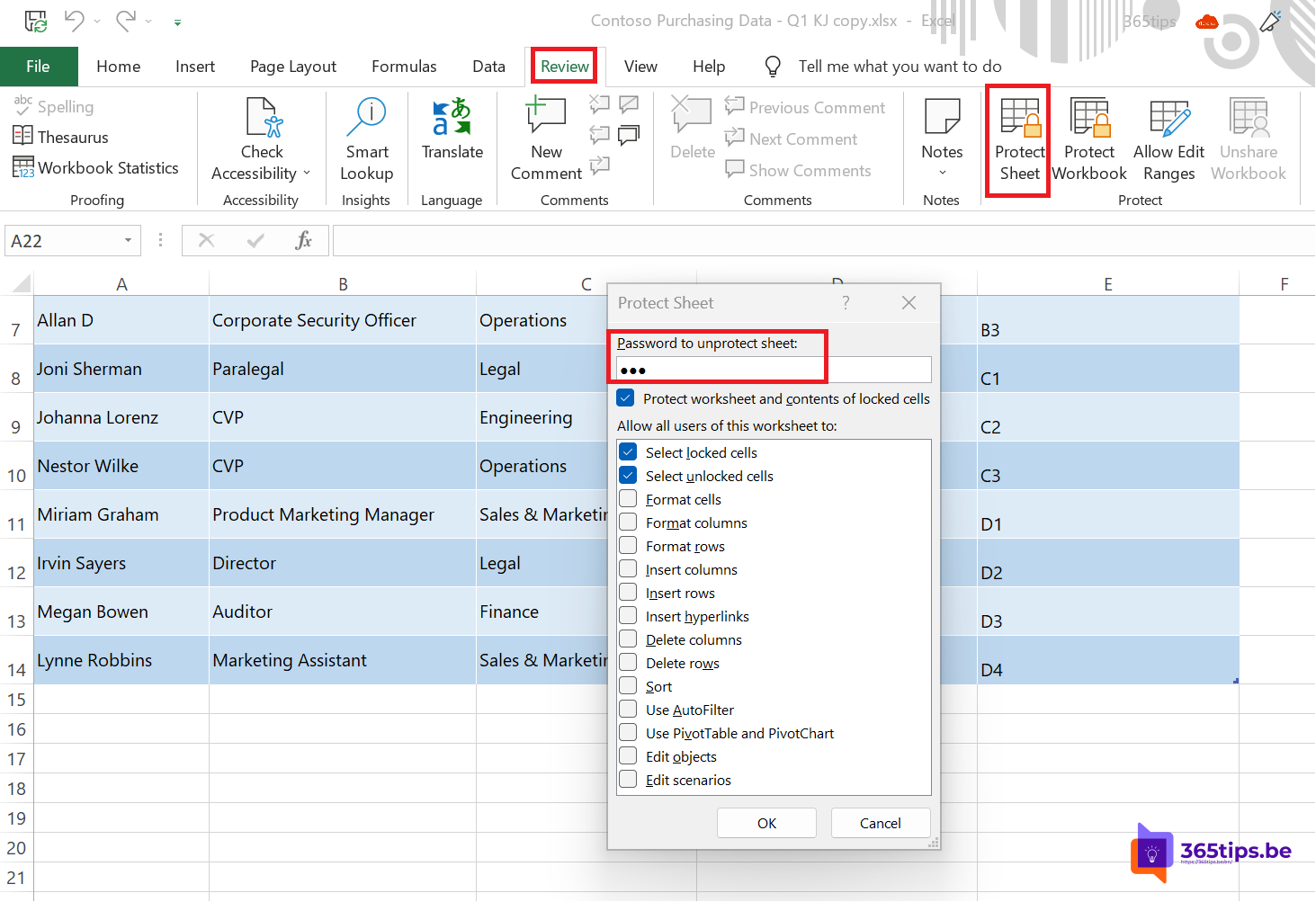
- Go to the Review tab and click Protect Sheet.
- Optionally type a password and tick what users may still do, such as Select unlocked cells, Sort or Use AutoFilter.
- Click OK.

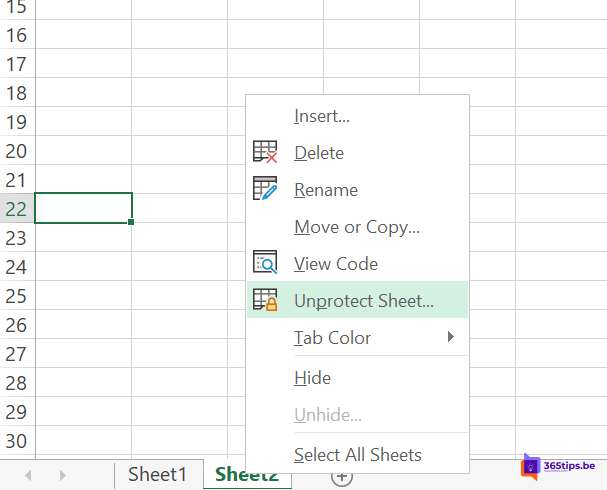
To protect a sheet without opening it, right-click its tab at the bottom and choose Protect Sheet.
Tip: with Review > Allow Edit Ranges you give different ranges their own password, so each department can only change its own part.
Protect the workbook structure
Go to Review > Protect Workbook, keep Structure ticked and optionally type a password. After that nobody can add, delete, move, hide or rename sheets. Cell contents can still be changed unless you also protect the sheets.
Remove the password from an Excel file
You always need the current password.
- Remove encryption: open the file with the password, go to File > Info > Protect Workbook > Encrypt with Password, clear the field, click OK and save the file.
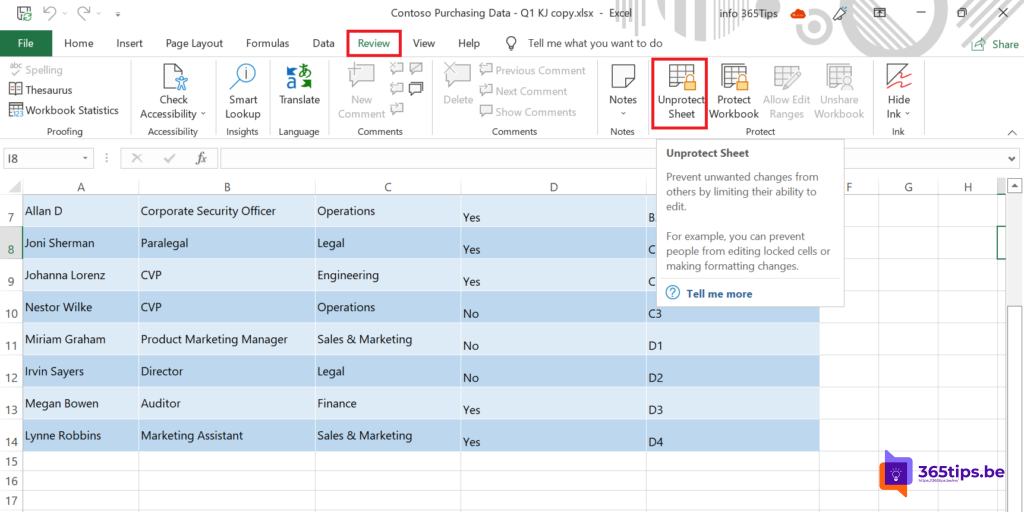
- Unprotect a sheet: go to Review > Unprotect Sheet and type the password.
- Unprotect the workbook structure: click Review > Protect Workbook again and type the password.
- Remove the password to modify: File > Save As > Tools > General Options, clear the fields and save.

Excel for the web, Mac and mobile
- Excel for the web can open and edit a password-protected workbook, but you cannot add, change or remove passwords there. Click Open in Desktop App for that.
- Excel for Mac: the options are under Review > Protect Workbook and Protect Sheet. On the Mac, passwords are limited to 15 characters; keep that in mind when you share files with Mac users.
Forgot the password?
Microsoft cannot retrieve a forgotten Excel password. What you can try:
- Check your password manager or the browser where you store passwords.
- Is the file stored in OneDrive, SharePoint or Teams? Restore an older version from before the password through Version history.
- Ask the colleague who set the password.
Be careful with online "password crackers": you would upload a file with possibly confidential data to an unknown party.
Excel files in Teams and SharePoint: use permissions instead
An Excel file in a Teams channel is visible to all members of that team. A password on the file is rarely the best answer there: you have to share the password, it is the same for everyone, and whoever forgets it loses the data. Better options are:
- A private channel or a separate folder with its own permissions for sensitive files.
- Sharing with specific people instead of the whole organization.
- Sensitivity labels (Microsoft Purview), if your organization uses them. They encrypt the file based on who you are, not on a shared password.
Read also
How to restore deleted files in Microsoft Teams and SharePoint
Security defaults in Microsoft Entra ID: what they do and how to enable them
All Microsoft 365 admin portals in one list: the right URLs in 2026
Nederlandstalige versie: Een Excel-bestand beveiligen met een wachtwoord of het wachtwoord verwijderen