Is your iPhone frozen, is a setting acting up, or do you want to sell the device? You don't need a computer for that. This article shows four ways to restart or reset your iPhone, from a simple restart to fully erasing the device.
First: make a backup
Methods 3 and 4 erase everything on your iPhone. So make an iCloud backup first:
- Connect your iPhone to Wi-Fi.
- Open Settings and tap your name at the top.
- Tap iCloud > iCloud Backup.
- Tap Back Up Now and wait until it's finished.
1. Force restart
Ideal when your iPhone freezes or stops responding. You don't lose any data.
| Model | How to do it |
|---|---|
| iPhone 8 and later (including iPhone SE 2nd and 3rd generation) | Quickly press volume up, quickly press volume down, then hold the side button until the Apple logo appears. |
| iPhone 7 and 7 Plus | Hold the side button and volume down together until the Apple logo appears. |
| iPhone 6s and earlier | Hold the Home button and the side or top button together until the Apple logo appears. |

2. Reset all settings
Is your iPhone behaving oddly because of a setting? Reset all settings to their defaults. Your photos, apps and messages stay. You do lose Wi-Fi passwords, your wallpaper and privacy settings.
- Open Settings > General.
- Scroll down and tap Transfer or Reset iPhone.
- Tap Reset > Reset All Settings.
- Enter your passcode and confirm.
Only having trouble with Wi-Fi or mobile data? Choose Reset Network Settings instead. That's less drastic.
3. Erase all content and settings
Use this before you sell, give away or trade in your iPhone. Everything is removed from the device.
- Open Settings > General > Transfer or Reset iPhone.
- Tap Erase All Content and Settings.
- Follow the steps. You enter your passcode and your Apple Account password.
This also turns off Find My and Activation Lock. Always do this before handing an iPhone over, or the new owner won't be able to use it.
4. Restore from an iCloud backup
Does the problem persist after a restart and a settings reset? Erase the iPhone completely (method 3) and then restore your backup:
- Erase the iPhone as in method 3.
- Go through setup until you reach the screen to transfer your apps and data.
- Choose From iCloud Backup (the exact wording may vary), sign in and pick the right backup.
Forgot your passcode?
On recent iOS versions you can also erase your iPhone without a computer if you've forgotten the passcode. After a few wrong attempts, the lock screen shows an option such as Forgot Passcode?. You need your Apple Account password, and the iPhone must be connected to Wi-Fi or mobile internet. A lost iPhone can be erased remotely via Find My on icloud.com.
And with a computer?
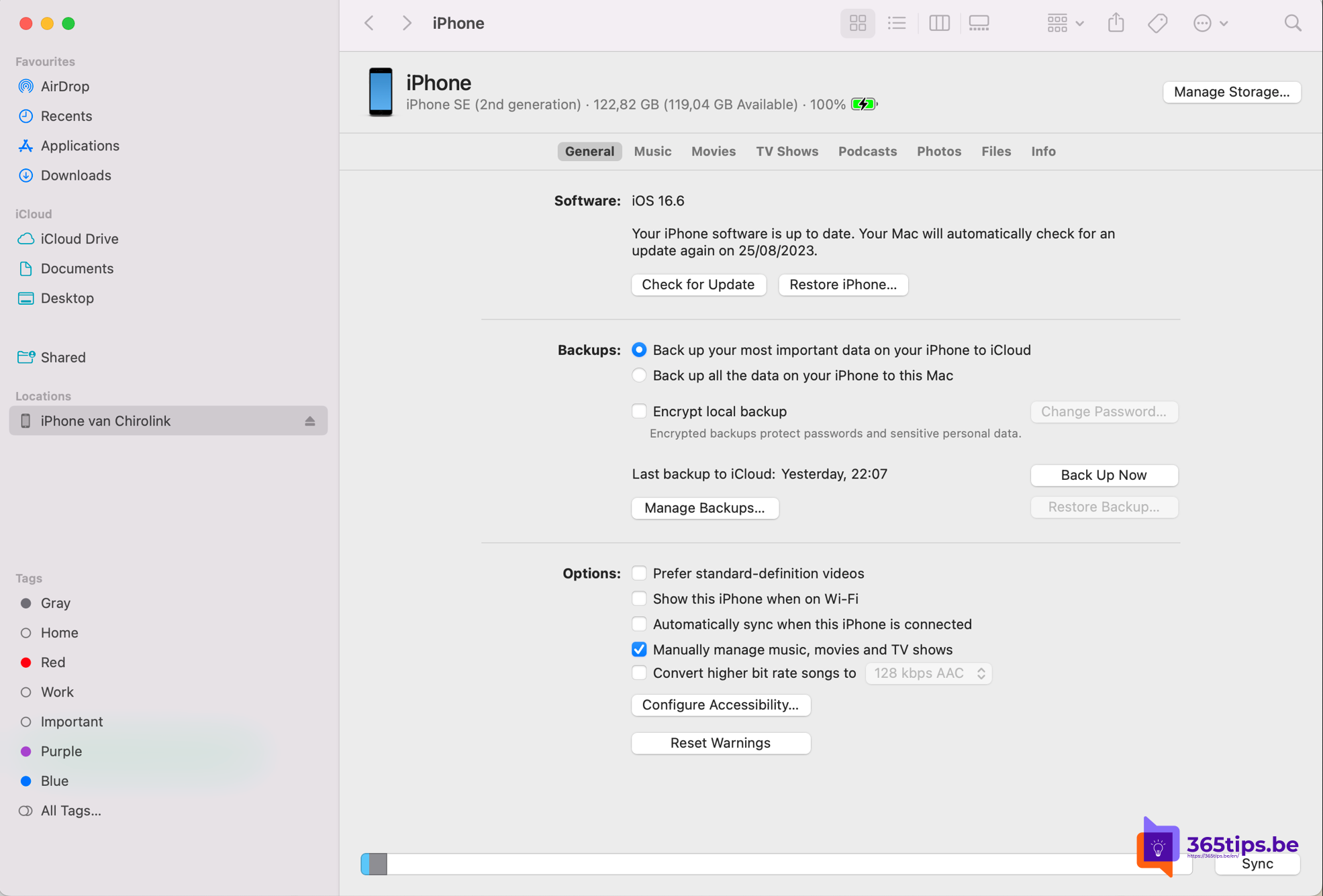
If it doesn't work without a computer, you can restore your iPhone through Finder on a Mac or the Apple Devices app (or iTunes) on a Windows PC. Connect the iPhone with a cable, select it and choose Restore iPhone.
Also see how to set up Emergency SOS on your iPhone and how to reset a Windows 11 PC to factory settings.
Read also
Set up and use Emergency SOS on your iPhone
Create an Apple Account on iPhone, Mac, Windows or Android
Reset a Windows 11 PC to factory settings
Nederlandstalige versie: 4 manieren om een iPhone te resetten zonder computer