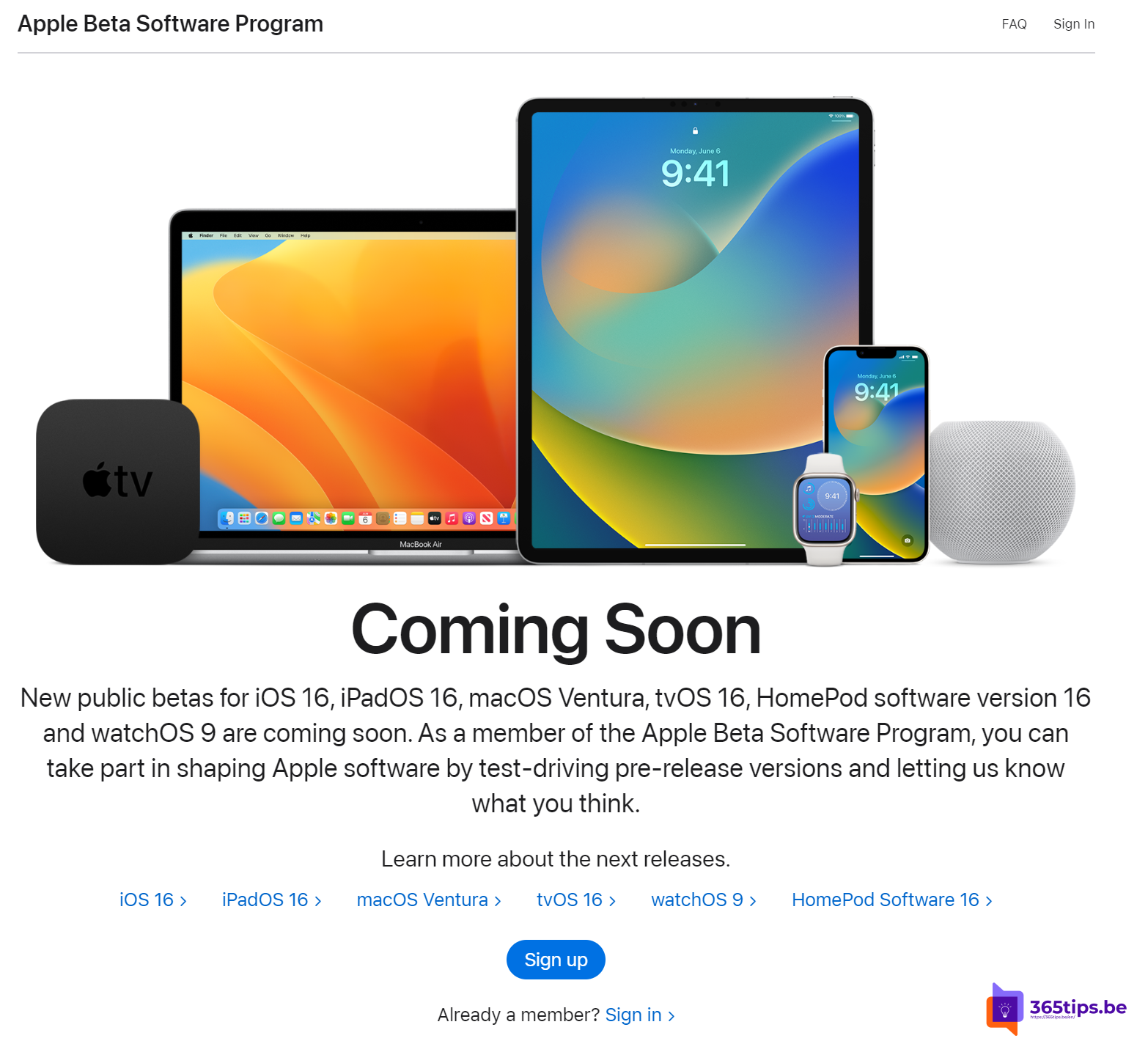
Want to try new iOS or iPadOS features before they're officially released? Through the Apple Beta Software Program you can install a public beta on your iPhone or iPad. You no longer need a configuration profile: it's done directly in Settings. Here's how, and what to keep in mind.
Before you start
- A beta can contain bugs. Apps may crash and your battery may drain faster.
- Preferably don't install a beta on your only device or your work device.
- Make a full backup via iCloud or your computer first.
- On a device managed by your employer, installing betas may be blocked.
Step 1: sign up for the beta program
- Go to beta.apple.com.
- Tap Sign up and sign in with your Apple Account.
- Accept the terms.

Step 2: install the beta
- On your iPhone or iPad open Settings > General > Software Update.
- Tap Beta Updates and choose the public beta.
- Go back and tap Download and Install.
Use the same Apple Account you registered with, otherwise the option won't appear.
Going back to the regular version
- Set Beta Updates to Off. You'll get the next official release when it comes out.
- To go back right away, you need to restore the device using a Mac or PC. You'll lose any data not covered by a backup from the older version.
Give feedback
Found a bug? Report it with the Feedback Assistant app, which is on your device when running a beta.
Also see reset an iPhone without a computer and create an Apple Account.
Read also
4 ways to reset an iPhone without a computer
Create an Apple Account on iPhone, Mac, Windows or Android
Take a screenshot or screen recording on a Mac, iPhone or iPad
Nederlandstalige versie: Een publieke iOS-bèta installeren op je iPhone of iPad