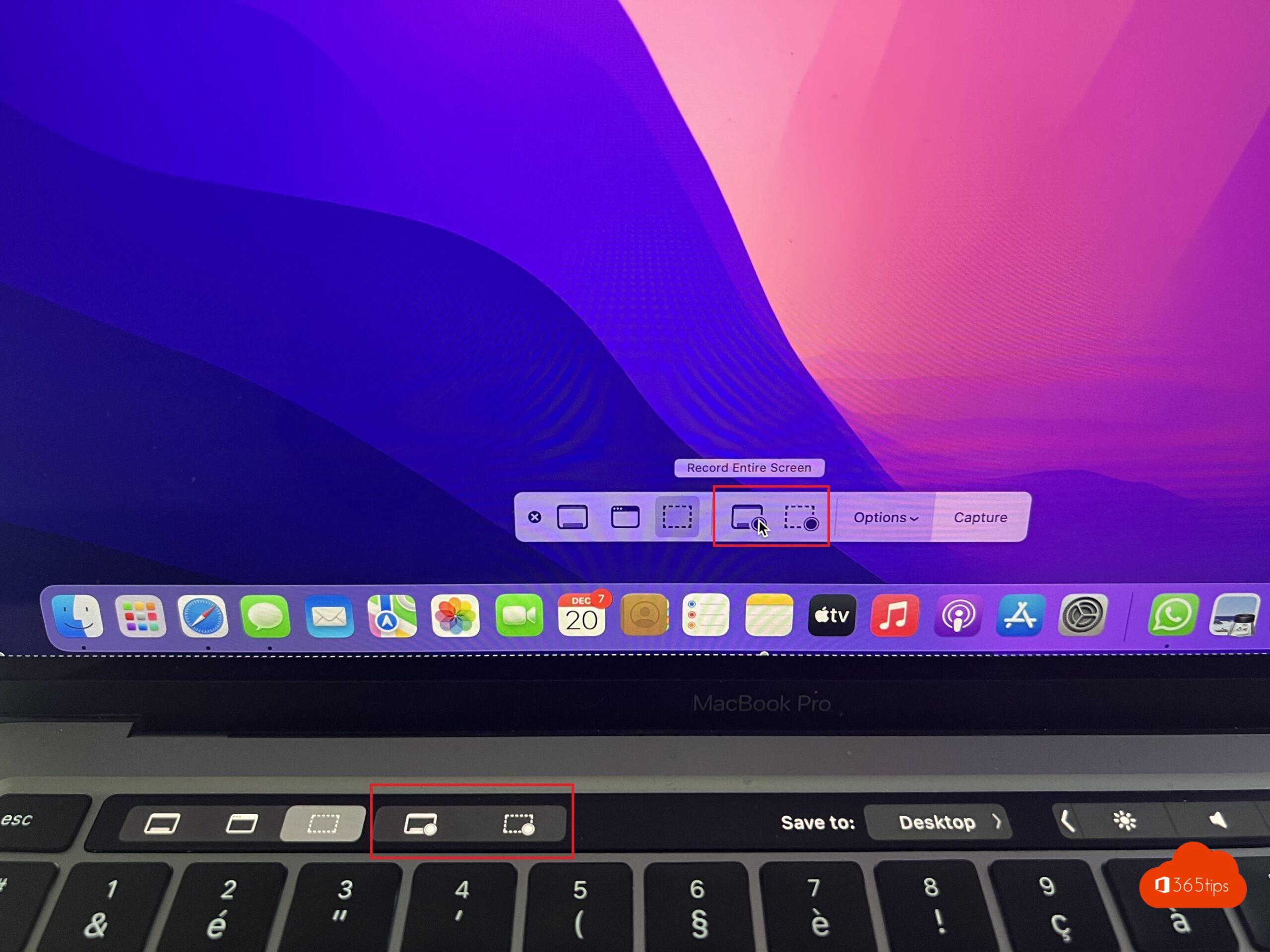
Sending an error message to the helpdesk, saving part of a website or recording a short demo: you take a screenshot or screen recording on your Mac, iPhone or iPad with a few keys. This article lists every shortcut and where the files end up.
On a Mac
| Shortcut | What it does |
|---|---|
| Cmd + Shift + 3 | The whole screen |
| Cmd + Shift + 4 | An area you select |
| Cmd + Shift + 4, then Space | One window |
| Cmd + Shift + 5 | The toolbar with all options, including screen recording |
Screenshots are saved to your desktop by default. With Cmd + Shift + 5 > Options you choose another folder, a timer or whether the pointer is shown. Hold Control to copy to the clipboard instead of creating a file.
On an iPhone
- iPhone with Face ID: press the side button and volume up together.
- iPhone with a Home button: press the side button and the Home button together.
- Tap the thumbnail at the bottom left to edit, crop or share straight away.
On an iPad
Press the top button and a volume button (or the Home button) together. With an Apple Pencil, swipe from a bottom corner towards the centre.

Screen recording on iPhone and iPad
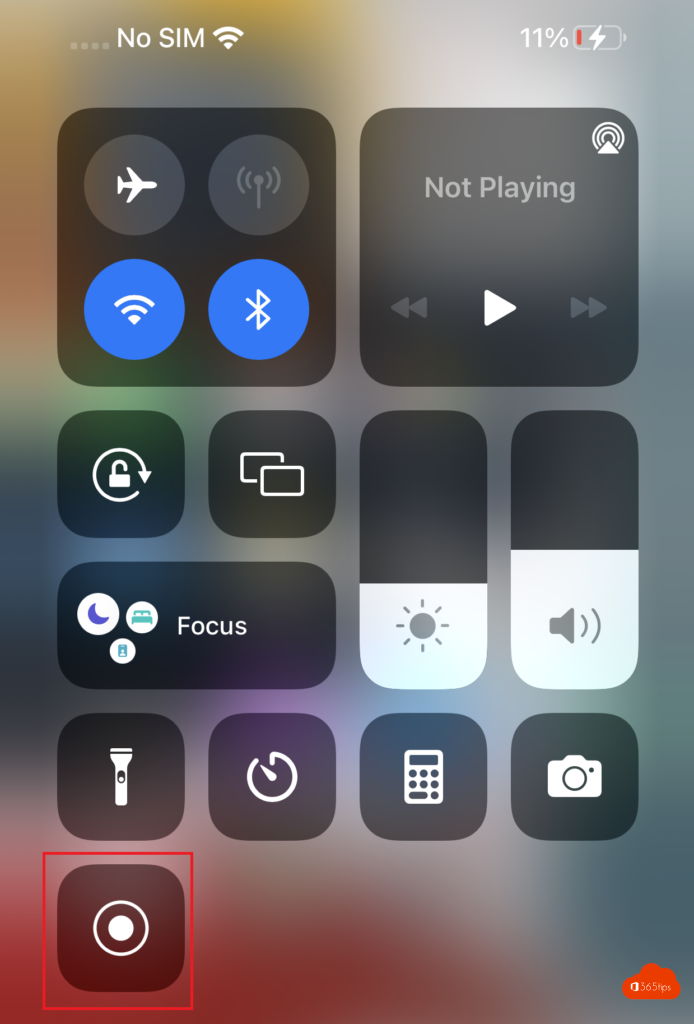
- Add Screen Recording to Control Center via Settings > Control Center, if it isn't there yet.
- Open Control Center and tap the record button. Press and hold it to turn on your microphone.
- Stop via the red bar at the top. The video is in Photos.
Tips
- Hide sensitive data with the markup tools before sharing.
- On Windows? Read take a screenshot in Windows 11.
- Mac frozen while capturing? See force quit an app.
Read also
Take a print screen, screenshot or screen recording in Windows 11
Force quit a frozen app on a Mac: 5 ways
How to use an iPad as a second screen for your Mac with Sidecar
Nederlandstalige versie: Een schermafbeelding of schermopname maken op een Mac, iPhone of iPad