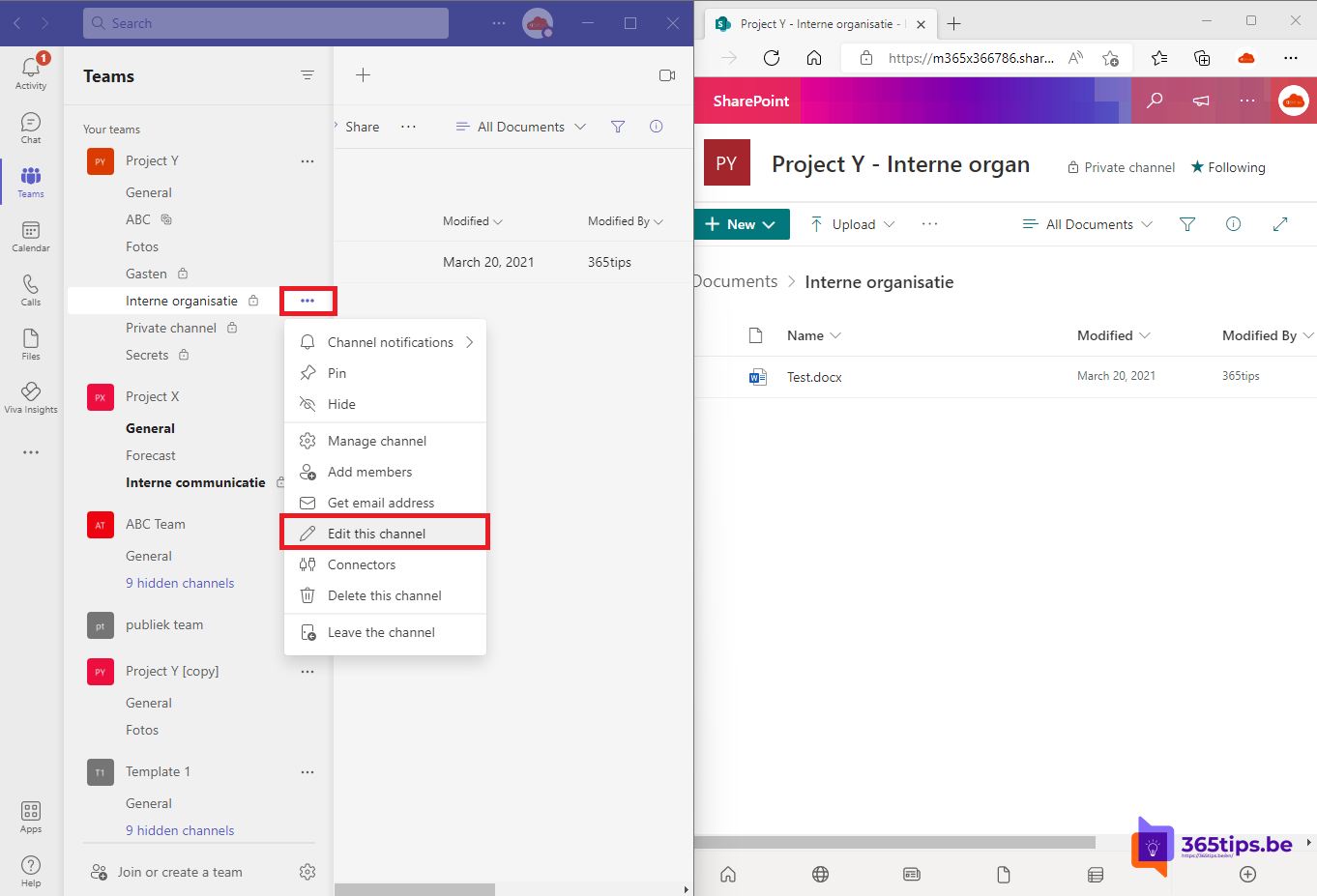
Every standard channel in Teams has its own folder in the team's SharePoint site. In the past that folder kept its old name when you renamed the channel, which caused confusion. Today Teams renames the SharePoint folder too. This article explains how it works and what to watch out for.
Rename a channel
- Hover over the channel and select More options (...) > Manage channel (or Edit this channel).
- Change the name and select Save.
By default owners and members can rename channels. An owner can turn that off for members in the team settings; see team member permissions.

What happens in SharePoint?
- The channel's folder in the document library gets the new name.
- Links to files you shared earlier usually keep working.
- Synced folders in File Explorer pick up the new name after a while. See sync Teams files to File Explorer.
Private and shared channels
A private or shared channel has its own SharePoint site. When you rename such a channel, the site's display name changes, but its web address (URL) stays the same.
The General channel
For a long time the default channel of a team couldn't be renamed. Read give the General channel a custom name. Also see create a channel in Teams.
Nederlandstalige versie: Een Teams-kanaal hernoemen, samen met de SharePoint-map