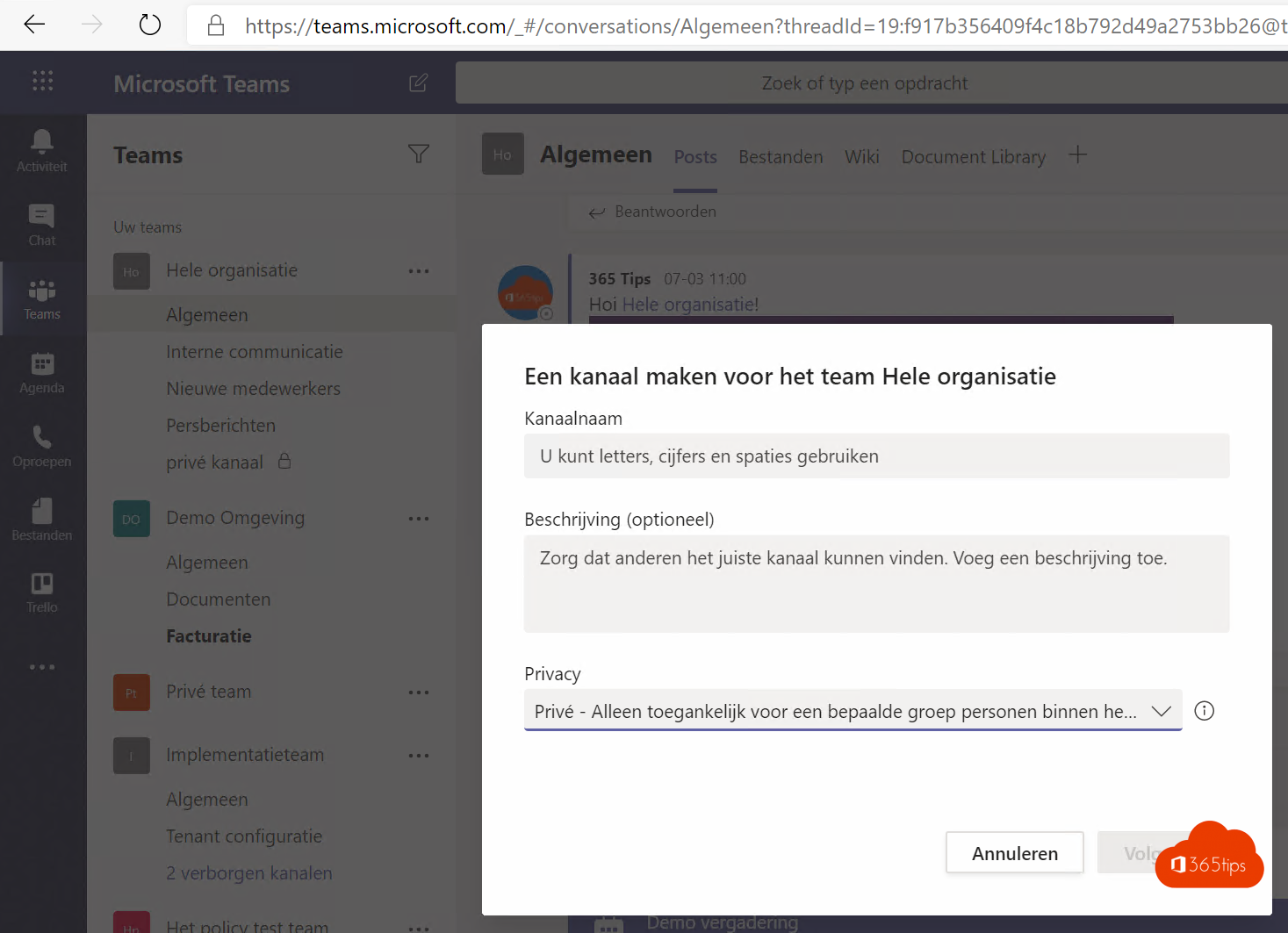
In a team you organise work in channels: one per project, topic or department. Microsoft Teams has three kinds: standard, private and shared. This article explains the difference, how to create a channel and what to watch out for with a private channel.
Three kinds of channels
| Type | Who sees it? | Best for |
|---|---|---|
| Standard | All team members | Most topics |
| Private | Only the members you add (from the team) | Confidential topics such as budget or HR |
| Shared | People you add, including from other teams or organisations | Working with a partner without adding them to your whole team |
Create a channel
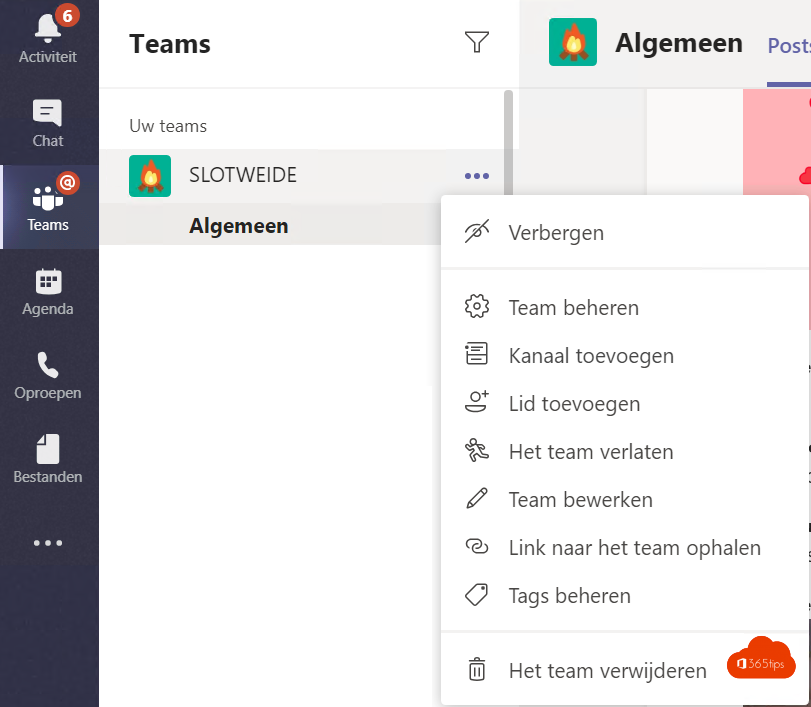
- Hover over the team name > More options (...) > Add channel.
- Enter a name and optionally a description.
- Choose the channel type: standard, private or shared.
- Choose the layout: Posts (conversations with replies) or Threads (like a chat).
- Select Create. For a private or shared channel, add the members next.
Watch out with private channels
- A private channel has its own SharePoint site, so its files aren't stored with the rest of the team.
- You can only add people who are already team members.
- You choose the channel type when creating it. You can't simply convert a standard channel to private or the other way round afterwards; create a new channel and move the files.
- Admins can restrict who creates private and shared channels with Teams policies in the admin center.
Tips
- Start with few channels and add more when needed.
- Pin important channels so they stay at the top.
- Rename the General channel? Read how to rename the General channel.
- New to teams? Start with how to create a team.
Read also
Create and organise a team in Microsoft Teams
Use Microsoft Whiteboard in Teams channels and meetings
How to add external guests in Microsoft Teams
Nederlandstalige versie: Een standaard, privé of gedeeld kanaal maken in Microsoft Teams
More in English
▸Create and organise a team in Microsoft TeamsCreate a new team in Microsoft Teams from scratch or from a template. Choose private or public and learn how…
▸Add a SharePoint page, site or list to Microsoft TeamsAdd a SharePoint page, list or full communication site as a tab in a Teams channel, or bring your intranet…
▸How to restore deleted files in Microsoft Teams and SharePointDeleted a file in Teams? Restore it from the SharePoint recycle bin (93 days), the second-stage recycle bin…
▸Clean up Microsoft Teams automatically with expiration policies and archivingClean up old teams automatically with an expiration policy, let owners confirm with access reviews, fix…