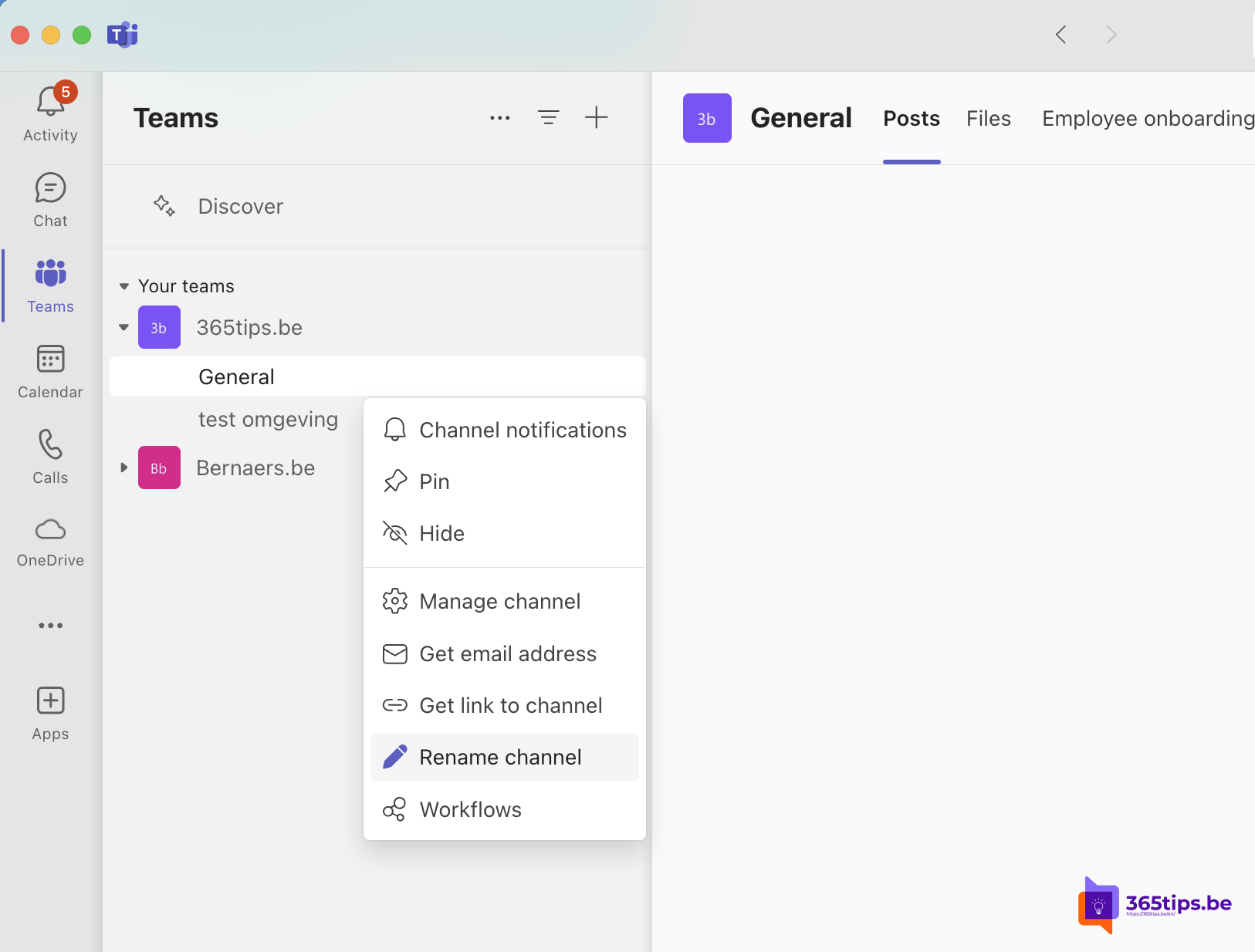
Every team in Microsoft Teams automatically gets a General channel. For a long time you couldn't change that name. Now you can: give the channel a name that suits your team better, such as "Announcements" or "Welcome". Here is how it works and what to keep in mind.
Renaming the General channel is now simply supported in the new Teams. You do need to be a team owner.
Why rename the General channel?
- A clear name shows right away what the channel is for, for example announcements.
- It avoids confusion when your team has many channels.
- In multilingual organizations you can choose a name everyone understands.
How to rename the General channel
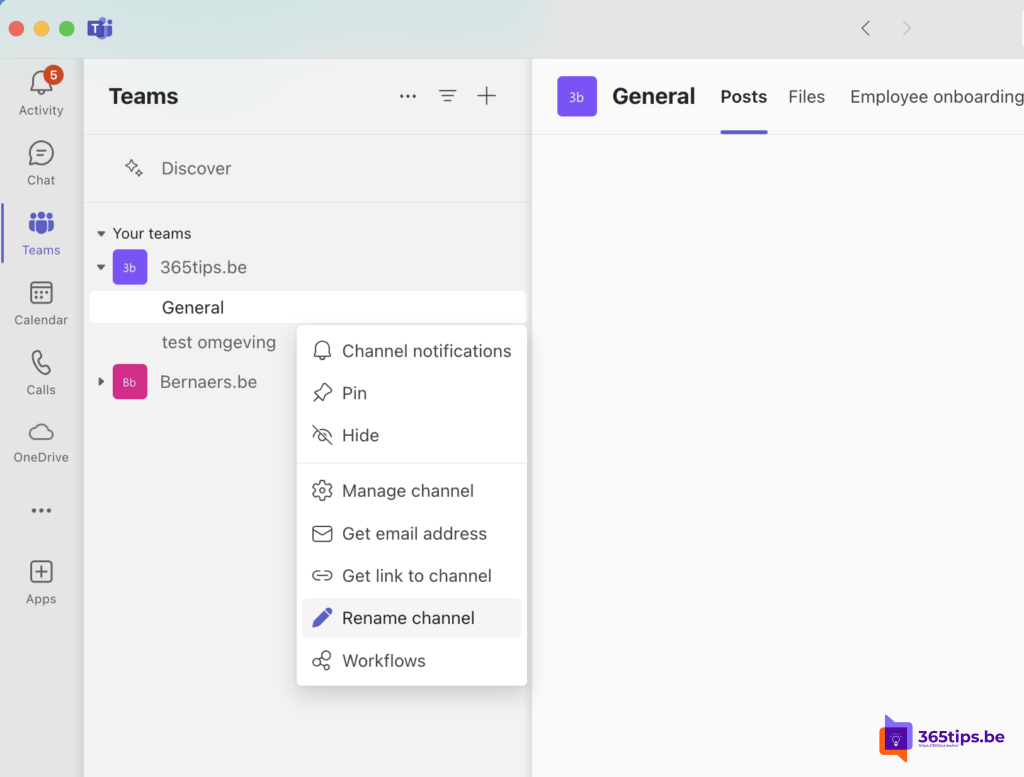
- In Teams, go to the team and find the General channel.
- Click the three dots (...) next to the channel name.
- Choose Edit channel or Manage channel (the exact label can differ).
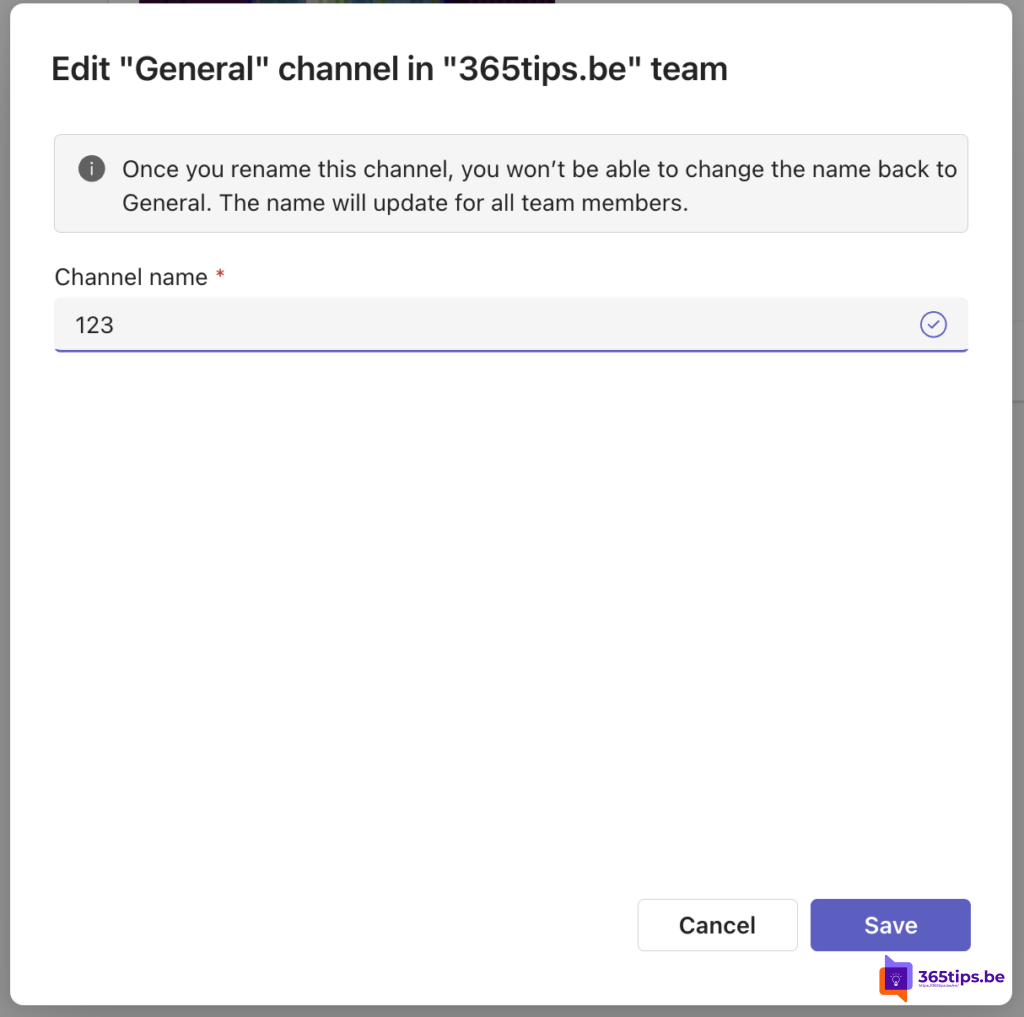
- Change the name and click Save.
Good to know
- Only team owners can rename the channel.
- The channel stays the team's default channel. You can't delete it or hide it for everyone.
- The related SharePoint folder may keep its old name. Links to files keep working.
- Want only owners to post there? Set that in the channel settings under Manage channel.
Also see rename a channel and its SharePoint folder and restrict the General channel.
Nederlandstalige versie: Het kanaal Algemeen (General) een andere naam geven in Microsoft Teams
Related articles
▸Rename a Teams channel together with its SharePoint folderWhen you rename a standard channel in Teams, its SharePoint folder now gets the new name automatically. See…
▸Create a guest team and make the General channel read-onlyCreate a team for guests and let only owners post in the General channel. With channel moderation for other…
▸Create a standard, private or shared channel in Microsoft TeamsCreate a channel in Microsoft Teams and choose between standard, private and shared. Posts and Threads…
▸Owners, members and guests in Microsoft Teams: who can do what?An overview of what owners, members and guests can do in a team, and how an owner changes those permissions.
▸Create and organise a team in Microsoft TeamsCreate a new team in Microsoft Teams from scratch or from a template. Choose private or public and learn how…