Deleted an important email and already emptied Deleted Items? In Microsoft 365 it usually isn't really gone yet. Exchange Online keeps deleted email for a while in the Recoverable Items folder. This article shows how to recover it yourself in Outlook, and what an admin can do if it was longer ago.
Step 1: the Deleted Items folder
First check Deleted Items. Right-click the email > Move > Inbox. Can't find it? Use the search bar and choose All folders.
Step 2: recover deleted items
- New Outlook and Outlook on the web: right-click Deleted Items > Recover items deleted from this folder.
- Classic Outlook: open Deleted Items > Folder tab > Recover Deleted Items.
Select the emails and choose Restore. They go back to Deleted Items or their original folder.
How long do you have?
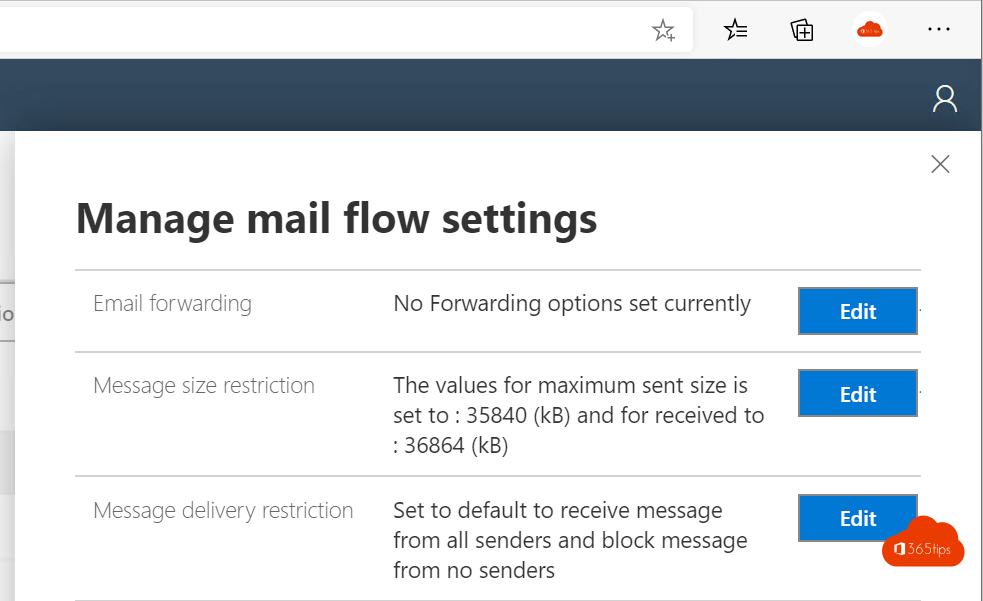
- By default 14 days after permanent deletion. An admin can raise that to 30 days with Set-Mailbox -RetainDeletedItemsFor 30.
- With a retention policy or litigation hold, email is kept as long as the policy says.
For admins
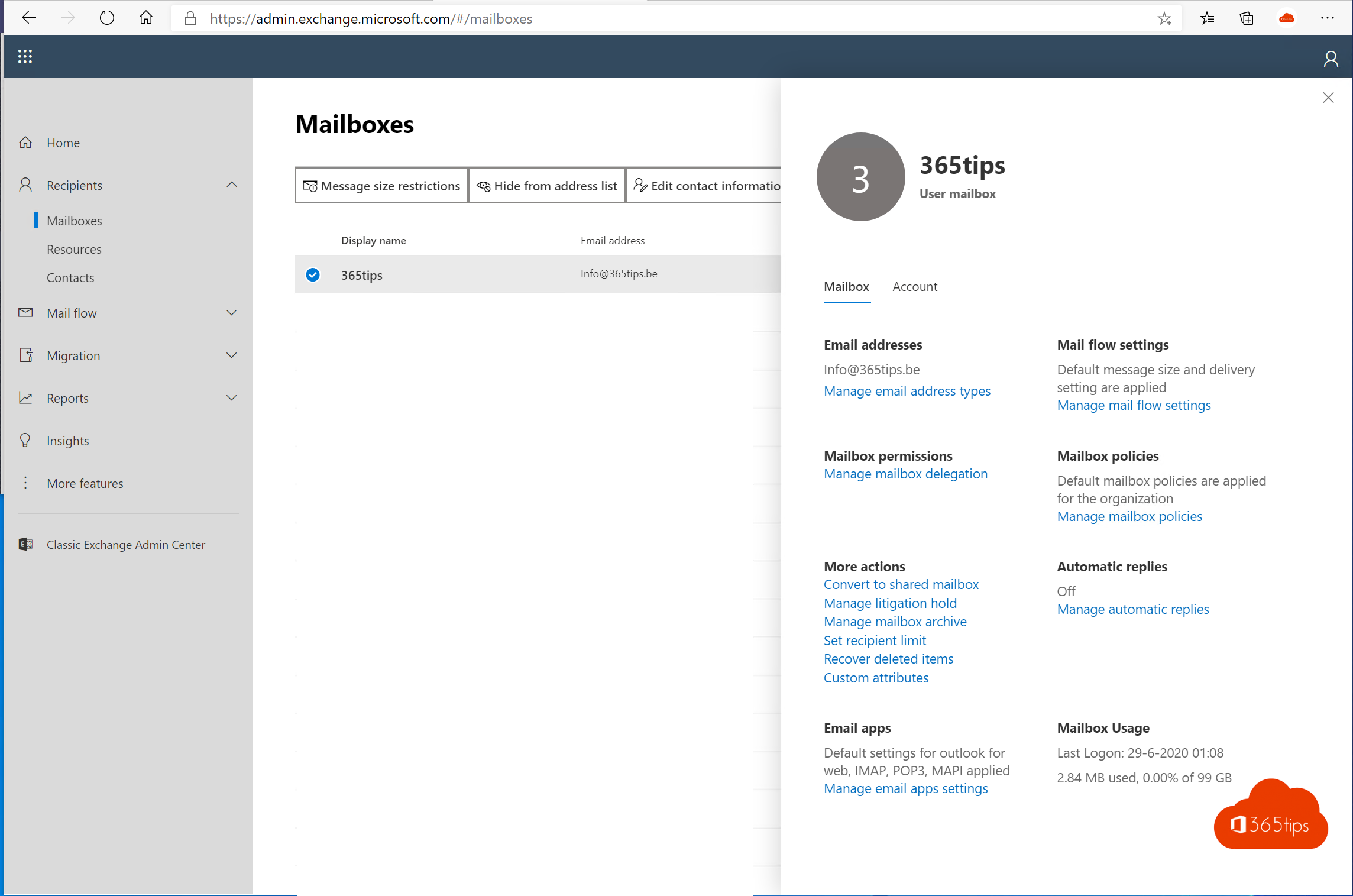
- In the Exchange admin center > Mailboxes > select the mailbox > Recover deleted items. You can filter by date, subject and sender.
- With PowerShell: Get-RecoverableItems -Identity john@contoso.com -SubjectContains "quote", then Restore-RecoverableItems.
- Longer ago and a retention policy applies? Use Content search or eDiscovery in Microsoft Purview.
- Whole user deleted? Restore the account within 30 days in the Microsoft 365 admin center > Deleted users.
Tip
Microsoft 365 isn't a full backup. If you need to recover email years later, look at a retention policy or a backup solution. Related: restore deleted files in Teams or SharePoint and recall an email.
Read also
Recall an email in Outlook with Exchange Online
How to restore deleted files in Microsoft Teams and SharePoint
Set up Full Access, Send As and Send on Behalf in Exchange Online
Nederlandstalige versie: Verwijderde e-mails herstellen in Outlook en Exchange Online