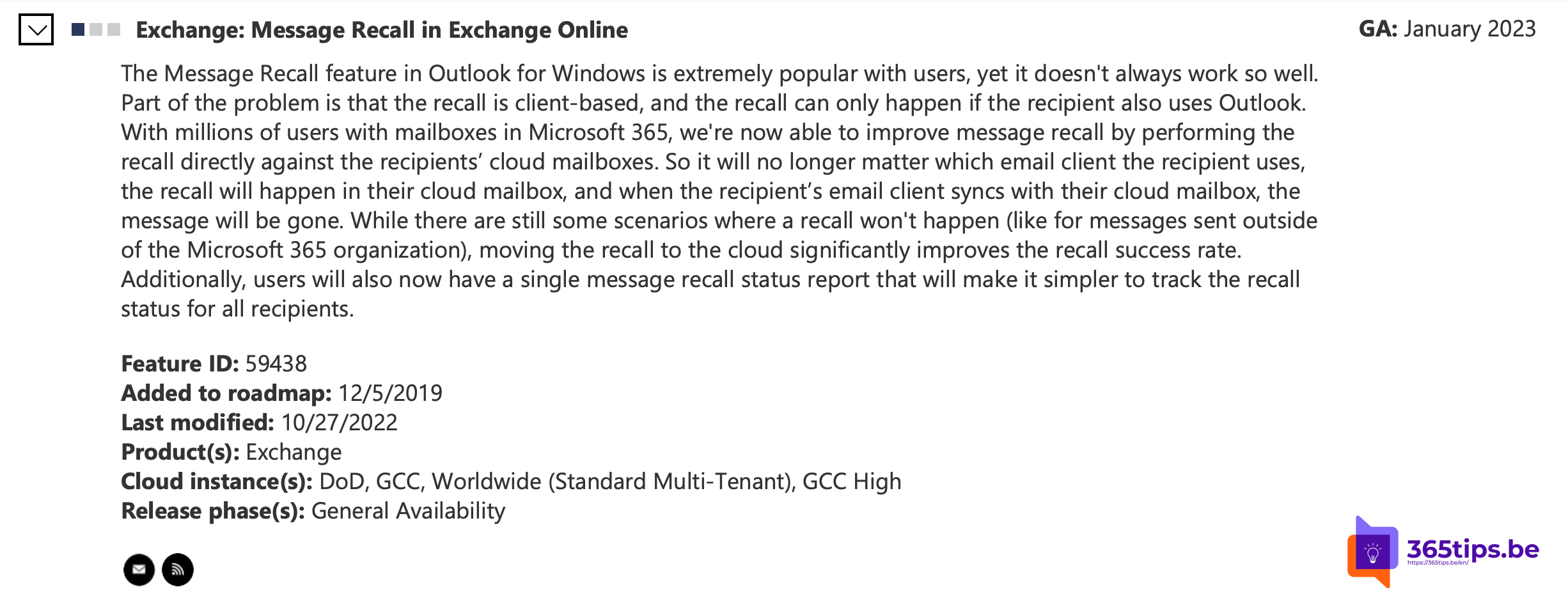
Hit Send too fast, attached the wrong file or picked the wrong recipient? In Outlook you can recall a message. Thanks to the revamped Message Recall in Exchange Online, it works far more reliably than it used to. This article shows how to recall an email, when it works and when it doesn't.
Recall in the new Outlook and on the web
- Open the Sent Items folder and double-click the message.
- Select More actions (...) > Recall message.
- Confirm with OK.
In classic Outlook
- Open the message in Sent Items.
- Select File > Info > Message Resend and Recall > Recall This Message. It's also under Actions in the ribbon.
- Choose whether to just delete the message or replace it with a new one.

When does it work?
- Yes: when the recipient has a mailbox in the same Microsoft 365 organisation. Recall happens on the server, so it doesn't matter which Outlook the recipient uses.
- No: for recipients outside your organisation, such as Gmail addresses or customers. The email has already been delivered.
- Read messages: whether those can still be recalled depends on a setting your admin controls.
- A message that has already been forwarded, or moved to another mailbox by a rule, can't be pulled back.
The status report
After a moment you receive an email with a link to the recall report, showing per recipient whether it succeeded. The recipient gets a notice that you recalled the message.

Better to prevent
Turn on Undo send or let Outlook delay every message by a few minutes. Read how to schedule or delay sending in Outlook.
Read also
Schedule, delay or undo sending an email in Outlook
How to encrypt or protect an e-mail in Outlook and Microsoft 365
Set up Full Access, Send As and Send on Behalf in Exchange Online
Nederlandstalige versie: Een e-mail terugroepen in Outlook met Exchange Online