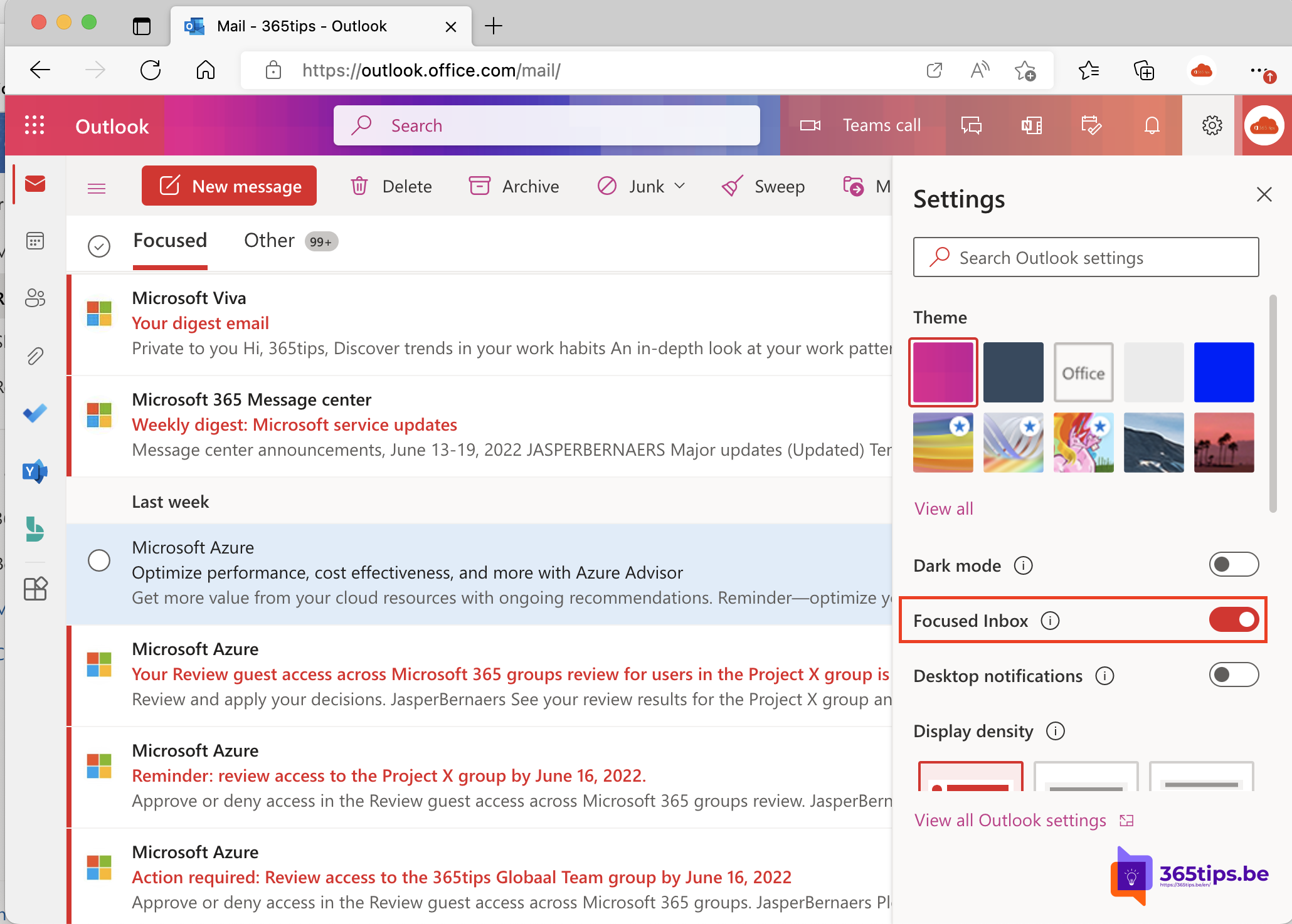
By default Outlook splits your inbox into two tabs: Focused and Other. Some people love it; others miss important emails that end up in Other. This article shows how to turn off Focused Inbox for yourself, and how an admin can disable it for one user or the whole organisation.
Turn it off yourself
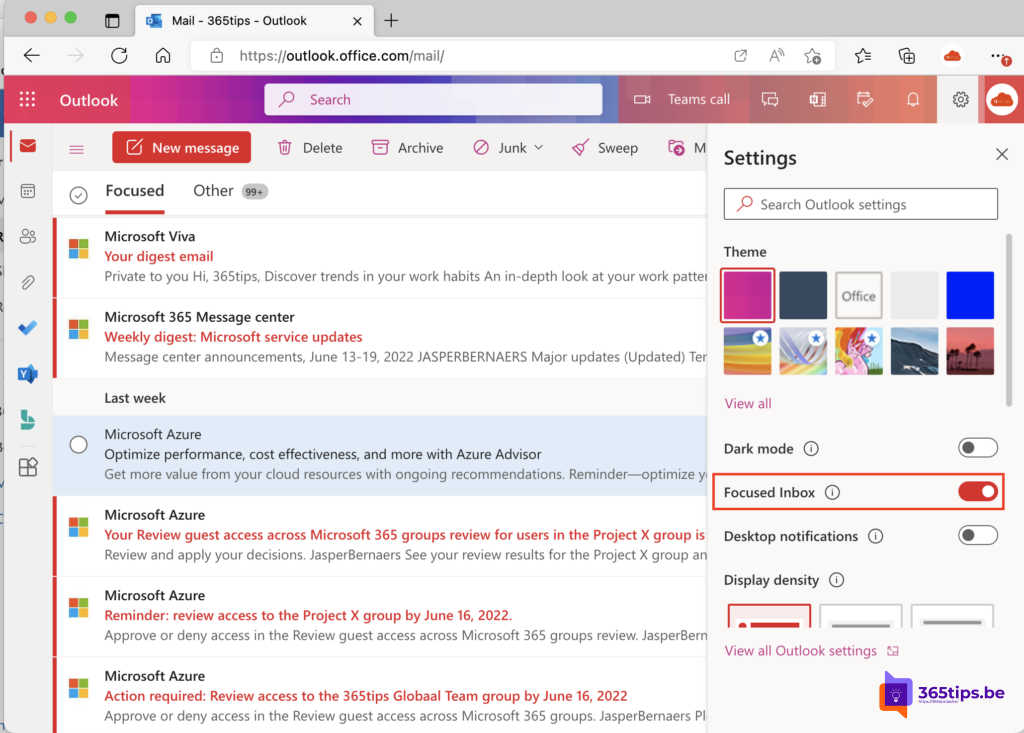
- New Outlook and Outlook on the web: go to Settings > Mail > Layout and under Focused Inbox choose Don't sort my messages. Or select View > Layout > Focused Inbox.
- Classic Outlook: View tab > untick Show Focused Inbox.
- Outlook app on iOS and Android: tap your profile picture > Settings > turn off Focused Inbox.
- Outlook for Mac: View menu > Focused Inbox.
The setting is per app. Turn it off on your laptop and you'll need to do the same on your phone.
Prefer to fine-tune?
Want to keep Focused Inbox but one sender keeps landing in the wrong tab? Right-click the email and choose Move to Focused > Always move to Focused. Outlook remembers that for the sender.
For one user (admin)
Connect to Exchange Online PowerShell and run:
Set-FocusedInbox -Identity john@contoso.com -FocusedInboxOn $false
Check it with Get-FocusedInbox -Identity john@contoso.com.
For the whole organisation
Set-OrganizationConfig -FocusedInboxOn $false
This makes Focused Inbox off by default. Users can still turn it back on in their own Outlook. The change can take a few hours to show everywhere, and Outlook sometimes needs a restart.
Alternative: rules and categories
Dropped Focused Inbox but still want order? Create rules that move newsletters to a folder, or colour-code email from your manager. More Outlook tips: schedule or delay sending and recall an email.
Read also
Schedule, delay or undo sending an email in Outlook
Recall an email in Outlook with Exchange Online
Keep declined meetings on your Outlook calendar
Nederlandstalige versie: Prioriteit Inbox uitschakelen in Outlook, per gebruiker of voor iedereen