Working in Outlook on the web in your browser, it's easy to miss a new email or reminder when the tab is in the background. With desktop notifications you get a pop-up at the bottom right of your screen, just like the desktop app. This article shows how to turn them on and what to do if they don't appear.
Turn on notifications in Outlook on the web
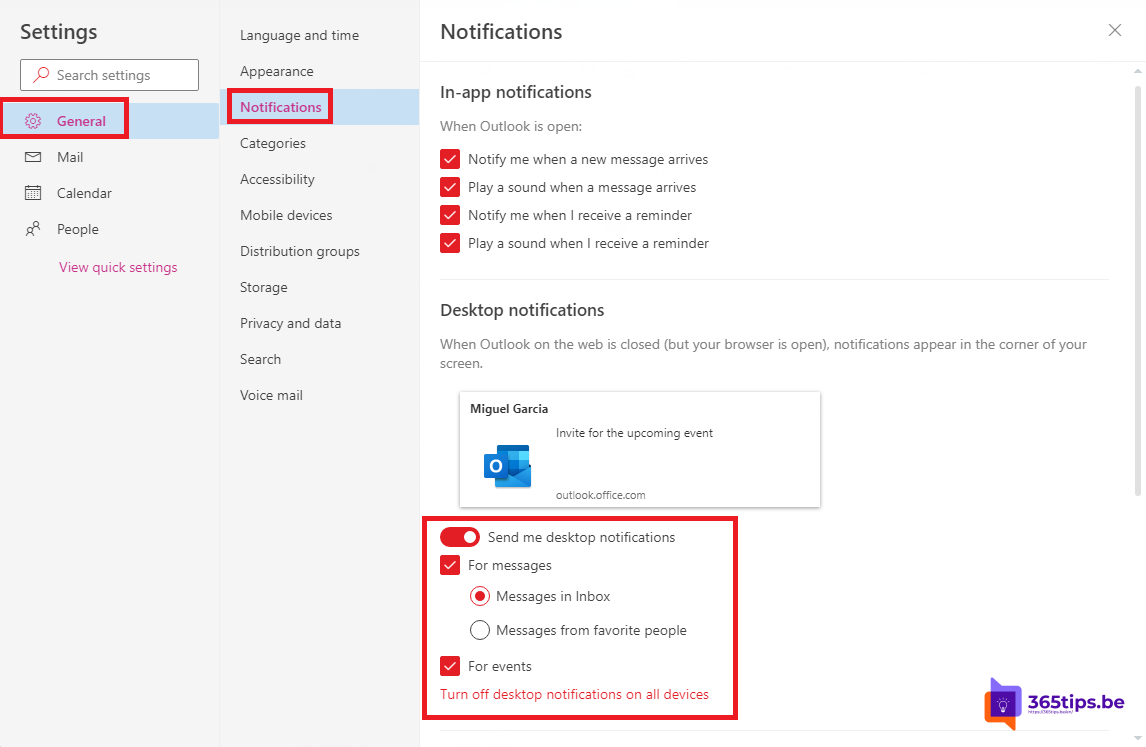
- Select Settings (gear) > General > Notifications.
- Under Desktop notifications, turn on notifications for email and calendar.
- Choose whether you want notifications only for Focused, for favourite people or for everything.
- Your browser asks for permission: select Allow.

No notifications? Check your browser
- Edge: select the lock icon next to the address > Permissions for this site > set Notifications to Allow.
- Chrome: select the icon left of the address > Site settings > Notifications > Allow.
- In Windows, check Settings > System > Notifications that your browser may show notifications and that Do not disturb is off.
Tip: install Outlook as an app
In Edge or Chrome you can install Outlook on the web as an app. Outlook then gets its own window and a taskbar icon with an unread counter.
The new Outlook for Windows
The new Outlook uses Windows notifications. Set them in Outlook under Settings > General > Notifications and in Windows notification settings.
Only for important senders
Don't want to be disturbed by every email? Choose notifications for your favourites only, or create a rule. More Outlook tips: dark mode in Outlook and turn off Focused Inbox.
Read also
Turn on dark mode in Outlook on the web, Windows and mobile
Turn off Focused Inbox in Outlook, per user or for everyone
Open replies and forwards in a new window in Outlook
Nederlandstalige versie: Bureaubladmeldingen inschakelen in Outlook op het web