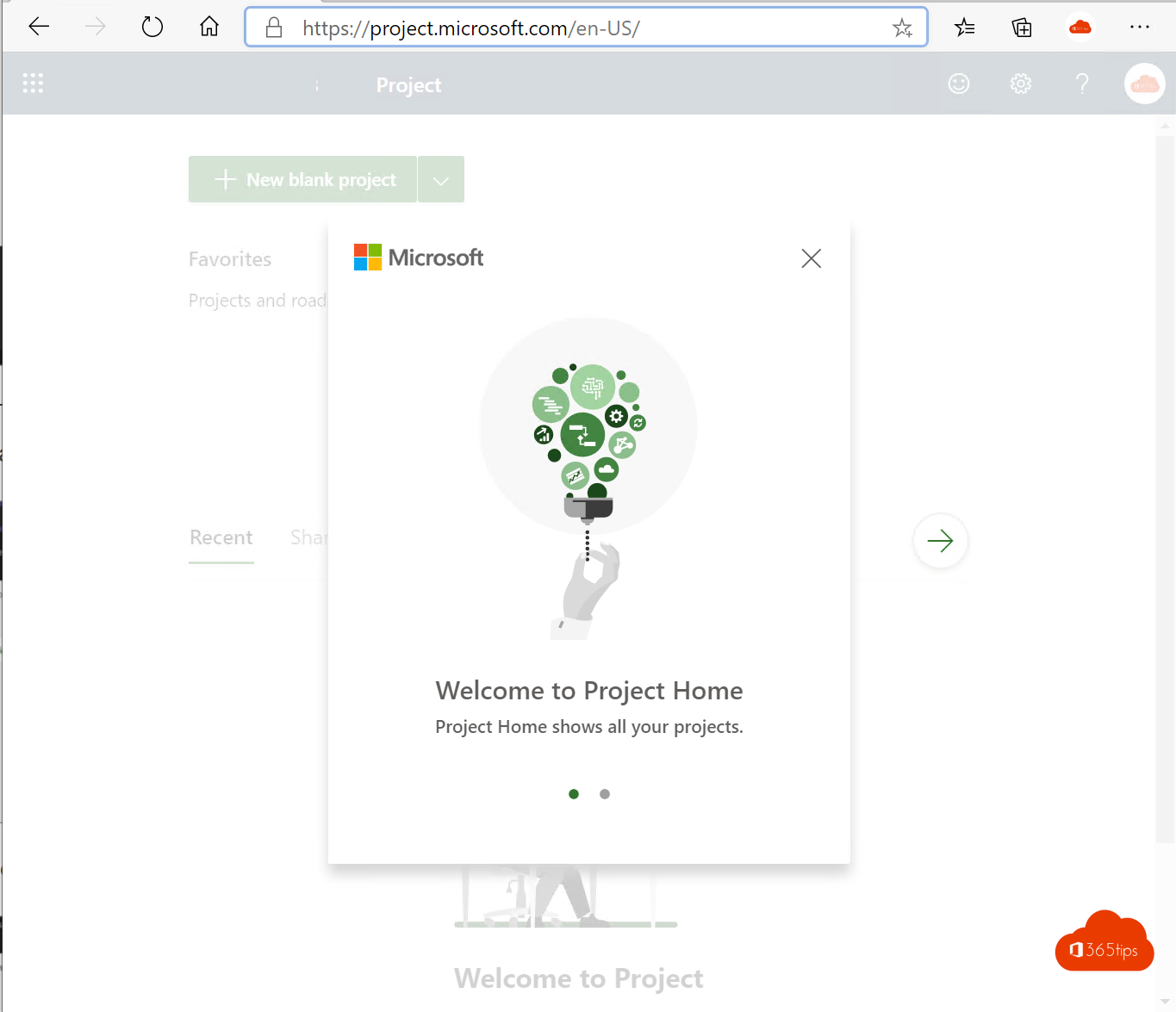
Project for the web was the lightweight, web-based version of Microsoft Project. Microsoft is now bringing those features together in Microsoft Planner. In this article you learn what changed, where you build project plans today and how to get started in Planner and Teams.
Project for the web is being retired and has been folded into the new Microsoft Planner. Project features such as timelines (Gantt), dependencies and sprints are part of Planner's premium plans, which need a license such as Planner Plan 1 or higher (formerly Project Plan 1); exact license names can differ. Existing projects are being moved to Planner; the exact timeline differs per organization.
What changed?
- One app for tasks and projects: the new Planner combines Planner, To Do and Project for the web.
- Basic plans: simple task boards with buckets, as you know them from Planner. These are included in most Microsoft 365 subscriptions.
- Premium plans: plans with project features such as the Timeline view, task dependencies, custom fields, sprints and goals. These need a Planner license (formerly a Project license).
- Project desktop and Project Online still exist for heavier portfolio needs, but for most teams Planner is the new starting point.
Create a project plan in Planner
- Go to planner.cloud.microsoft or open the Planner app in Teams.
- Select New plan.
- Choose a blank plan or a template. Premium plans are marked with a diamond icon or a Premium label (the exact display can differ).
- Name your plan and optionally connect it to a Microsoft 365 group.
- Create tasks and buckets, assign tasks and set start and due dates.


Useful views
- Grid: a list of all tasks, handy for entering many tasks quickly.
- Board: cards per bucket, as in classic Planner.
- Timeline: a Gantt view with dependencies (premium).
- Charts and People: progress and workload per person.
Planner in Microsoft Teams
- Open your team's channel and select + to add a tab.
- Choose Planner (formerly also Project or Tasks by Planner and To Do).
- Create a new plan or pick an existing one. Your team now works together in the same plan.


Also see Planner in Microsoft Teams and set up Teams for project management.
Read also
Manage tasks with the Planner app in Microsoft Teams
Set up Microsoft Teams to manage projects
Prevent others from deleting your tasks in Microsoft Planner
Nederlandstalige versie: Project voor het web is nu Microsoft Planner: zo werk je ermee