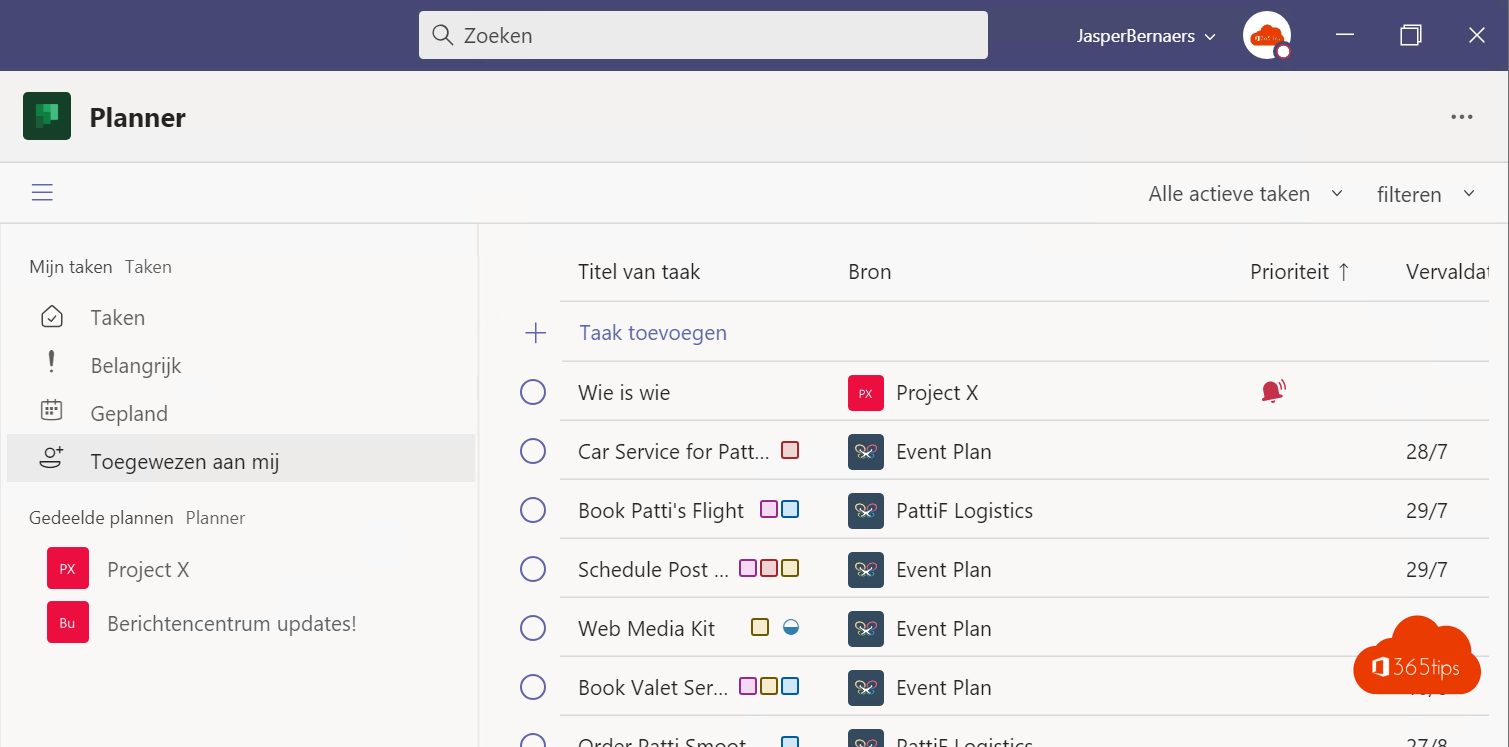
Your own tasks and your team's in one place? In Microsoft Teams you do that with the Planner app. It brings together your personal tasks from To Do, tasks from shared plans and even flagged emails. This article shows how to use Planner in Teams, create a plan and add it to a channel.
Open Planner in Teams
Select Apps on the left, search for Planner and select Add. Right-click the icon > Pin to keep it in your left rail.

The views
- My Day: the tasks you want to do today.
- My Tasks: all your tasks, including those assigned to you in shared plans and your flagged emails.
- My Plans: every plan you're a member of.
Create a plan
- In Planner, select New plan.
- Choose a basic plan or a template, enter a name and choose whether to link it to an existing group or team.
- Create buckets (columns) such as To do, In progress and Done.
- Add tasks with an owner, due date, priority, checklist and attachments.

A plan in a channel
In a channel, select + (add a tab) > Planner. Pick an existing plan or create one. Everyone in the team sees the board right in the channel.
Basic or premium?
A regular Microsoft 365 licence gives you basic plans: boards, tasks and charts. With a Planner Plan 1 licence or higher you get premium plans with timelines (Gantt), dependencies, sprints and Copilot.
Tips
- Turn chat messages into tasks. Read create a task from a message.
- Stop others deleting your tasks. Read protect tasks in Planner.
- Use coloured labels for departments or kinds of work. For a list-style board, see board view in Lists.
Read also
Create a task from a chat message in Microsoft Teams
Prevent others from deleting your tasks in Microsoft Planner
Create a kanban board with board view in Microsoft Lists
Nederlandstalige versie: Taken beheren met de Planner-app in Microsoft Teams