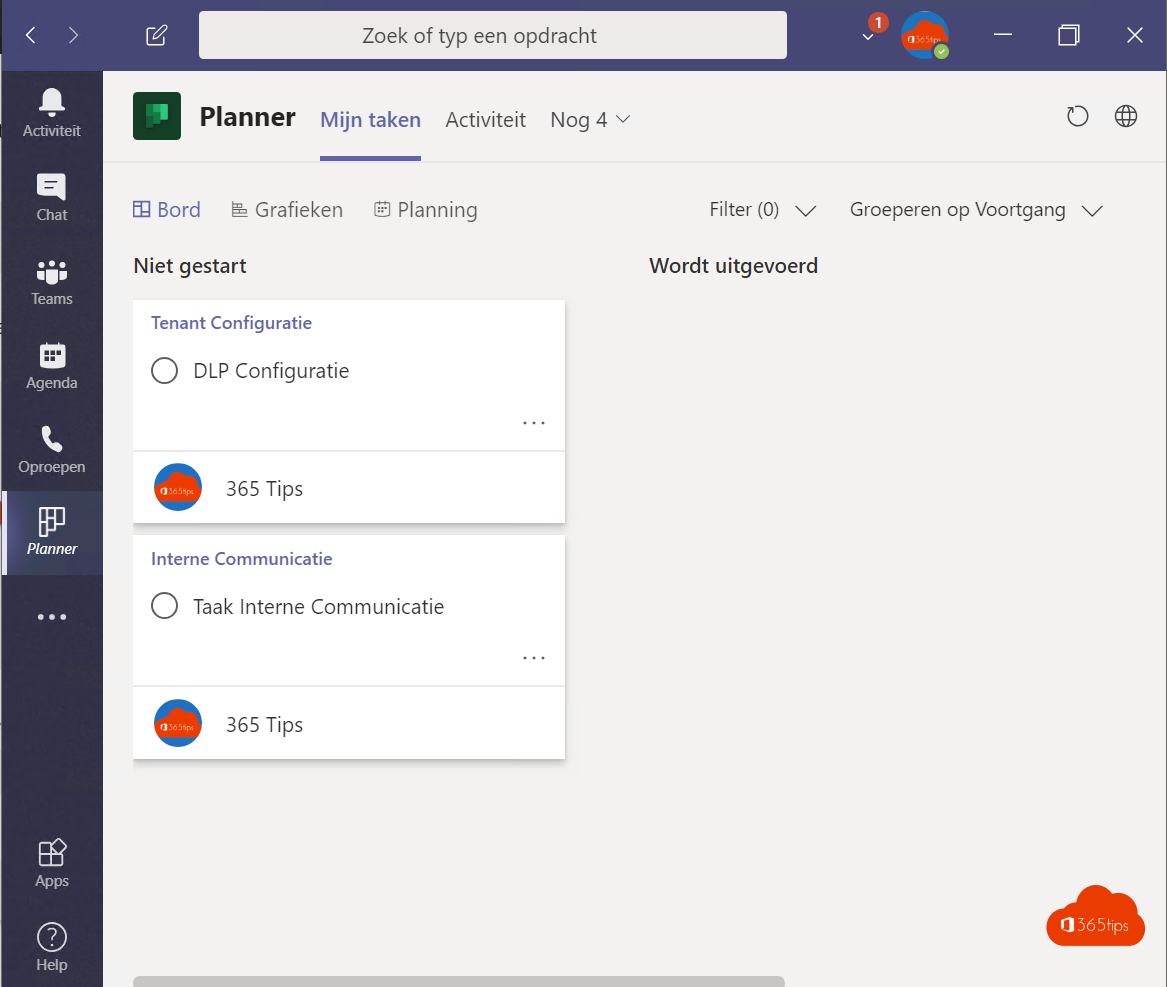
Tasks in five plans, a few in To Do and some flagged emails: it's easy to lose track. With the Planner app in Teams you see all your tasks in one place, from every plan you work on.
Open Planner in Teams
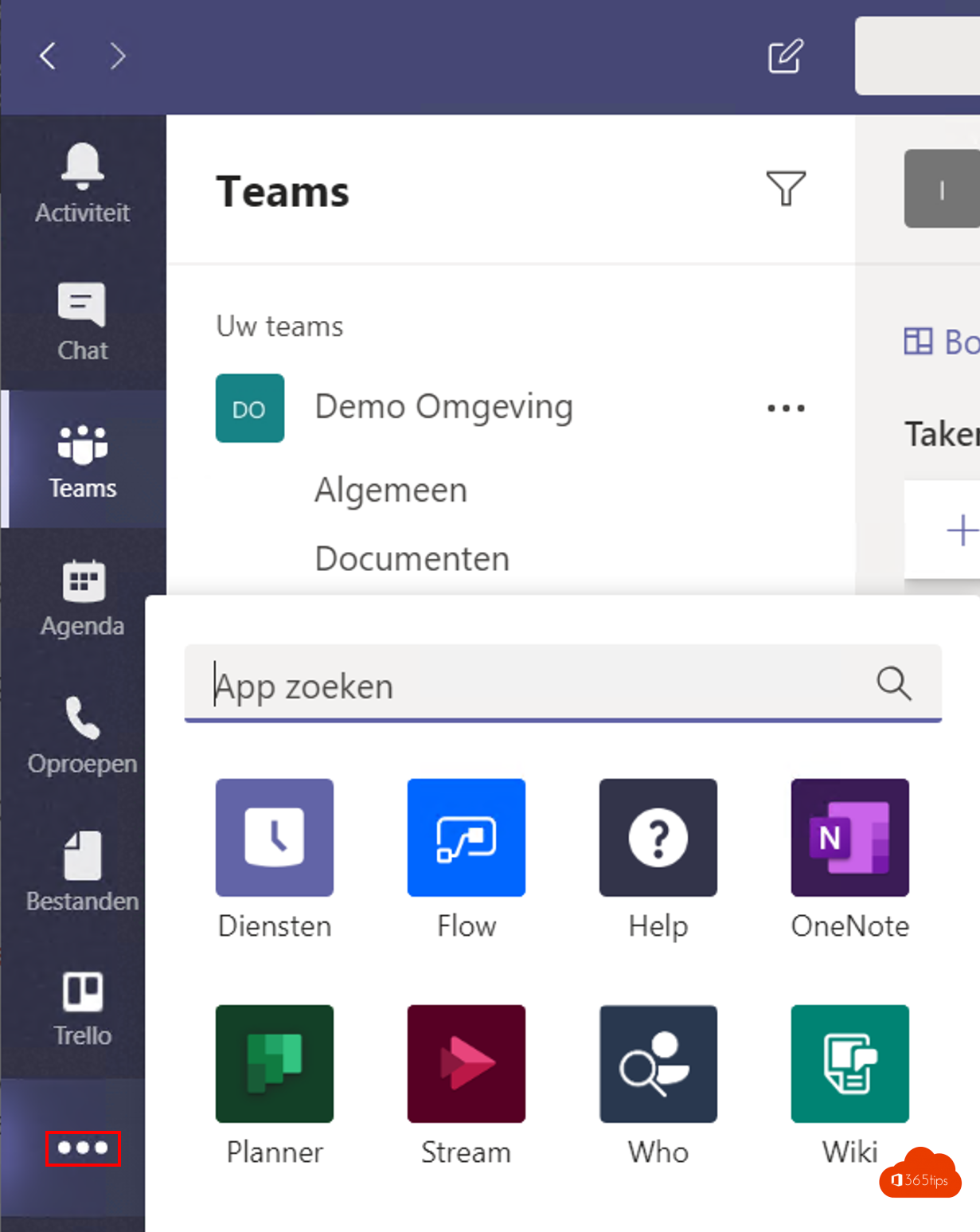
- Select Apps on the left in Teams and search for Planner.
- Select Add and pin the app via right-click > Pin.
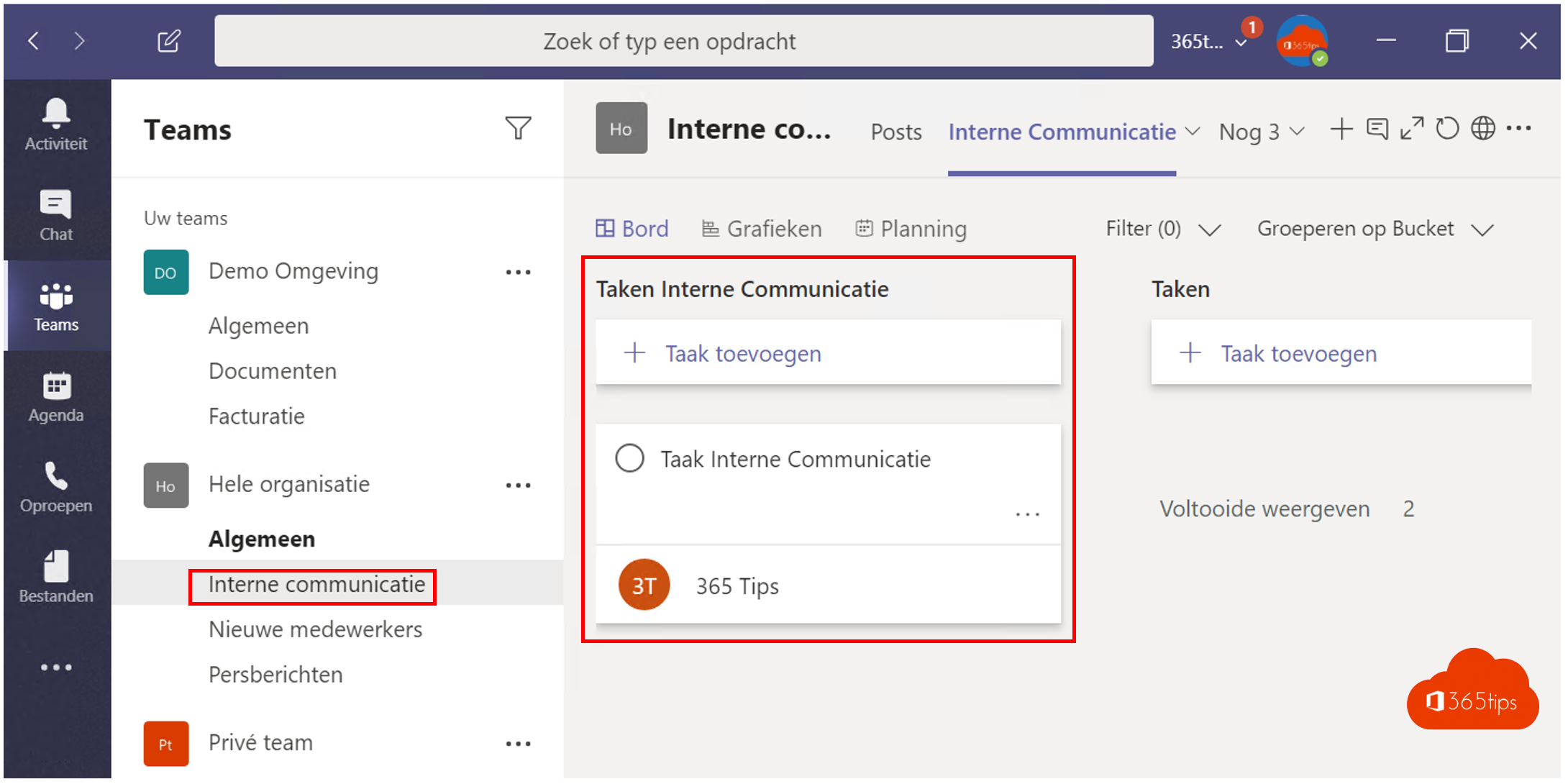
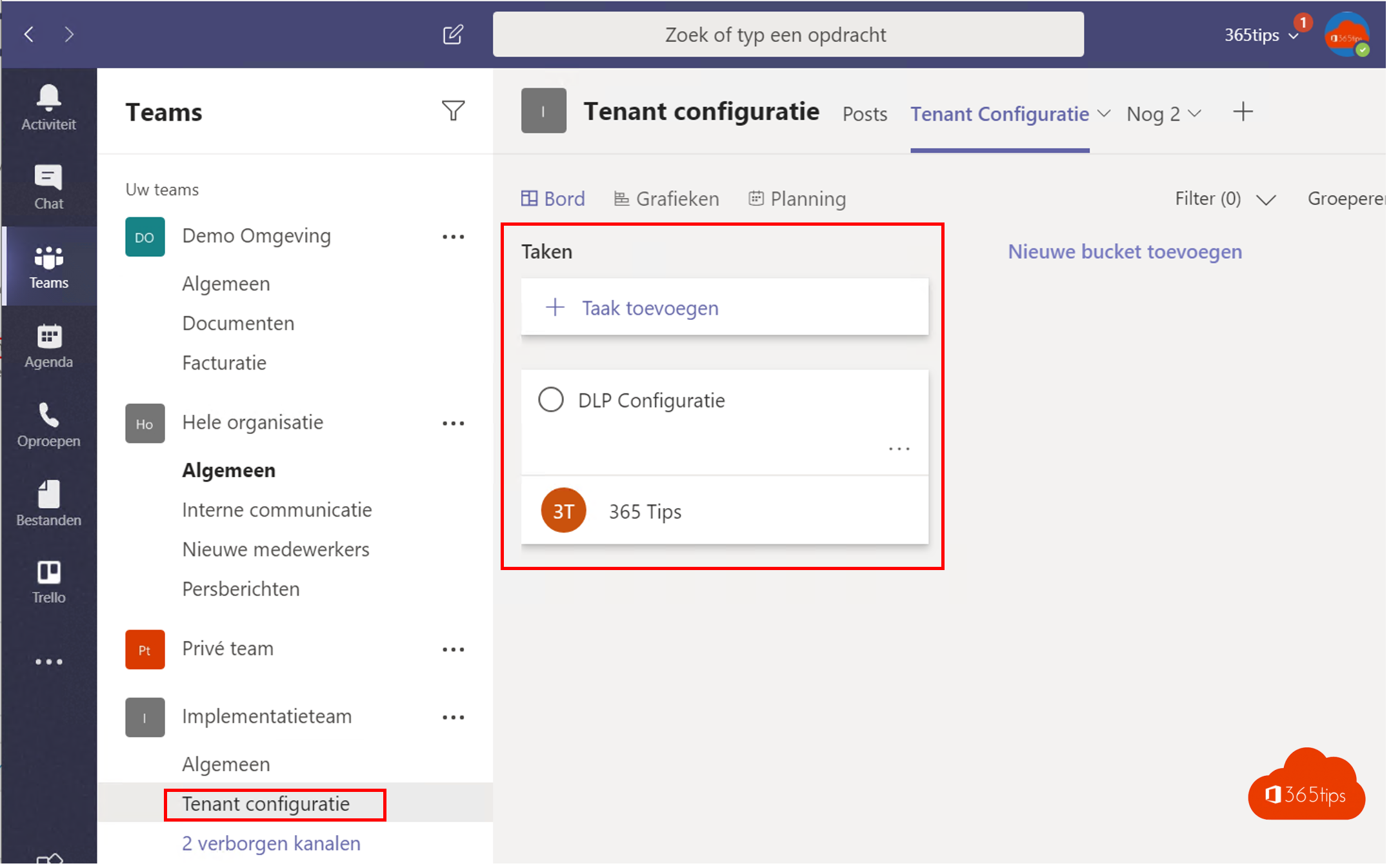
My tasks
Under My tasks you'll find:
- My Day: the tasks you want to do today.
- My tasks: your personal tasks from To Do.
- Assigned to me: tasks from all shared plans and Loop components.
- Flagged emails: emails you flagged for follow-up in Outlook. Read flagged emails in Planner.
Shared plans
Under My plans you see all your teams' plans. Open a plan to view its tasks as a board, list, chart or schedule.

Tips
- Sort or filter by due date to see what's due this week.
- Turn a chat message into a task via More options > More actions. Read create a task from a message.
Also see Planner in Teams and prevent deleting others' tasks.
Read also
Manage tasks with the Planner app in Microsoft Teams
See flagged emails as tasks in Planner in Teams
Create a task from a chat message in Microsoft Teams
Nederlandstalige versie: Overzicht houden over al je taken met Planner in Teams
More in English
▸Prevent others from deleting your tasks in Microsoft PlannerLet Planner users delete only their own tasks with the BlockDeleteTasksNotCreatedBySelf policy, and avoid…
▸Set up Microsoft Teams to manage projectsOne team per project, channels per topic and tabs with Planner, Lists and Loop: how to set up a project…
▸Create a kanban board with board view in Microsoft ListsTurn a Microsoft Lists list into a kanban board with cards per status. Create a board view, customize the…
▸Use Loop components in Teams chats, channels and meetingsInsert Loop components such as task lists and tables in a Teams chat, channel or meeting and edit them…