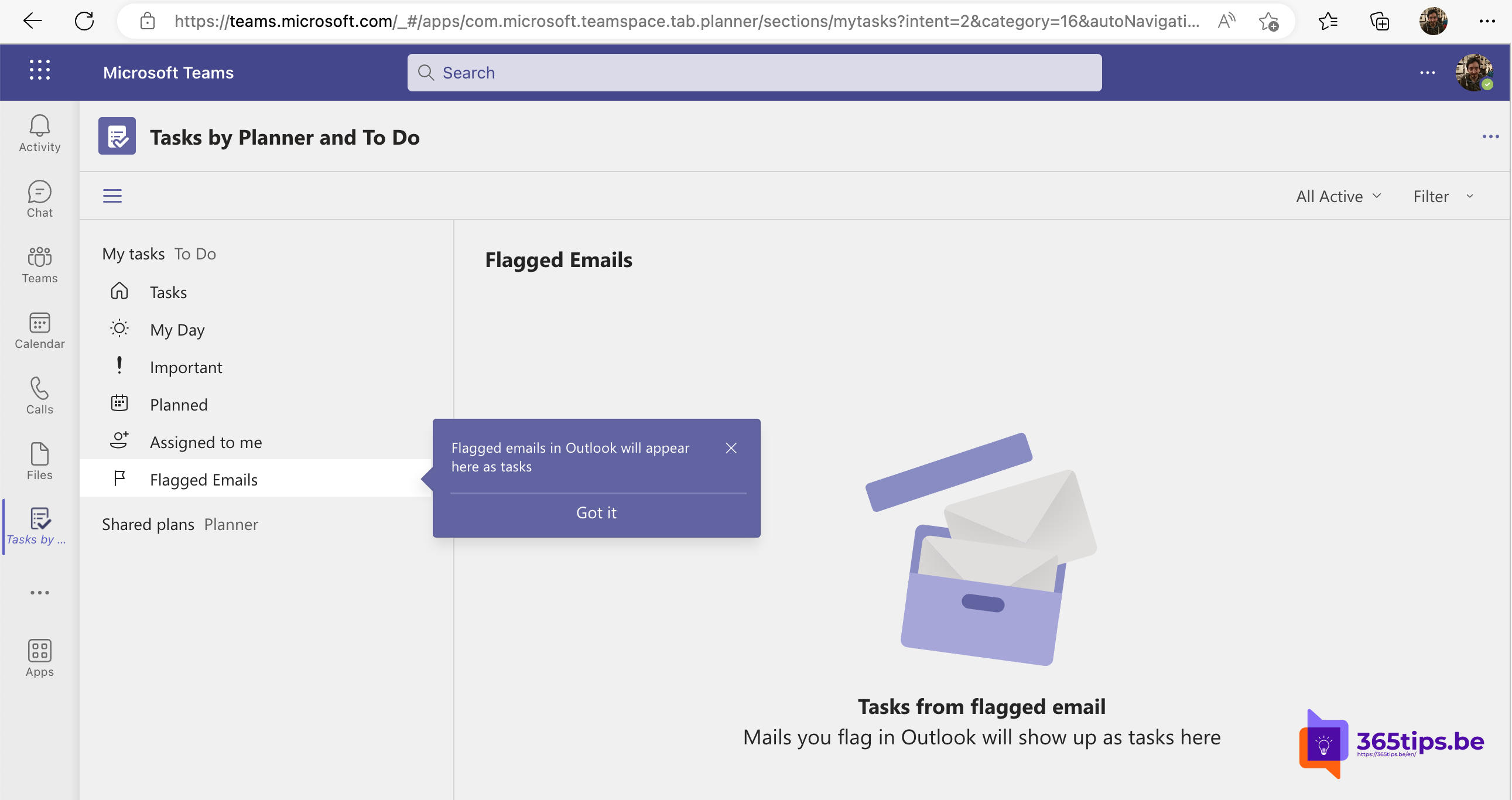
Do you flag emails in Outlook to follow up later? Then you see them in Microsoft Teams too, in the Planner app, among your other tasks. One list with everything you still need to do.
Flag emails
In Outlook, select the flag on an email, or right-click and choose Flag. You can pick a date, such as Today or Next week.
Show flagged emails
- Open the Planner app in Teams.
- Go to My tasks. You'll see the Flagged email list there.
- Don't see it? Open Microsoft To Do (to-do.office.com) and turn on Flagged email under Settings > Connected apps.
How to use it
- Select a flagged email to open it in Outlook.
- Check off the task when you're done: the flag in Outlook disappears too.
- Add the task to My Day to do it today.
Tip
Only flag emails you really need to act on. That keeps your list short and useful. Also see all your tasks in one place and tips for email in Outlook.
Read also
Keep track of all your tasks with Planner in Teams
The most useful tips for email in Microsoft Outlook
Manage tasks with the Planner app in Microsoft Teams
Nederlandstalige versie: Gemarkeerde e-mails zien als taken in Planner in Teams
More in English
▸Create a task from a chat message in Microsoft TeamsTurn a Teams message into a Planner task with a link back to the original message. Plus alternatives like…
▸Share an Outlook email to a Teams chat or channelShare an email with attachments from Outlook straight into a Teams chat or channel with Share to Teams, or…
▸Schedule, delay or undo sending an email in OutlookSchedule an email for later, undo send or delay all messages automatically in the new Outlook, Outlook on the…
▸Get a push notification when your manager emails youGet a push notification on your phone when a specific person emails you, with Power Automate, the Outlook app…