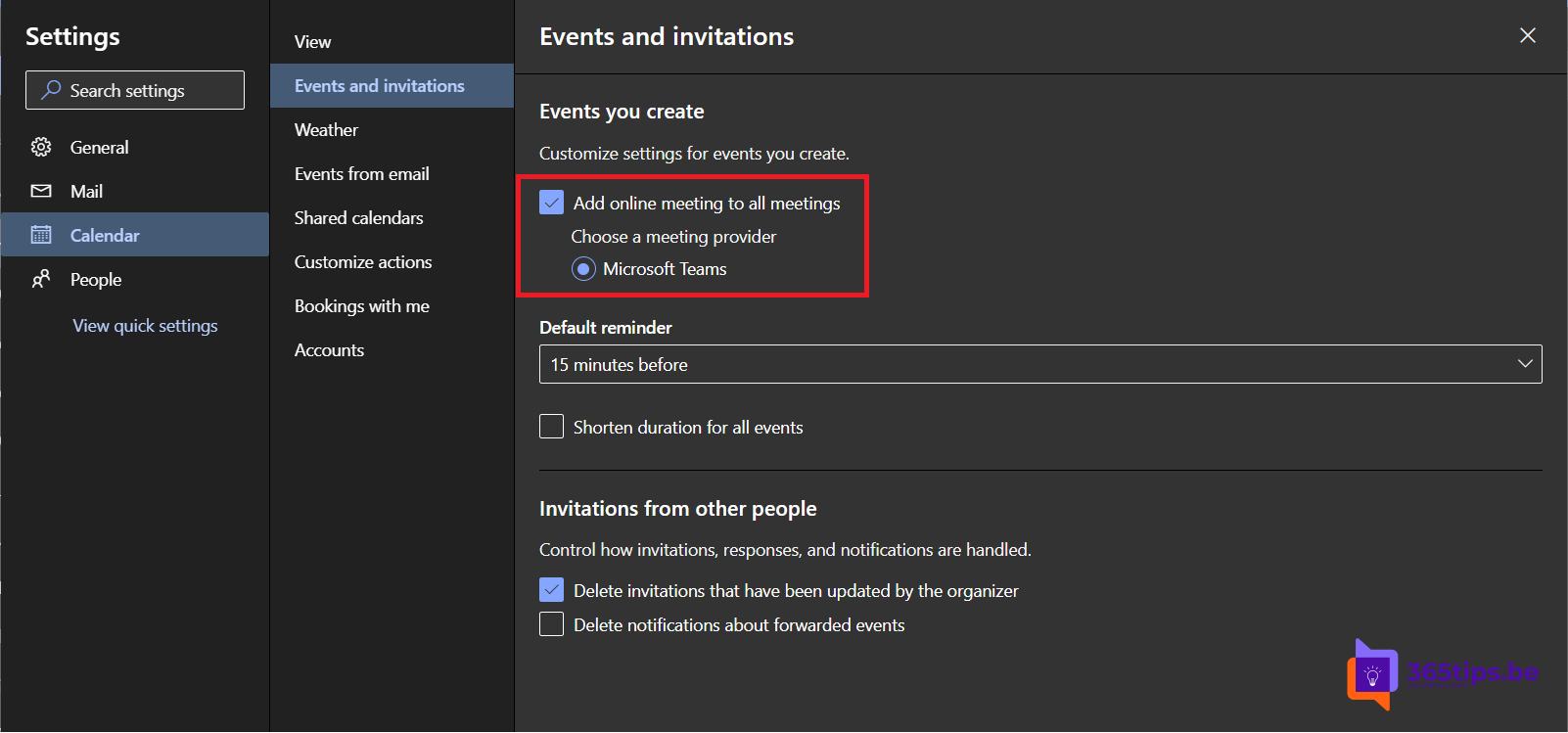
Do you sometimes forget to select Teams meeting when you create an appointment in Outlook? With one setting, every new meeting automatically gets a Teams link. This article shows how it works in the new and classic Outlook.
In the new Outlook and Outlook on the web
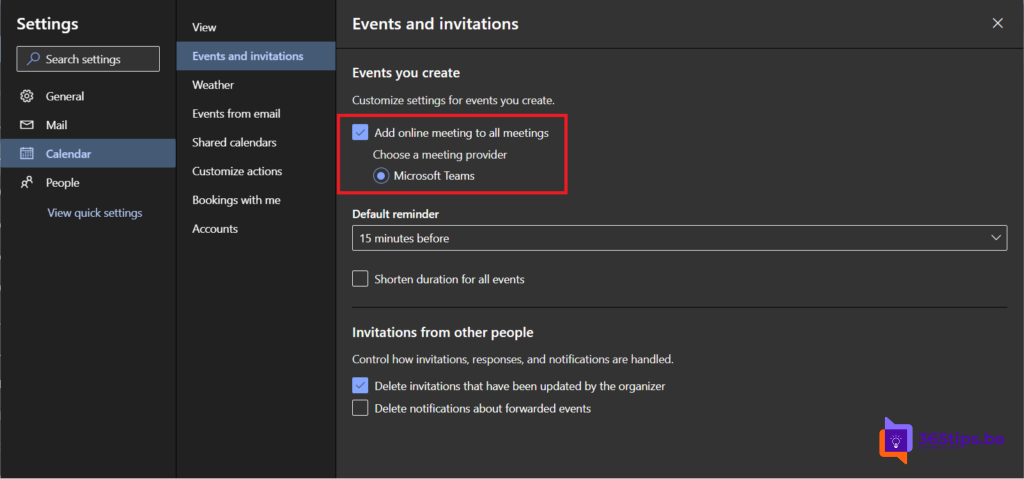
- Go to Settings > Calendar > Events and invitations.
- Check Add online meeting to all meetings.
- Make sure Microsoft Teams is the selected provider and select Save.
In classic Outlook
- Go to File > Options > Calendar.
- Under Calendar options, check Add online meeting to all meetings.
- Select Meeting Providers if you need to choose, and pick Microsoft Teams. Select OK.

Once without Teams?
For an in-person appointment, simply switch off the Teams meeting toggle in that appointment. Appointments without attendees don't get a link.
For admins
In most organizations this option is already on by default. As an admin you can control it with the Exchange Online setting OnlineMeetingsByDefaultEnabled (via Set-OrganizationConfig, or per mailbox with Set-MailboxCalendarConfiguration). Also see schedule a Teams meeting and prevent forwarding of a meeting invite.
Read also
Schedule a Microsoft Teams meeting in your calendar
Prevent a Teams meeting invite from being forwarded
The co-organizer role in a Microsoft Teams meeting
Nederlandstalige versie: Elke Outlook-vergadering automatisch een Teams-link geven