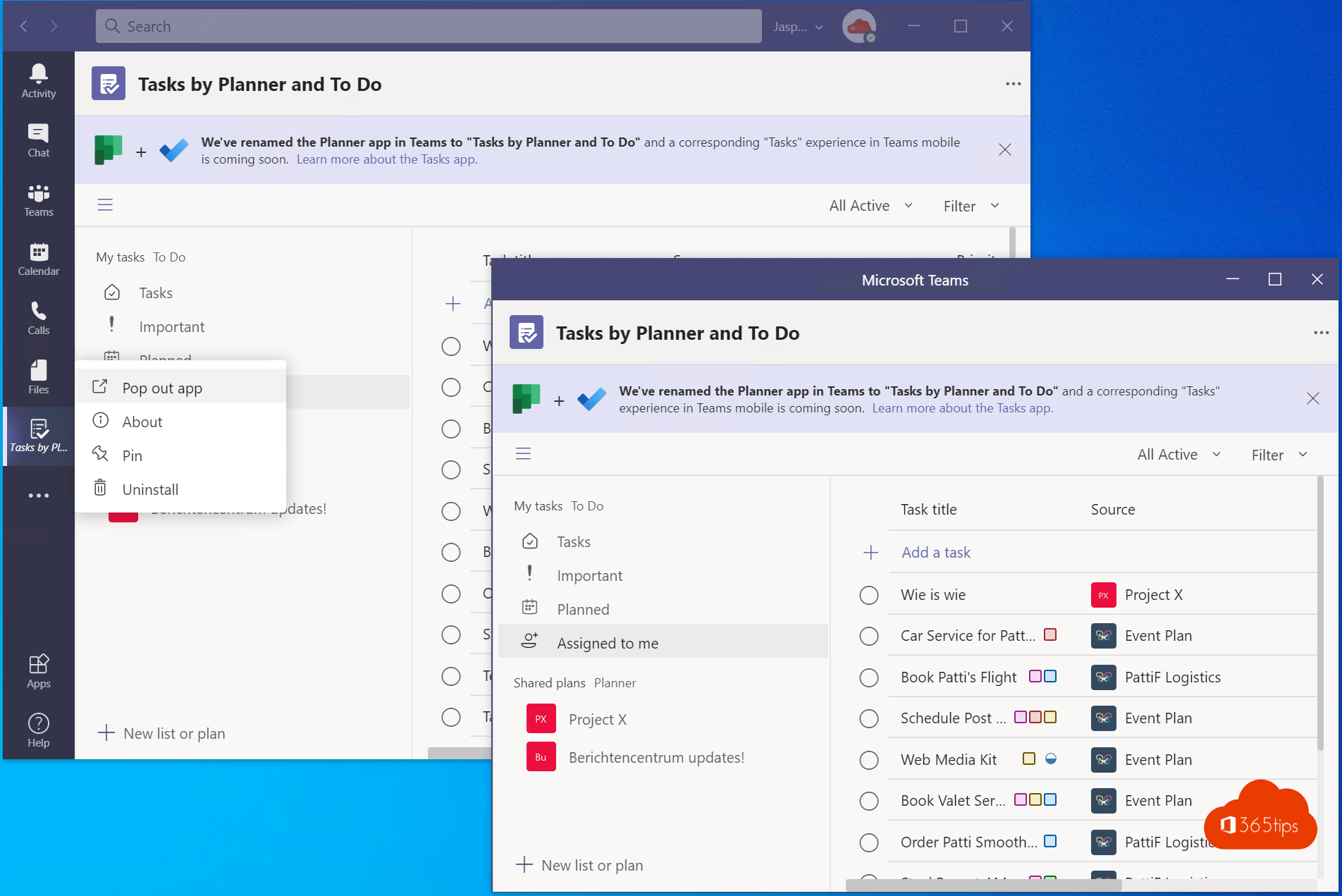
Tired of clicking back and forth between a chat, your calendar and an app? In Microsoft Teams you can open apps, chats and tabs in a separate window. That lets you work with several windows side by side, or put an app on a second screen.
Open an app in a separate window
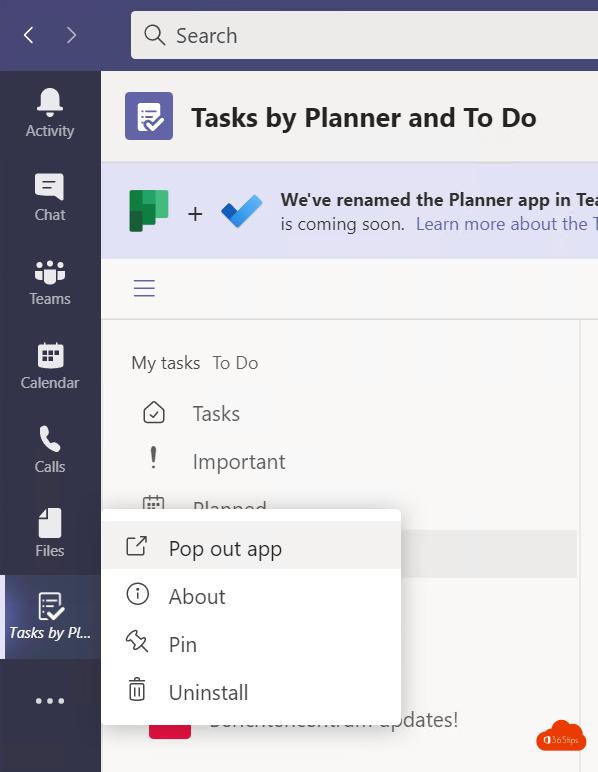
- In the bar on the left, right-click an app, for example Calendar, Planner or Activity.
- Choose Open in new window (or Pop out).
- The app opens in its own window. Drag it wherever you want, or to another screen.
Pop out a chat or tab
- Chat: hover over a chat in the list and click the pop-out icon, or double-click the chat.
- Tab: open a tab in a channel or chat, such as a Word file or a list, and click the pop-out icon at the top right.
- Meeting: a meeting opens in its own window by default, so you can keep working in Teams.

Tips
- Press Windows + left or right arrow to snap two windows neatly side by side.
- Working with two screens? Keep your calendar or a chat on the second screen.
- Too many windows? Just close them; the app stays available in the main window.
Exact menu names can differ slightly between versions. Also see work in multiple windows in Teams and open a chat in a new window.
Read also
Work in multiple windows with Microsoft Teams
Open a chat in a separate window in Teams, even during meetings
How to put windows side by side in Windows 11 with Snap
Nederlandstalige versie: Apps, chats en tabbladen in een apart venster openen in Teams
More in English
▸The most useful Microsoft Teams keyboard shortcuts for Windows and MacThe most useful shortcuts for the new Teams app: navigation, chat, mute, camera, raise hand and screen…
▸The most useful Microsoft Teams features in one listTips for chat, meetings and productive work in Teams, each with a link to a full…
▸Basic guide to Microsoft Teams for beginnersLearn the basics of Microsoft Teams: navigating, chatting, using teams and channels, and meeting in the new…
▸Manage tasks with the Planner app in Microsoft TeamsUse the Planner app in Teams for personal tasks and shared plans, add a plan to a channel and see what…