An e-mail next to a document, Teams next to your browser, or four windows in the corners of a large monitor: with Snap, Windows 11 neatly arranges windows side by side with one click or shortcut. This article covers every method: the layouts on the maximize button, keyboard shortcuts, dragging to the edge, snap groups and the settings to make it work your way.
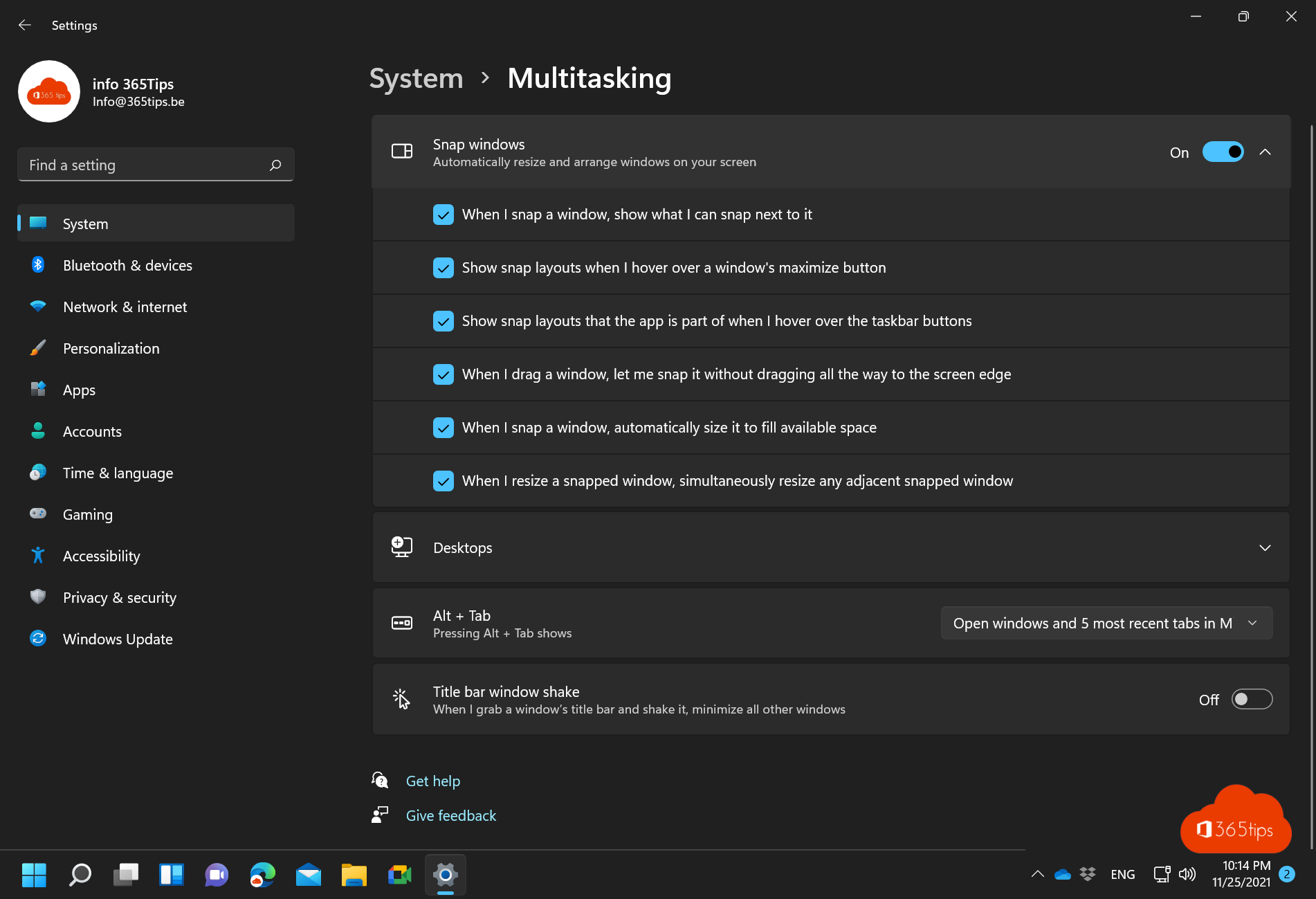
Turn on Snap
Snap is on by default. To check:
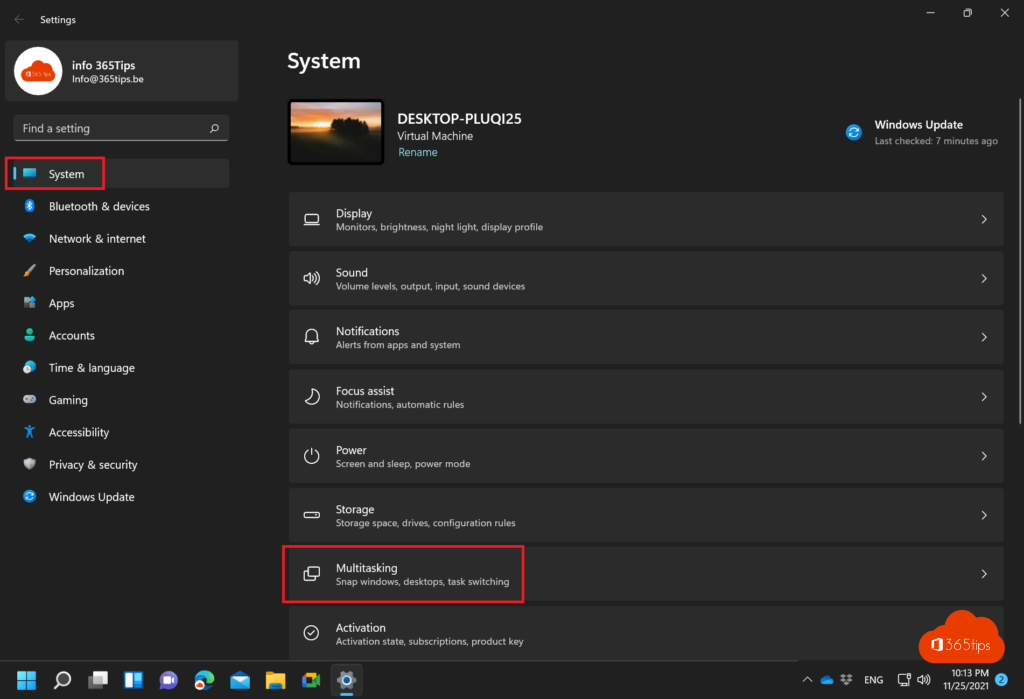
- Open Settings > System > Multitasking.
- Turn on Snap windows.
- Expand the option to turn individual parts on or off, such as the layouts on the maximize button or suggestions for other windows.
Method 1: snap layouts on the maximize button
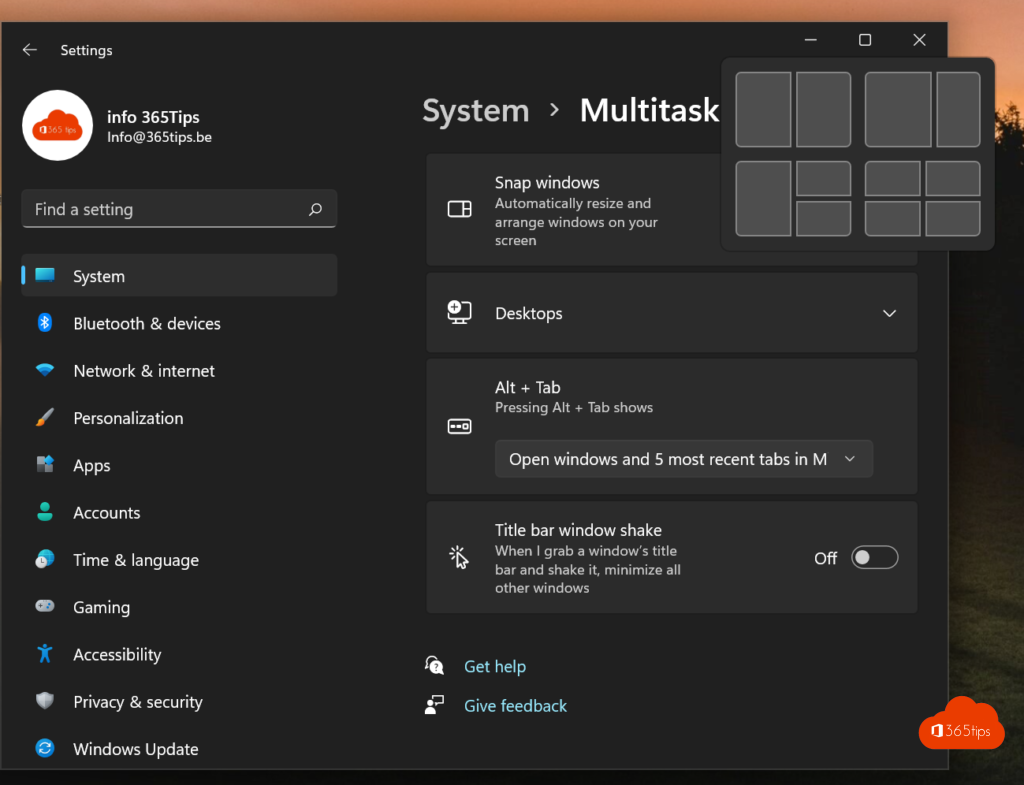
- Hover over the maximize button (the square at the top right of a window), or press Windows + Z.
- You see a few layouts: two side by side, three columns, four quarters.
- Click the zone where this window should go.
- Windows shows your other open windows in the empty zones. Click the one you want next to it.
Which layouts you see depends on your screen size. A wide screen offers more choice.
Method 2: drag to the edge or the top
- Drag a window by its title bar to the left or right edge: it fills half the screen.
- Drag it to a corner: it fills a quarter.
- Drag it to the middle of the top edge: Windows 11 shows the snap bar with the layouts. Drop the window on the zone you want.
Method 3: keyboard shortcuts
| Shortcut | What happens? |
|---|---|
Windows + ← / Windows + → | Window to the left or right half |
Windows + ← then Windows + ↑ | Window to the top-left corner (quarter) |
Windows + ↑ | Maximize |
Windows + ↓ | Restore or minimize |
Windows + Z | Open snap layouts for the active window |
Windows + Shift + ← / → | Move the window to the other monitor |
Windows + Tab | Overview of windows and virtual desktops |
Adjust the split
With two windows side by side, drag the divider between them. Both windows resize together, for example to a two-thirds/one-third split.
Snap groups
Windows you snapped together form a snap group. Hover over one of those apps in the taskbar and you see the group as one unit. Click it and all windows come back together in the same arrangement. Handy when you briefly open something else and want to return to your working layout.
Multiple monitors and virtual desktops
- Snap works per monitor: each screen has its own layouts.
- Under Settings > System > Display > Multiple displays, turn on Remember window locations. Windows then puts your windows back when you reconnect your laptop to the dock.
- Windows + Ctrl + D creates a new virtual desktop, for example one for mail and Teams and one for a project. Switch with
Windows + Ctrl + ←or→.
More control: FancyZones in PowerToys
Want your own zones, for example three columns with a wide middle column on an ultrawide monitor? Install Microsoft PowerToys (winget install Microsoft.PowerToys) and use FancyZones. Hold Shift while dragging to drop a window into a zone.
Snap not working?
- Check that Snap windows is on in Settings.
- Some apps have a fixed minimum width and don't fit every zone.
- The layouts on the maximize button don't appear in apps with their own title bar; use
Windows + Zor the arrow keys instead.
Read also
How to view and use clipboard history in Windows 11 and 10 (Windows + V)
How to turn on dark mode in Windows 11
How to get the full (classic) right-click menu back in Windows 11
Nederlandstalige versie: Vensters naast elkaar zetten in Windows 11 met Snap