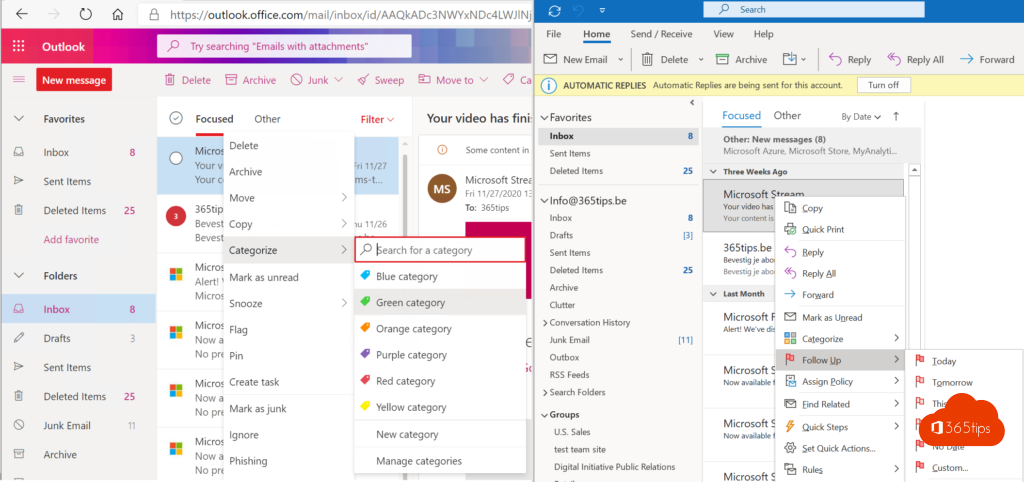
In Outlook you use flags and categories to follow up on email. In Teams that's less obvious: messages scroll away fast. With saved messages you can still build a simple to-do list in Teams. Here's how, and when a real task in Planner works better.
Save a message for later
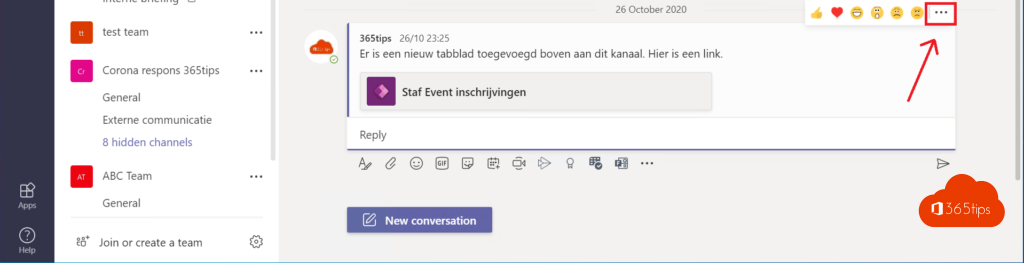
- Hover over the message, in a chat or in a channel.
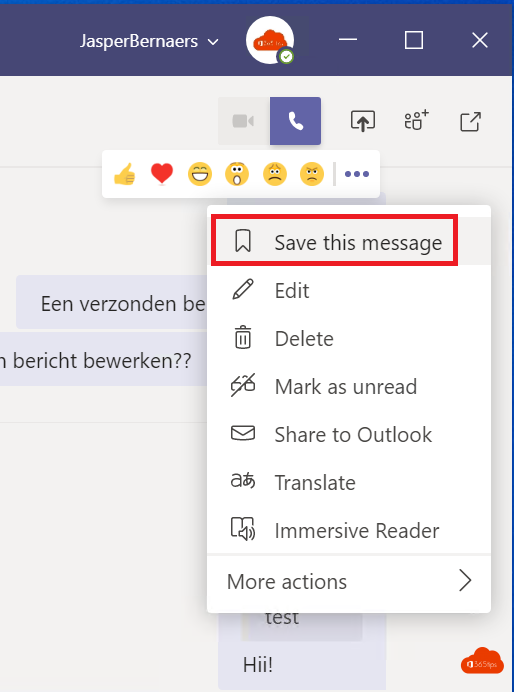
- Click More options (the three dots).
- Choose Save this message.

View your to-do list
- At the top right, click Settings and more (the three dots) or your profile picture. The location can differ slightly by version.
- Choose Saved.
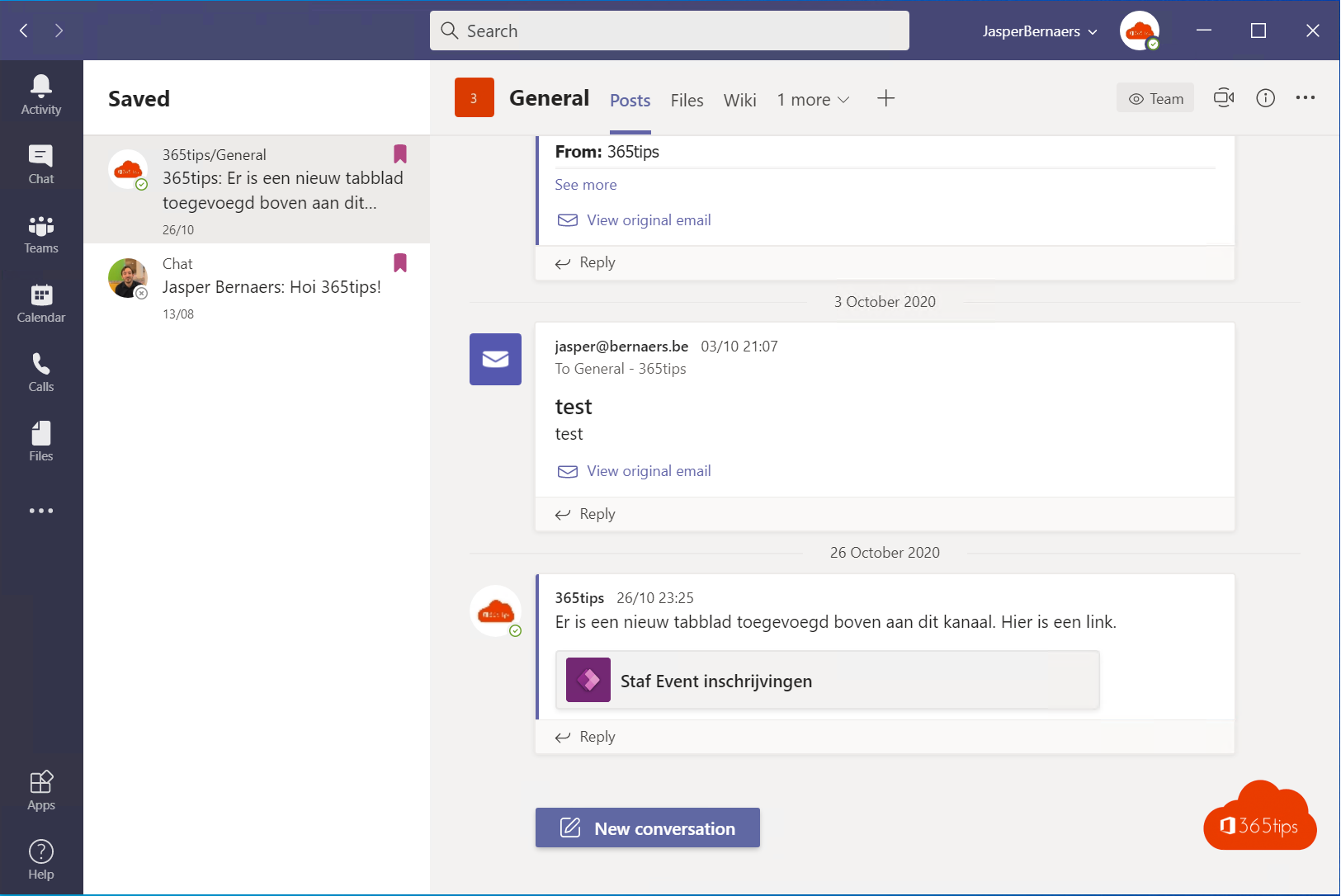
- You see every message you kept. Done? Remove the bookmark and the message drops off the list.


Need more? Turn it into a task
A saved message has no due date or reminder. If you need one, click More options > More actions > Create task on the message. Teams creates a Planner task with a link to the message, which you'll find in Planner under My tasks. See create a task from a Teams message.
| What do you want? | Best choice |
|---|---|
| Find something again quickly | Save the message |
| Reply later | Mark as unread |
| Due date, reminder or assignment | Create a task in Planner |
Also see save messages and find them again in Teams and Planner My tasks in Teams.
Nederlandstalige versie: Een bericht opslaan voor later in Microsoft Teams
Related articles
▸Save messages in Microsoft Teams and find them again fastSave important chat and channel messages in Teams with one click and find them quickly in your saved messages…
▸Create a task from a chat message in Microsoft TeamsTurn a Teams message into a Planner task with a link back to the original message. Plus alternatives like…
▸Mark a message as unread in Microsoft TeamsMark a Teams chat or channel message as unread to follow up later, and view all unread messages with the…
▸Keep track of all your tasks with Planner in TeamsSee all your tasks from Planner, To Do, Loop and flagged emails in one place with the Planner app in Teams.
▸See flagged emails as tasks in Planner in TeamsFlag emails in Outlook and see them as tasks in the Planner app in Teams, alongside your other tasks.