Someone asks you to do something in a chat or channel, and two days later you've forgotten. In Microsoft Teams you can turn a message into a task in Planner in a few clicks. The task includes a link to the original message, so you can always find the context. This article shows how it works and which alternatives exist.
Create a task from a message
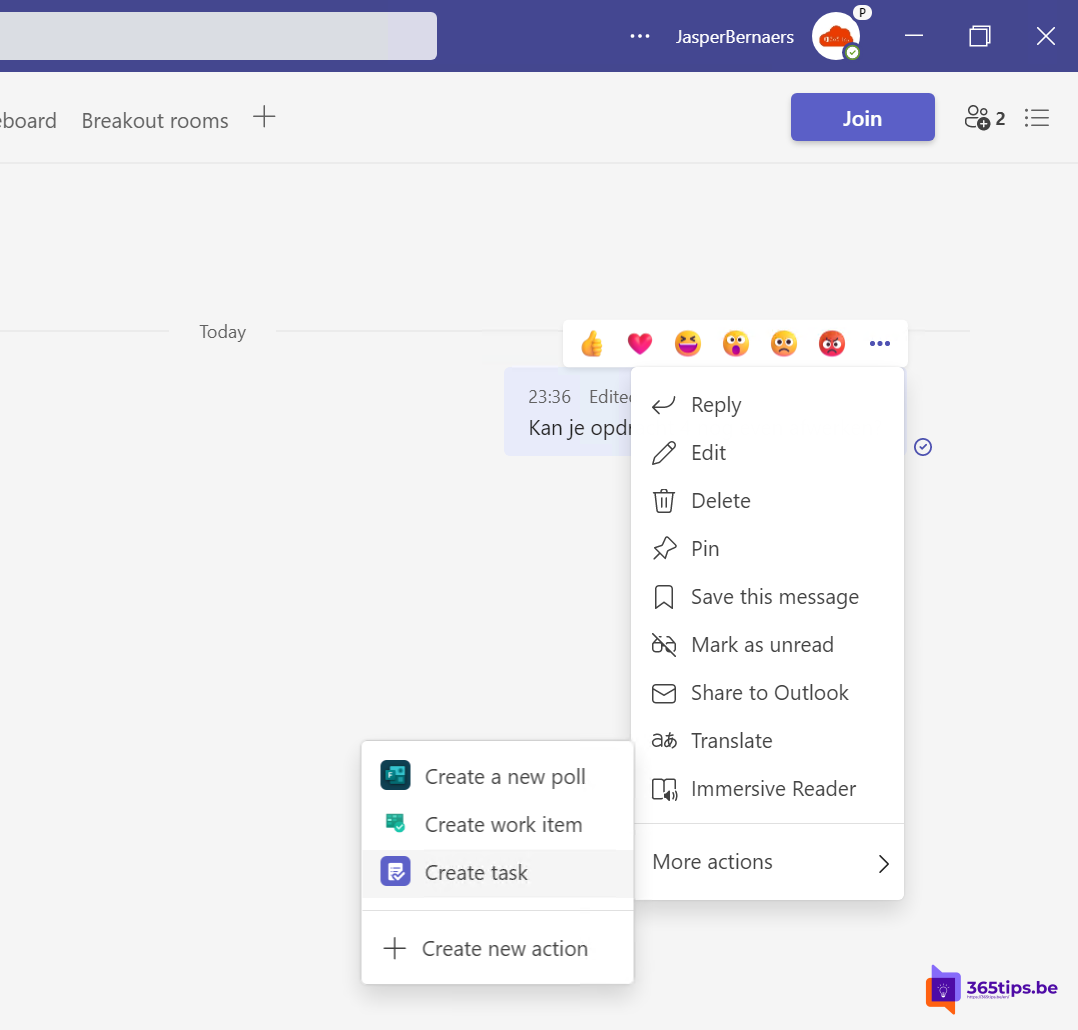
- Hover over the message and select More options (...).
- Choose More actions > Create task. If you don't see it, look for the Planner action in the list.
- Adjust the title and pick a plan or My tasks, a bucket, a due date and optionally an assignee.
- Select Save.


Where do you find the task?
Open the Planner app in the Teams left rail. Under My tasks you see every task assigned to you, including flagged emails and Microsoft To Do tasks. Tasks in a shared plan are visible to your teammates as well.

Other ways not to forget
| Option | Best for |
|---|---|
| Create task | Work with a deadline or for someone else |
| Save a message (More options > Save this message) | Something you want to read again later |
| Mark as unread | Coming back to it later today |
| Loop task list in a chat | Small to-dos you tick off together |
| Chat with yourself | Notes and links for yourself |
Tips
- Use a fixed bucket like From Teams and review those tasks weekly.
- Sharing tasks in a team? Make sure others can't delete your tasks.
- Copilot in Teams can also pull the action items out of a long chat for you.
- Prefer a visual board? See board view in Microsoft Lists.
Read also
Prevent others from deleting your tasks in Microsoft Planner
How to chat with yourself in Microsoft Teams
Create a kanban board with board view in Microsoft Lists
Nederlandstalige versie: Een taak maken van een chatbericht in Microsoft Teams