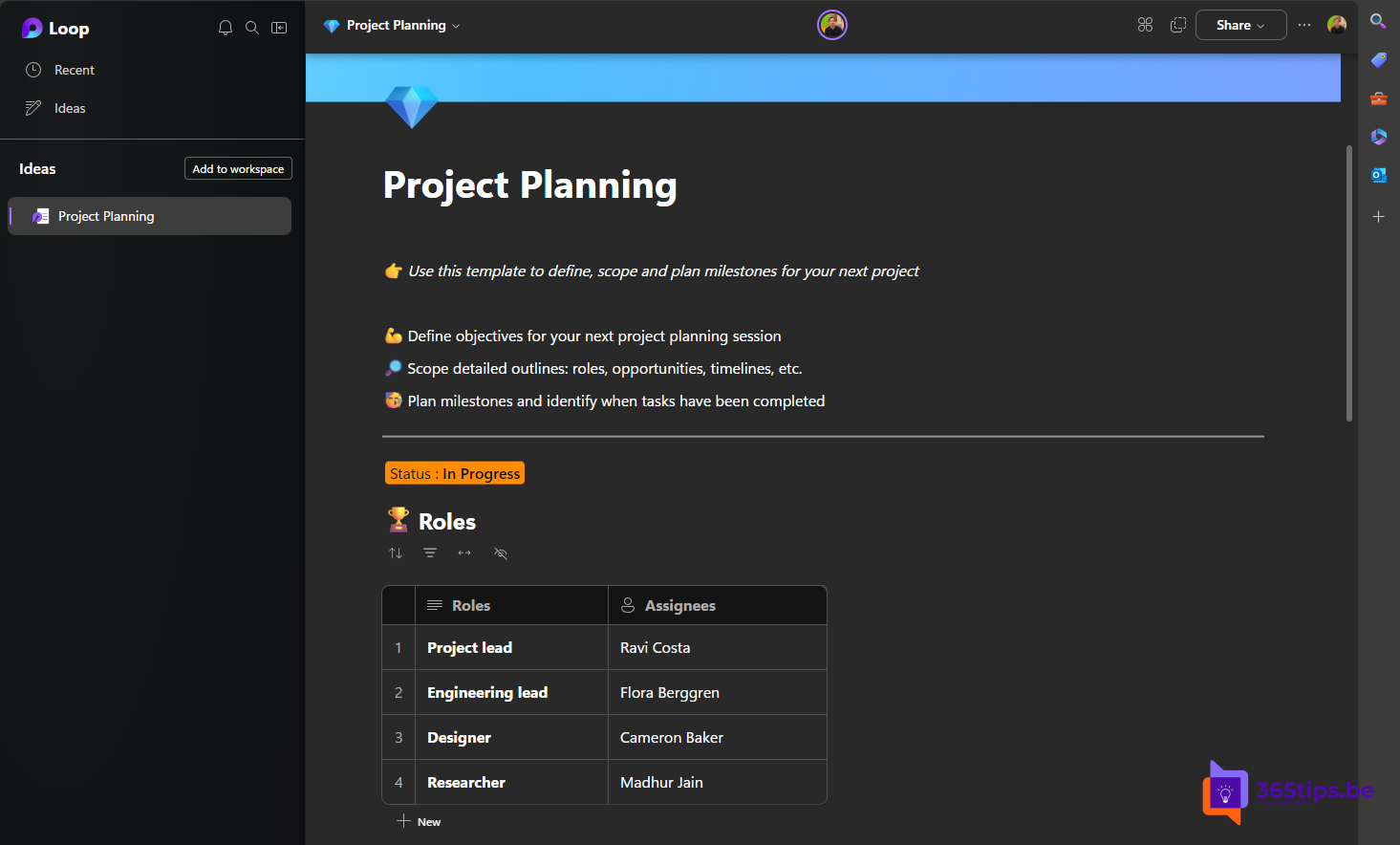
A task list, table or agenda that everyone in a chat can edit at the same time? Those are Loop components. You insert them in a Teams chat, channel post or meeting, and every change is instantly visible to everyone, in Outlook and the Loop app too. This article shows how to use them.
Insert a Loop component
- In the compose box of a chat or channel, select + (or the Loop icon) > Loop component.
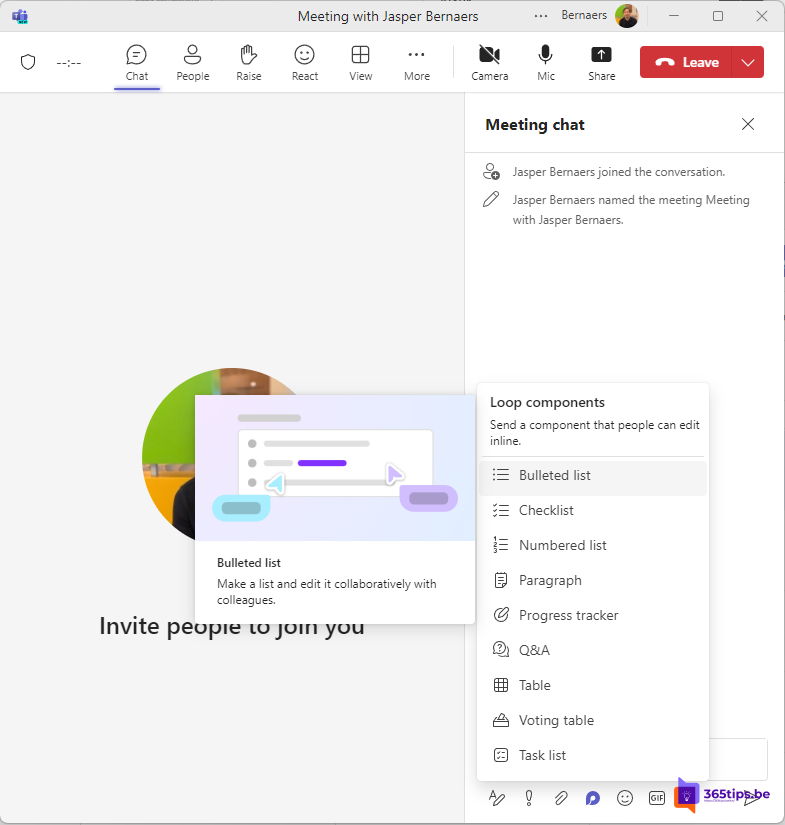
- Choose a type, such as Task list, Table, Checklist, Bulleted list or Paragraph.
- Give it a title, fill in the first content and select Send.
Everyone in the chat can now write along straight away. You see other people's cursors move live.
Which components are useful?
- Task list: tasks with an owner and a date. They also appear in Planner and To Do.
- Table: quickly collect data, such as who brings what.
- Voting table: choose between options together.
- Q&A: collect questions ahead of a meeting.
In a meeting
Open the meeting in your calendar or during the meeting and choose Notes. Teams creates shared meeting notes as a Loop component with an agenda, notes and follow-up tasks. Everyone can add to them before, during and after the meeting.
Share and find them
- Copy a component via the three dots > Copy link and paste it into another chat or an Outlook email. It stays the same, live content.
- Open the component in the Loop app (loop.cloud.microsoft) for more room.
- Loop components are stored in their creator's OneDrive. Sharing with external people is possible too.
For admins
Turn Loop components on or off through Cloud Policy in the Microsoft 365 Apps admin center or the SharePoint settings.
Related: create a task from a chat message and Microsoft Whiteboard in Teams.
Read also
Create a task from a chat message in Microsoft Teams
Use Microsoft Whiteboard in Teams channels and meetings
Schedule a Microsoft Teams meeting in your calendar
Nederlandstalige versie: Loop-componenten gebruiken in Teams-chats, kanalen en vergaderingen