Working on your laptop through your phone's hotspot or a mobile plan, you don't want Windows quietly downloading gigabytes of updates. With a metered connection and a data limit you keep your mobile data use in Windows 11 under control. This article shows how.
Turn on metered connection
- Open Settings > Network & internet > Wi-Fi.
- Open the network's properties, for example your phone's hotspot.
- Turn on Metered connection.
Windows remembers this per network. Nothing changes on your normal Wi-Fi at home.

What happens then?
- Windows Update only downloads urgent updates. Under Windows Update > Advanced options you can choose to allow updates over metered connections anyway.
- OneDrive pauses syncing automatically (configurable in OneDrive settings).
- Microsoft Store apps don't update automatically.
- Some apps use less data in the background.
Set a data limit
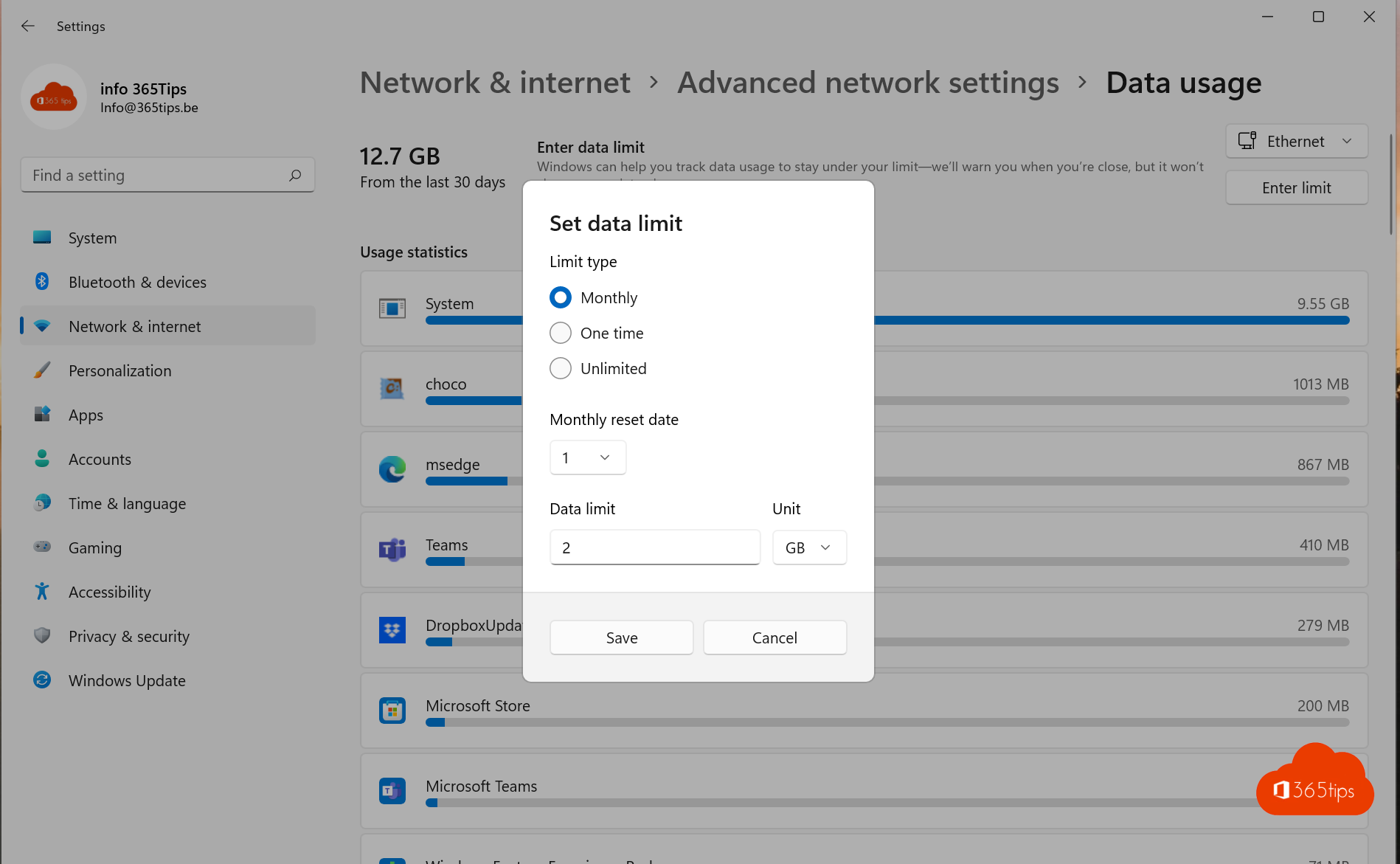
- Go to Settings > Network & internet > Advanced network settings > Data usage.
- Choose the network and select Enter limit.
- Choose Monthly, One time or Unlimited, the start date and the number of GB.
Windows warns you as you approach the limit and then sets the connection to metered automatically.

Which apps use the most?
The same page shows how much data each app used in the last 30 days, so you can find the biggest consumers.
Tips
- Also turn on Low Data Mode for your iPhone hotspot.
- Prefer to postpone updates? Read pause updates.
- Teams meetings with video use a lot of data. Turn off your camera when your connection is limited. See also speed up a slow PC.
Read also
How to pause or delay Windows 11 updates and prevent restarts
Speed up a slow Windows 11 computer: 10 tips
Automatically back up your desktop, documents and pictures with OneDrive
Nederlandstalige versie: Je mobiele dataverbruik beperken in Windows 11