Word freezes, your laptop dies or you accidentally click Don't Save: hours of work seem gone. Luckily Office often keeps a copy. This article shows how to recover an unsaved Word or Excel file, restore an earlier version and prevent it from happening again.
1. The Document Recovery pane
If Word or Excel crashes, reopen the app. The Document Recovery pane often appears on the left with the last saved version. Select it and save the file straight away under a new name.

2. Recover unsaved documents
- Open Word (or Excel) and go to File > Info.
- Select Manage Document (in Excel: Manage Workbook) > Recover Unsaved Documents.
- Choose the file and select Open. Then select Save As at the top.
These files live in %LocalAppData%\Microsoft\Office\UnsavedFiles and are kept for about four days.

3. Restore an earlier version
Is your file in OneDrive, SharePoint or Teams? Select the file name at the top > Version history. You see every saved version and can open or restore any of them.

Prevention is better
- AutoSave: save your files in OneDrive or SharePoint. The AutoSave toggle appears at the top and every change is saved instantly.
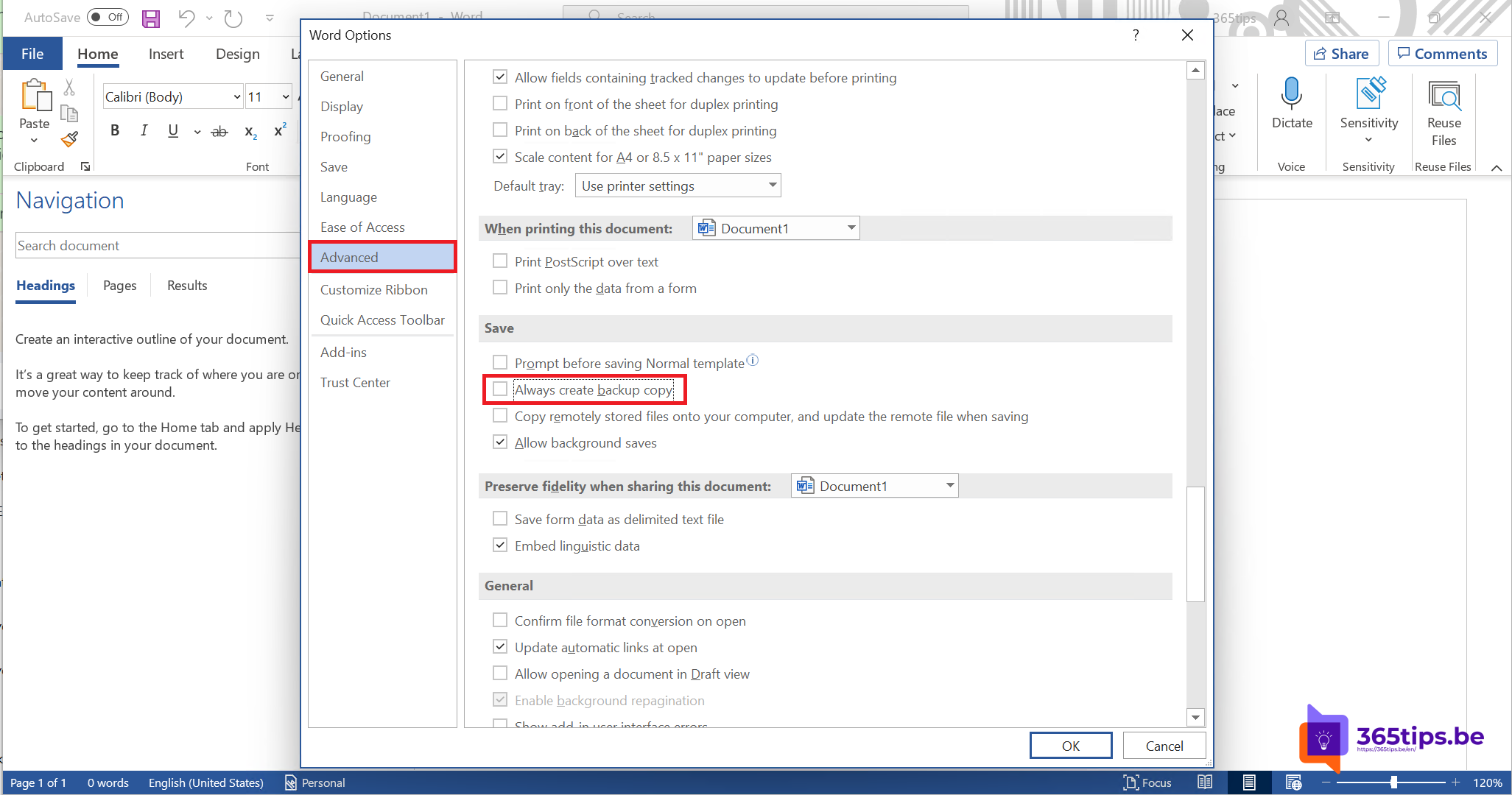
- AutoRecover more often: go to File > Options > Save and set Save AutoRecover information every to 5 minutes or less. Also tick Keep the last AutoRecovered version if I close without saving.
- Make Ctrl + S a habit.
File deleted?
Check the Windows or OneDrive Recycle Bin. Read how to restore deleted files in Teams or SharePoint.
Read also
How to restore deleted files in Microsoft Teams and SharePoint
How to password protect an Excel file or remove the password
Open Word, Excel and PowerPoint from Teams in the desktop app or browser
Nederlandstalige versie: Een niet-opgeslagen Word- of Excel-bestand herstellen