Your files are still on an old network drive or personal folder on the server, and you want them in OneDrive. For one person, dragging or PC folder backup does the job. For a whole organization, IT uses a migration tool. Here are both.
For one user
- Make sure OneDrive is syncing on your computer.
- Turn on PC folder backup for desktop, documents and pictures.
- Copy other folders, such as those on a network drive, to your OneDrive folder in File Explorer.
- Wait until everything shows a green check or cloud.
For an organization
- Open the SharePoint admin center > Migration and choose the source: File shares (Migration Manager).
- Install the agent on a server with access to the network drives.
- Create a CSV or add tasks: per user, the source folder and their OneDrive as destination.
- Run a scan first to find problems such as long paths or invalid characters.
- Start the migration and follow the reports.
- Run a final incremental sync just before the switch.
- Then set the old drive to read-only.
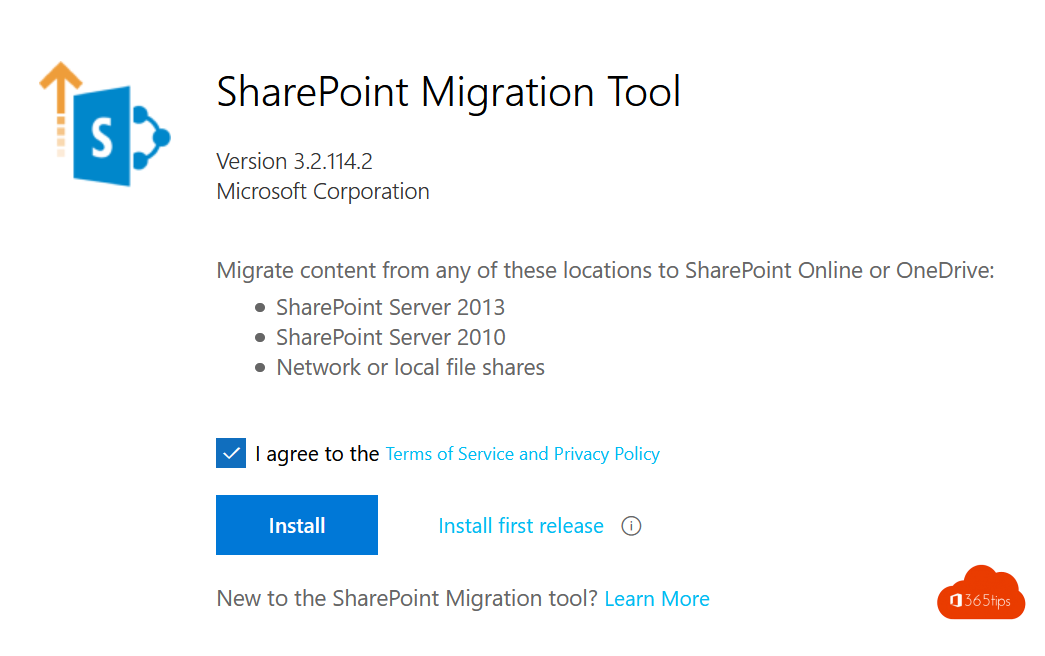
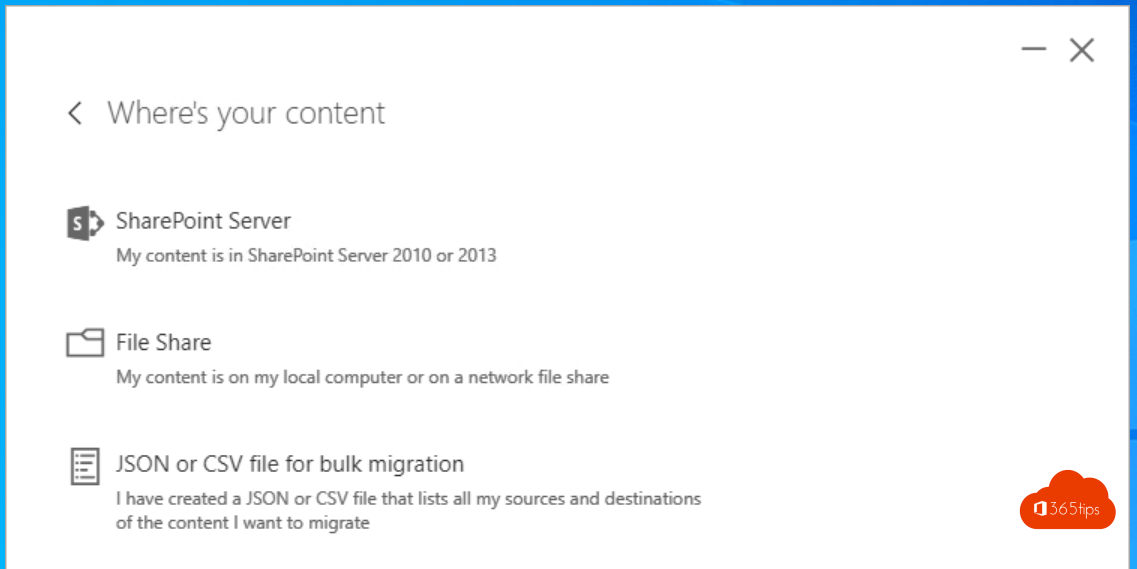
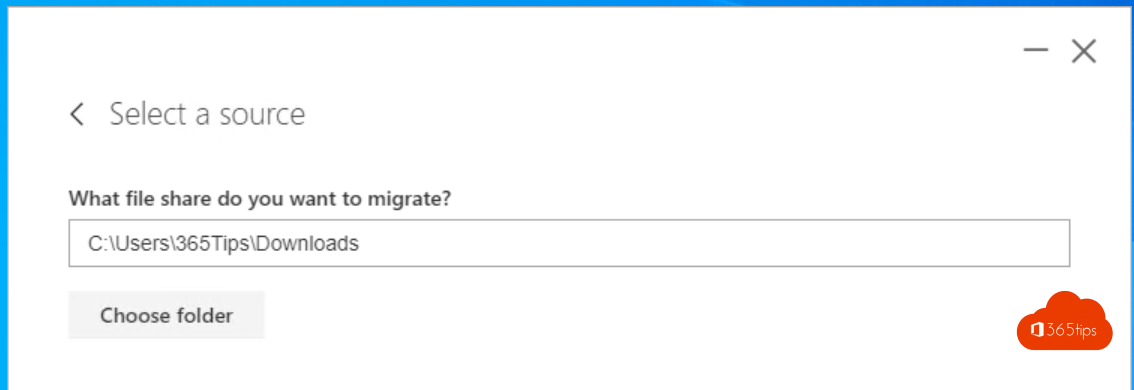
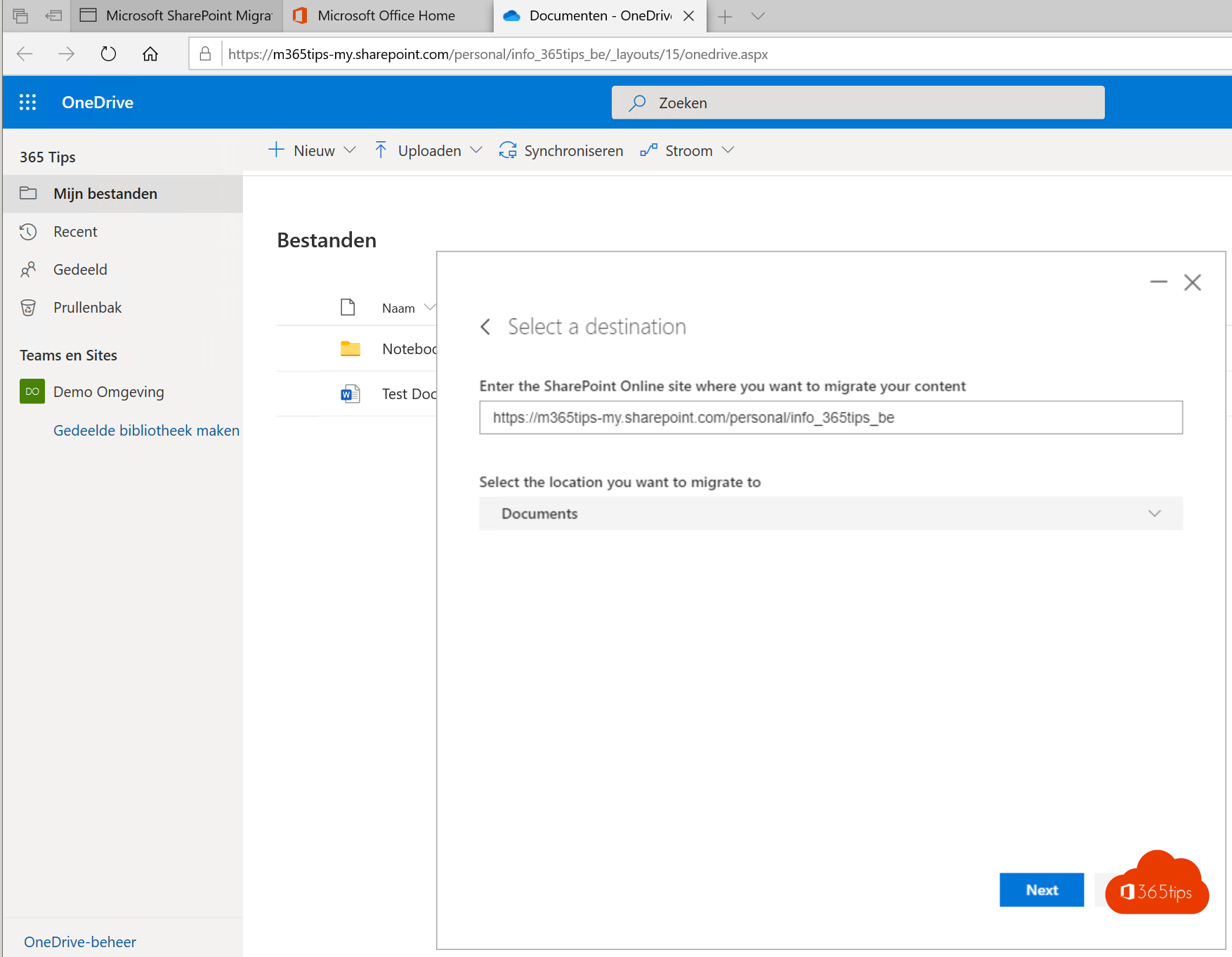
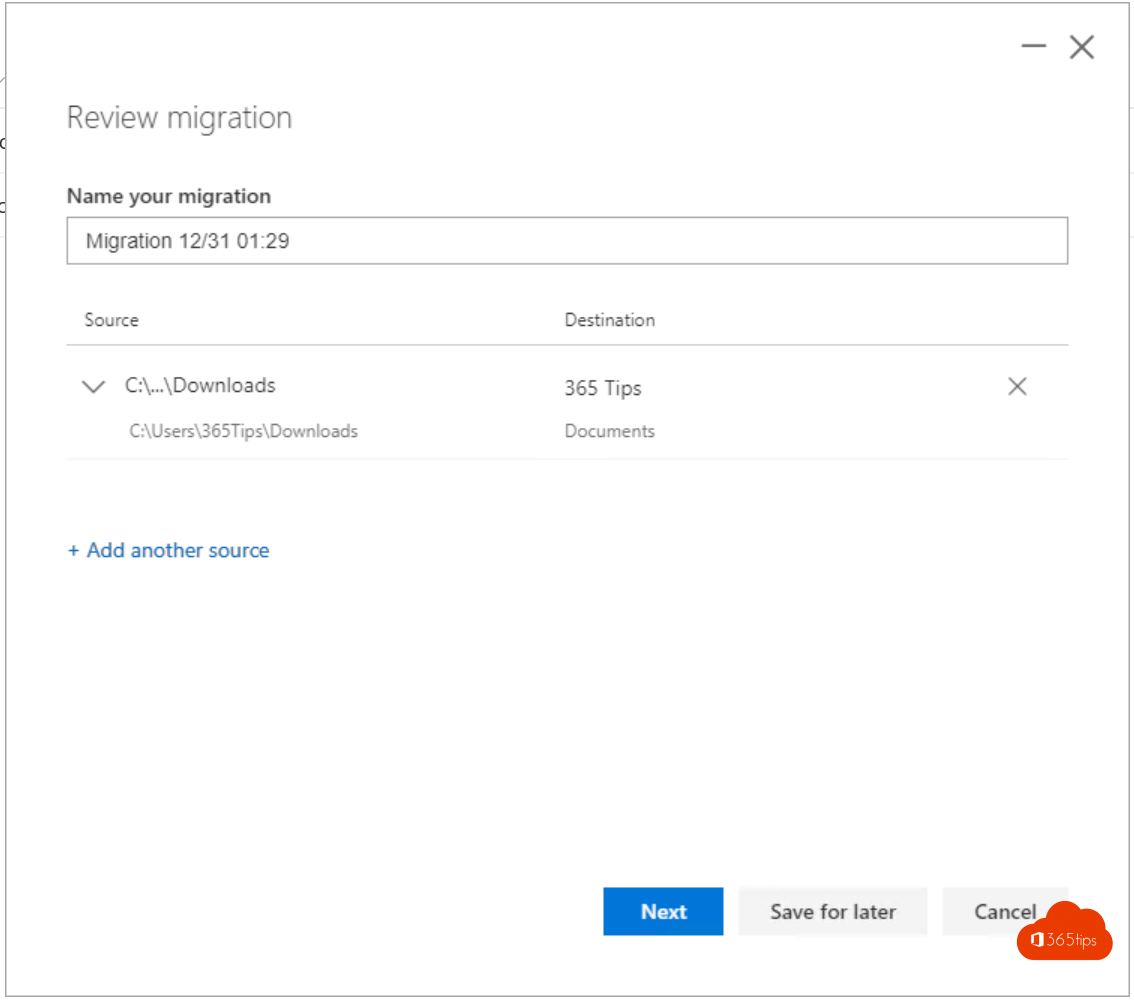
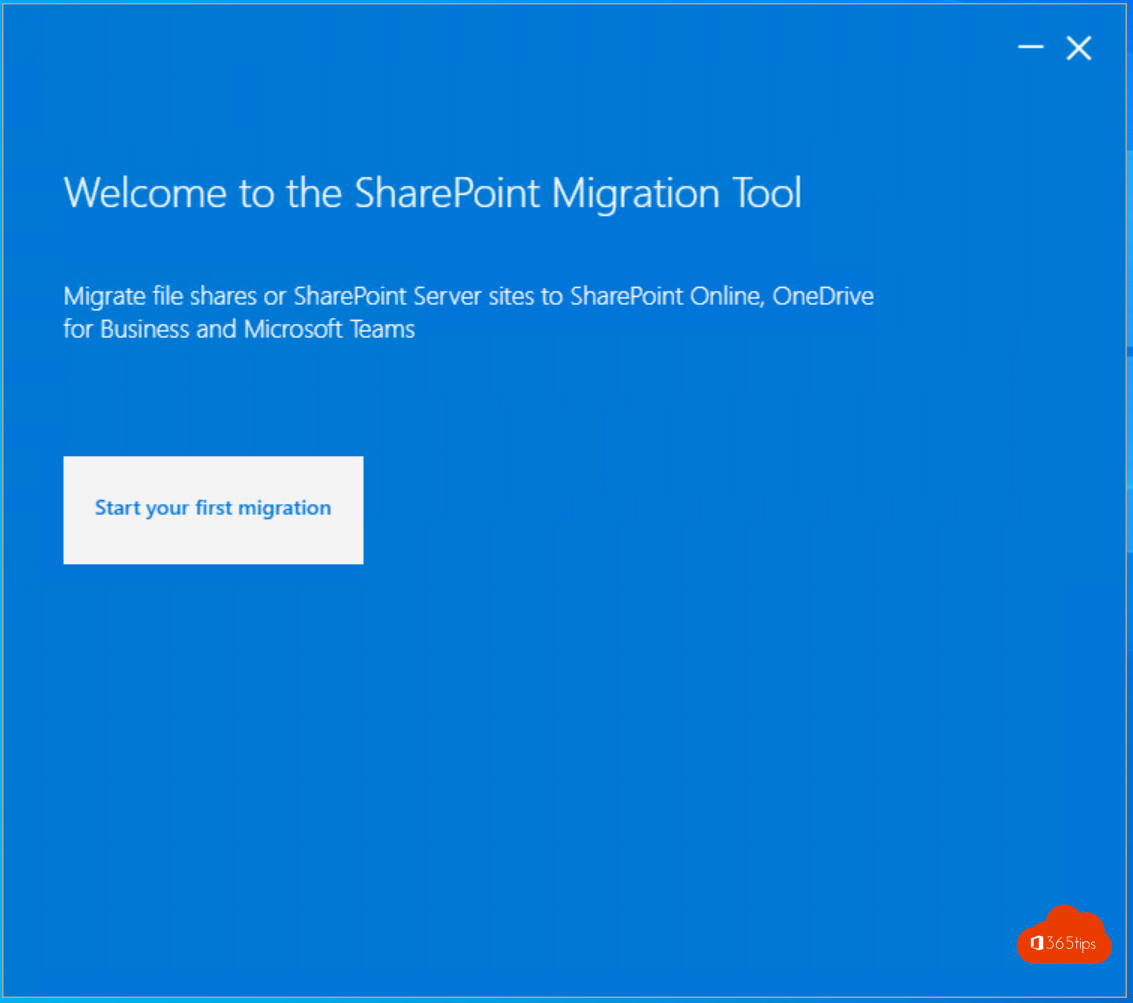
The older SharePoint Migration Tool (SPMT) works the same way from a single computer and is handy for smaller migrations.
Tip
Clean up before you migrate. Old, duplicate or personal files don't belong in OneDrive. Shared department folders belong in Teams or SharePoint, not in one person's OneDrive. Also see get started with OneDrive and OneDrive governance.
Read also
Automatically back up your desktop, documents and pictures with OneDrive
Quick start: sign in and get started with OneDrive for work or school
Set up good governance for OneDrive for work
Nederlandstalige versie: Persoonlijke bestanden en netwerkschijven naar OneDrive migreren